Chapter 7 - Dynamic Data Connections
A form template remembers the site it was designed on. Every SharePoint list query, library query, submit connection, and the user profile service call carries that site's URL. Move the template to another site, or promote it from a development site to production, and those connections still point at the original site. The Dynamic Data Connections XTP fixes this at run time: when the form opens it finds out which site it is running on and re-points the connections there.
This chapter explains how the XTP works, how to add and configure it, and, most importantly, how to arrange the form's start-up rules around it. Getting the order wrong is the most common cause of "works on Dev, breaks on Prod".
7.1 What the XTP does
The XTP adds a secondary data source, XtpLogic_DynamicDCs, plus a set of qRules-driven rules. When triggered it:
- Reads the current site URL from the
SPHostUrlparameter of the page (GetInputParameter /key=SPHostUrl) and clears its own working rows from the previous run (theDeletecommands you see in the log). - Runs
ChangeConnectionUrlfor each query connection you enabled (library queries, list queries, GetUserProfileByName) so they point at the current site. - Runs
ChangeSubmitUrlfor each submit connection you enabled, using the library name you configured, so submits land in the current site's library.
You can watch this happen in the runtime debug table at the bottom of the sample form: GetInputParameter /key=SPHostUrl returns the site, then the ChangeConnectionUrl lines follow.
Supported connection types (from the XTP's instructions): Submit to Library, SharePoint List mappings via the qRules SubmitToSharePointList command, Library query, List query, GetUserProfileByName via UserProfileService.
7.2 Start-up order: why the rules are arranged the way they are
Three facts drive the whole design.
finishedLoading is the first trigger. When a form opens, FormsViewer runs the connections set to Query during form load, then sets the finishedLoading attribute on the QdabraRules data source as soon as qRules is ready and runs the rules on it to the end, and only then runs the form's Form Load Rules. Rules on finishedLoading can use every qRules command, including ChangeConnectionUrl, and they run before anything else you write. That is why the Dynamic DC trigger rule lives on QdabraRules > finishedLoading.
A connection that queries during form load runs before anything can re-point it. If a data connection has Query during form load switched on, FormsViewer executes it while the form is opening, before finishedLoading fires and before ChangeConnectionUrl has done its work. The query goes to the design-time site: on another site it either fails or, worse, silently returns that other site's data, and it is never re-run after the URL is fixed. So every connection the XTP re-points must have Query during form load switched off, and you query it yourself, explicitly, after the Dynamic DC rule has run.
Rules run in list order. Within the finishedLoading rule list, the Dynamic DC rule must run before any rule that queries a connection, reads query results, or decides anything based on them. Rules that used to live in the form's On Load Rules typically do exactly those things (query a list, load the user profile, switch to a view based on data). If they sit above the Dynamic DC rule they run against the wrong URLs. Left in Form Load Rules they do run after it, but the start-up order is then split across two places. Move them into the finishedLoading list, after the Dynamic DC rule, so the whole sequence is in one list you can read and reorder.
The resulting start-up sequence:
Form opens
  Connections with "Query during form load" run   (before any rule - switch it off on re-pointed connections)
  qRules initialises
  QdabraRules/@finishedLoading is set; its rules run to the end
    1. Load resources        (CSS, scripts - safe before Dynamic DCs)
    2. Run Dynamic DCs       (RunOnLoad = "go" -> ChangeConnectionUrl / ChangeSubmitUrl)
    3. Query for data ...    (the connections you switched off "Query during form load" for)
    4. Former on-load logic  (user profile, defaults, view switching, ...)
  Form Load Rules            (run after the finishedLoading list)
  The view is shown
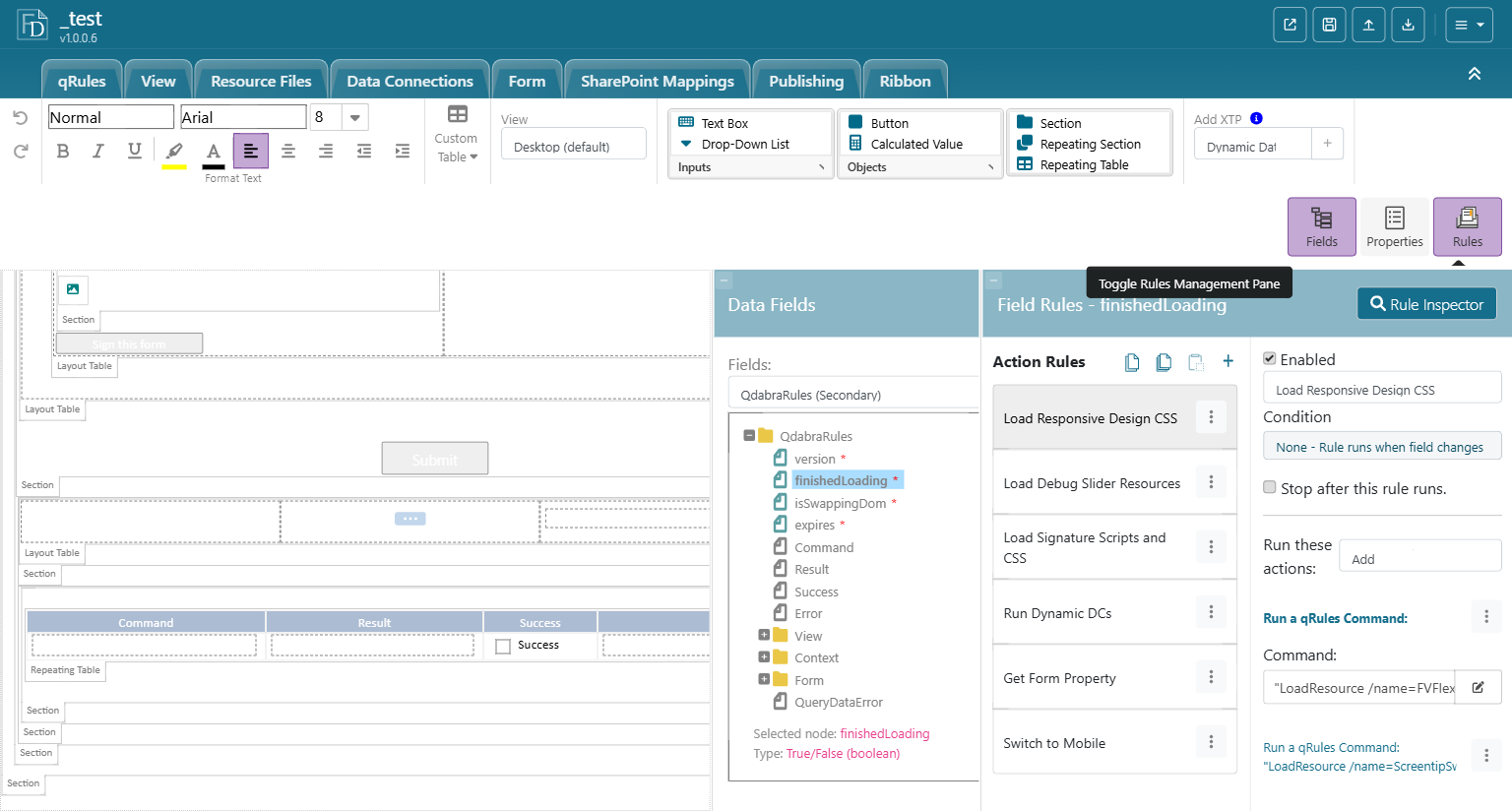
The Qdabra starter template ships with exactly this order on finishedLoading: Load Responsive Design CSS, Load Debug Slider Resources, Load Signature Scripts and CSS, Run Dynamic DCs, Get Form Property, Switch to Mobile. The resource loaders come first because they touch no data; everything data-related comes after Run Dynamic DCs. The training labs say "move the Run Dynamic DCs rule to the top"; both are correct, because the rule that matters is the same: nothing that queries, submits, or reads a connection may run before it. If in doubt, put it first.
7.3 Adding the XTP
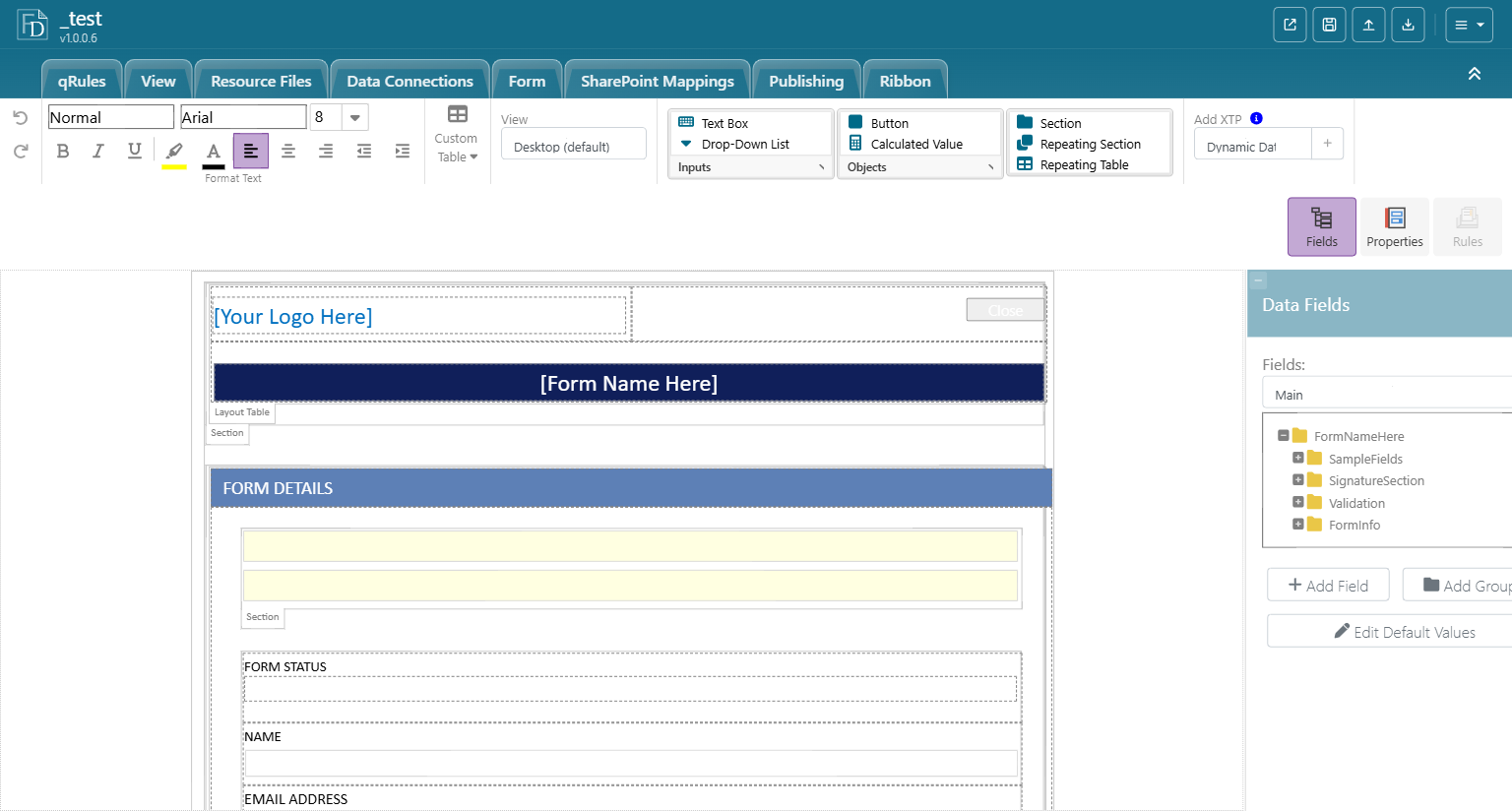
- In the designer toolbar, open Add XTP, choose Dynamic Data Connections, and click +.
- XtpLogic_DynamicDCs appears in the Data Fields data source dropdown.
- Click the blue i next to Add XTP to open the XTP's instruction page. It lists the connection types supported and the configuration steps that follow.
If the template already has qRules (the qRules ribbon tab says "This form already has qRules!"), skip the instruction page's step 1.
7.4 Configuring the qRules logic
Step 1 - the trigger rule on finishedLoading
- In the Data Fields pane switch to QdabraRules (Secondary), select finishedLoading, and open the Rules button.
- Click + and name the rule, for example Run Dynamic DCs.
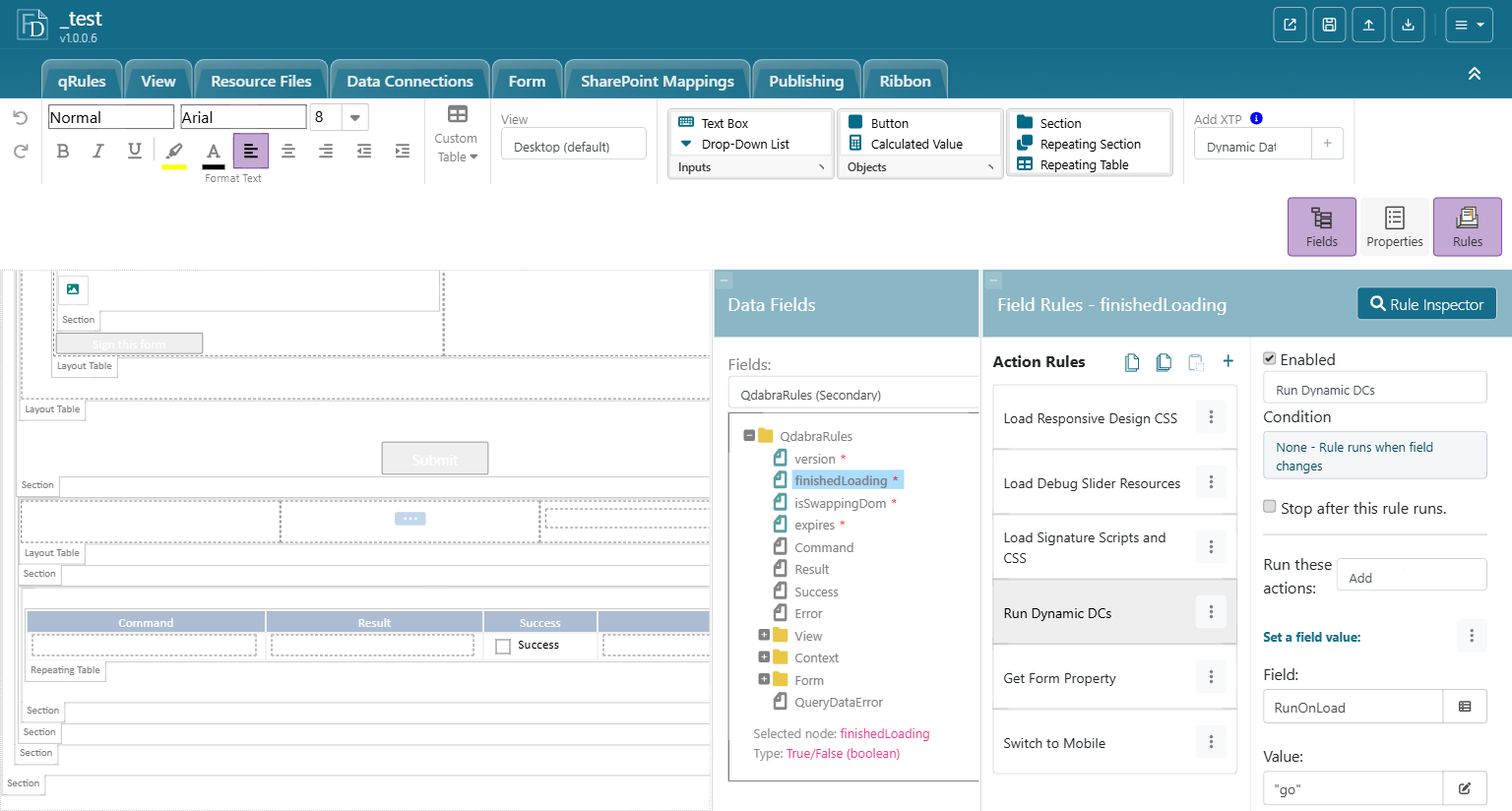
- Add the action Set a field value. Field: RunOnLoad in the XtpLogic_DynamicDCs data source. Value:
"go". - Position the rule so that it runs before any rule that queries data. Resource-loading rules may stay above it; everything else goes below it (see 7.2).
Step 2 - point the XTP's temp fields at qRules
In XtpLogic_DynamicDCs > XtpLogic > qRulesTemp > tempCommand, open Rules and edit the rule Set qRules [edit]. Its four actions must point at the QdabraRules fields:
| Action | Field | Value |
|---|---|---|
| 1 | QdabraRules > Command | tempCommand |
| 2 | tempResult | QdabraRules > Result |
| 3 | tempSuccess | QdabraRules > Success |
| 4 | tempError | QdabraRules > Error |
Use Insert Field or Group and switch the picker to QdabraRules (Secondary) for each; do not type the names.
Step 3 - choose which connection types to re-point
In XtpLogic > Actions > ChangeConnection, open Rules. After two housekeeping rules (Stop if not go, Reset self) there is one rule per connection type, each named "... [enable - disable]": Change Submit to Library connections, Change SubmitToSharePointList Mapping Url, Change Query Library connections, Change Query List connections, and GetUserProfileByName. Enable the ones your form uses by ticking Enabled; leave the rest disabled.
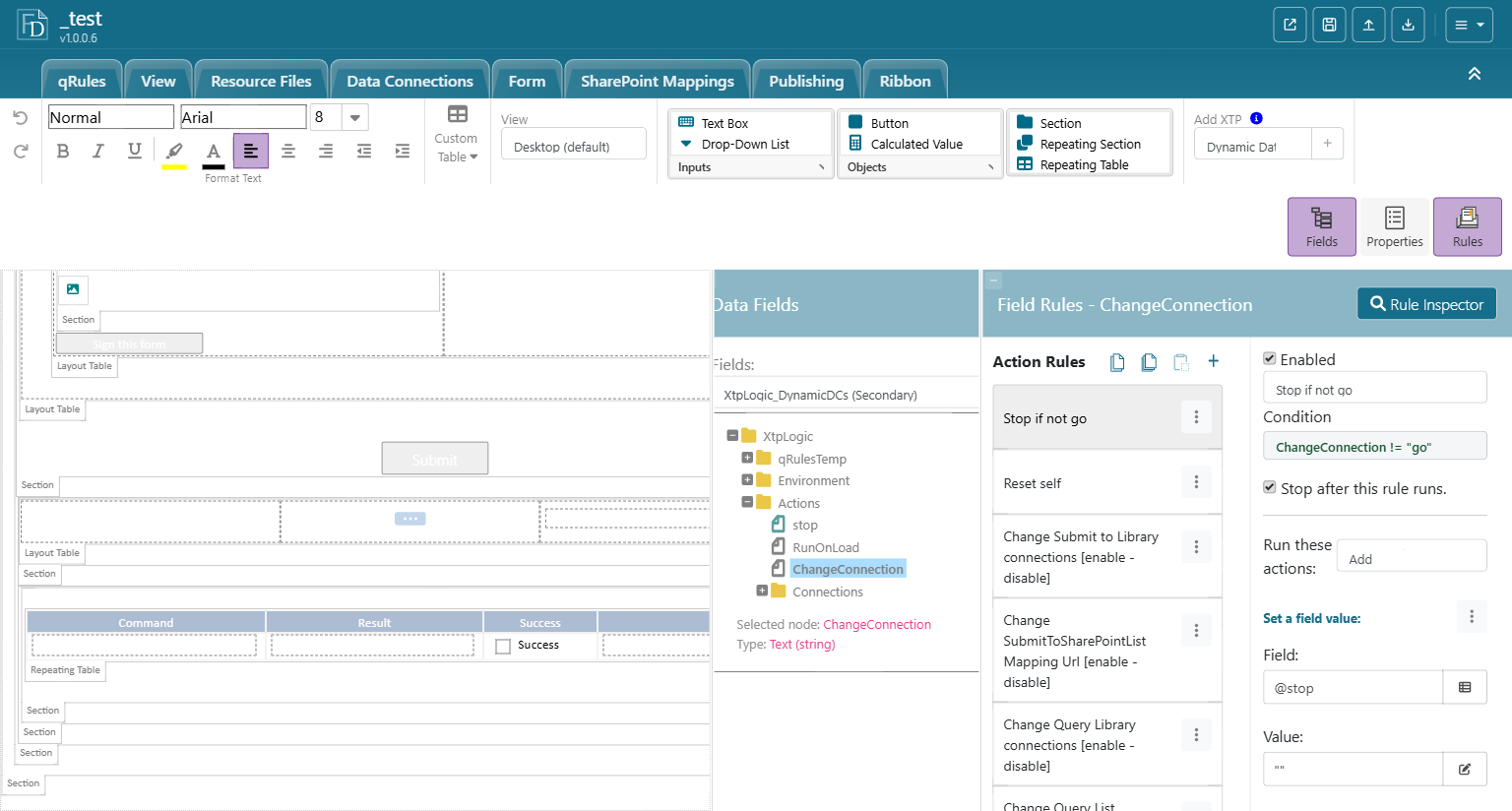
The Run Dynamic DCs rule on finishedLoading simply sets RunOnLoad to "go"; the ChangeConnection rules check for that value and stop otherwise.
Step 4 - name the connections and targets
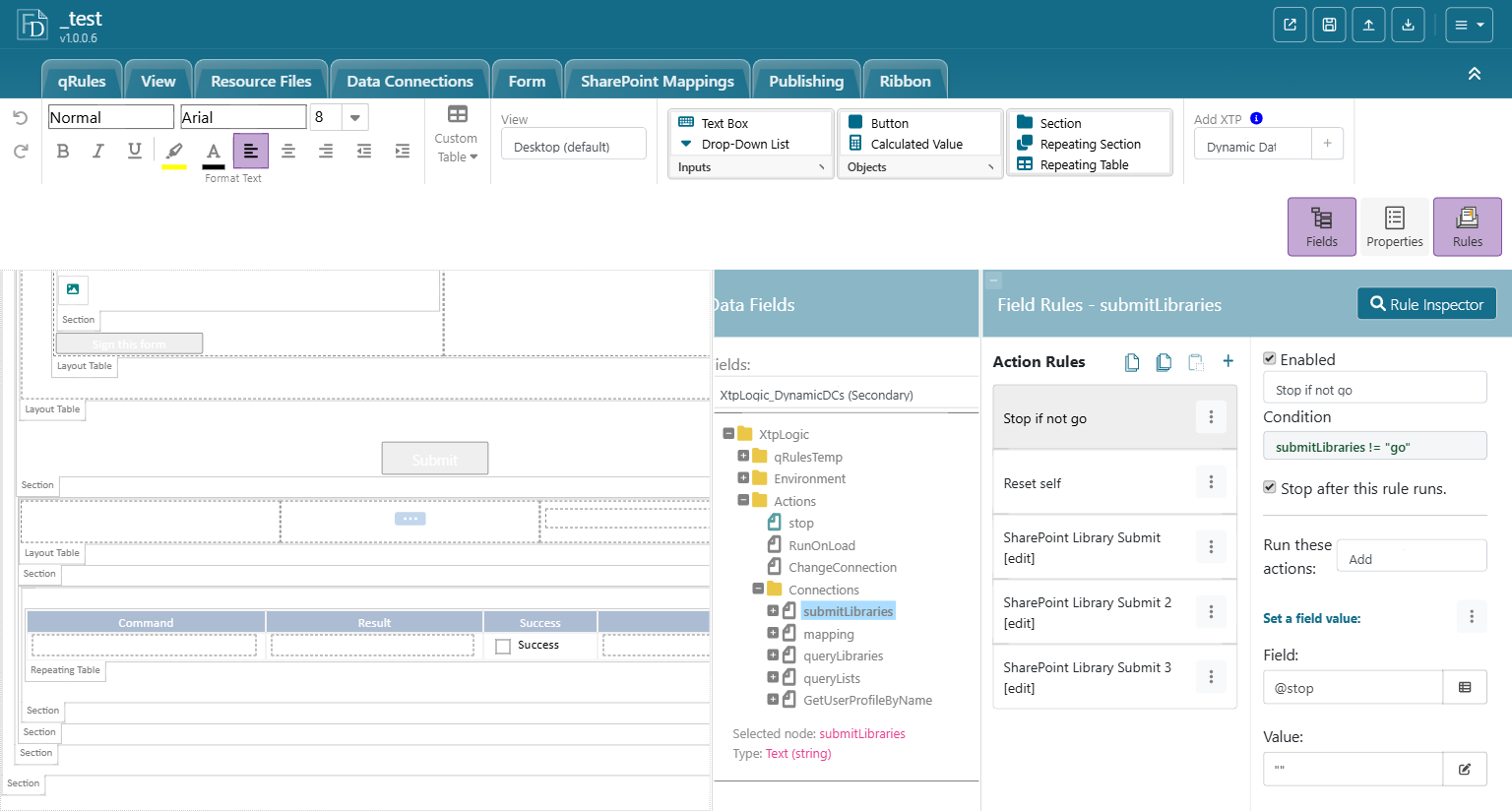
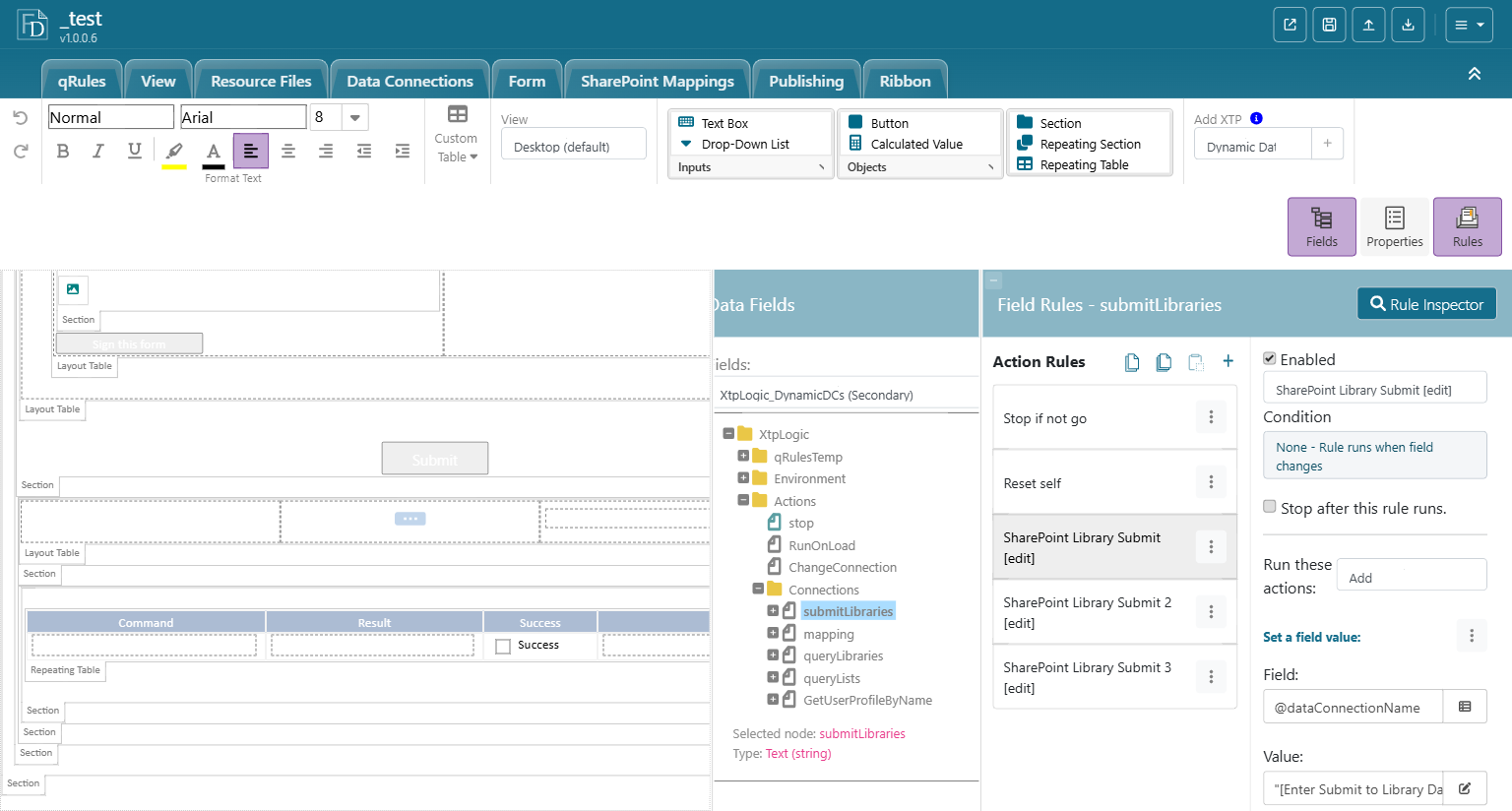
- Submit to a library: in XtpLogic > Actions > Connections > submitLibraries, edit the rule SharePoint Library Submit [edit]. Action 1 = the submit data connection name in quotes; action 2 = the library name as it appears in the URL (encoded or decoded both work). Three numbered copies of the rule are provided for forms that submit to more than one library; leave the unused ones disabled.
 - GetUserProfileByName: if your connection is not named GetUserProfileByName, edit the connection name in XtpLogic > Actions > Connections > GetUserProfileByName.
- Library and list queries: the same pattern under Connections > queryLibraries ("Query Library [edit]") and Connections > queryLists ("Query List [edit]"): action 1 = the query connection name, action 2 = the library or list name. Keep names identical across sites (see Chapter 8).
- List submits through SubmitToSharePointList: Connections > mapping holds the equivalent slot for the mapping URL.
Two naming details that cause most "worked on Dev, fails on Prod" tickets:
| Slot | Name expected | Why |
|---|---|---|
| submitLibraries | The library's URL folder name (Expense%20Reports or Expense Reports) |
The submit goes through the WebDAV path |
| queryLibraries / queryLists | The list's display Title as shown in SharePoint | The query uses the SharePoint list web service, which resolves by title; a wrong name gives "List 'X' does not exist" |
The two differ whenever a library was renamed after creation. Create libraries under their final name, or check both values when a rename happened.
Each [edit] rule also accepts an optional third action that sets a different site URL, for forms that submit or query across sites; the XTP's instructions require that URL action to be the last action in the rule.
7.5 Switch off "Query during form load"
For every connection the XTP re-points:
- Data Connections tab, select the connection.
- Clear Query during form load.
- Apply Changes.
Then add the query back where it belongs: in the finishedLoading list, after Run Dynamic DCs, add a rule with Query for data for each connection (Chapter 3, section 3.3.4). If the query result feeds other logic (defaults, dropdown choices, view selection), put that logic after the query rule.
7.6 Move the former on-load rules
Open Form > Form Load Rules and review each rule:
| The rule ... | Move it? | Where |
|---|---|---|
| Queries a data connection or reads a secondary data source | Yes | finishedLoading, after Run Dynamic DCs and after the matching Query for data rule |
| Loads the user profile (Chapter 6) | Yes | Same place; the profile connection is re-pointed too |
| Switches view based on data | Yes | After the query it depends on |
| Sets a constant default (today's date, a status of "New") | Optional | Can stay in Form Load Rules; it touches no connection |
Loads CSS or script resources with LoadResource |
No | Belongs above Run Dynamic DCs on finishedLoading, as in the starter template |
Rules can be moved with Copy Selected Rule on the Form Load Rules pane and Paste Rules on the finishedLoading pane, then reordered with drag or the three-dot menu (Chapter 1, section 1.5.1). Delete the originals once pasted so nothing runs twice.
7.7 Testing
- Open (Ctrl+O) the form. Turn on the Debug Slider (footer button) and scroll the command log: you should see
GetInputParameter /key=SPHostUrlfollowed byChangeConnectionUrl/ChangeSubmitUrllines with the current site's URL, all marked Success. - Confirm that the queries you moved run after those lines and return data.
- Submit a form and verify it lands in the current site's library.
- Repeat on the other site (Dev and Prod). The template should behave identically without any edits. Chapter 8 covers how to organise the sites so this holds.
7.8 Summary
- Dynamic DCs re-point connections at run time using SPHostUrl; the template stops carrying a fixed site.
- Trigger it from QdabraRules > finishedLoading, the first rules to run when the form opens.
- Switch off Query during form load on every re-pointed connection and query explicitly after the Dynamic DC rule; otherwise the query fires against the old URL and is never repeated.
- Move data-dependent on-load rules below the Dynamic DC rule, so they see correct URLs and populated data.