Quick Start - One Field, Three Rules
Thirty minutes, one text box, one rule of each kind. By the end you will have built a condition, an action rule, a formatting rule, and a validation rule, and seen all three work in FormsViewer. The rest of the manual explains each piece in depth.
You need a template open in FormsDesigner with a text box bound to a field. The walkthrough uses the sample template's Name and PhoneNumber fields; substitute your own.
Step 1 - Select the field and open the Rules pane
- Click the Name text box on the canvas.
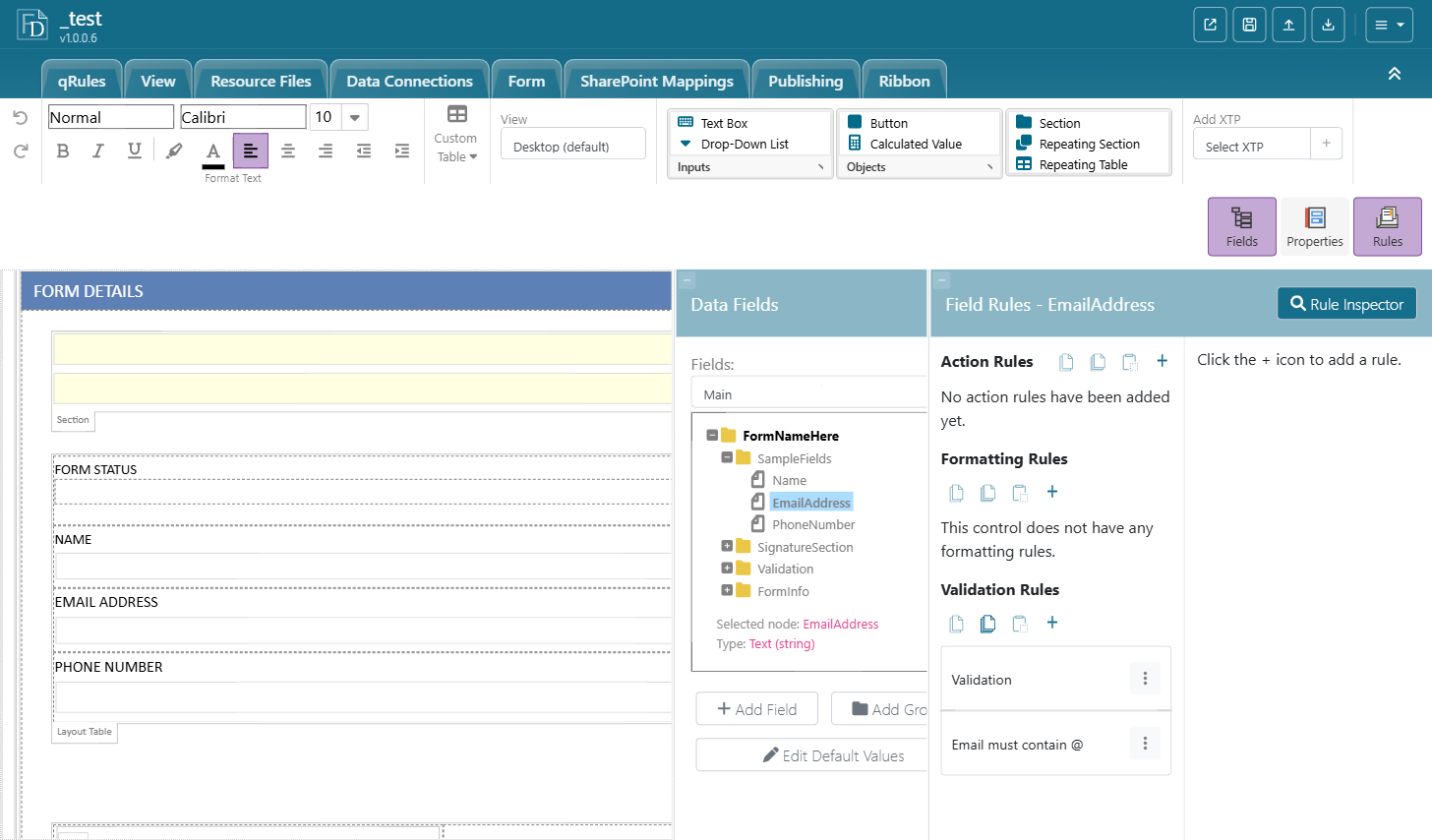
- Click the Rules button in the right panel. The header reads Field Rules - Name and the pane shows three sections: Action Rules, Formatting Rules, Validation Rules.
If the Rules tab is greyed out, nothing is selected yet. Click the control first.
Step 2 - An action rule: propose the e-mail from the name
Goal: when the user types a name, fill the e-mail box with [email protected] unless an e-mail is already there.
- In Action Rules click +. Type the name
Propose e-mail. - Click the Condition line ("None - Rule runs when field changes").
- In the editor leave the field as Name, choose is not blank, and click OK.
- In Run these actions choose Set a field value.
- Field: click the picker, choose EmailAddress, OK.
- Value: click fx, click Insert Field or Group, choose Name, OK. The box shows
.(the rule's own field). Type, "@example.com"around it so the formula readsconcat(., "@example.com"), then OK.
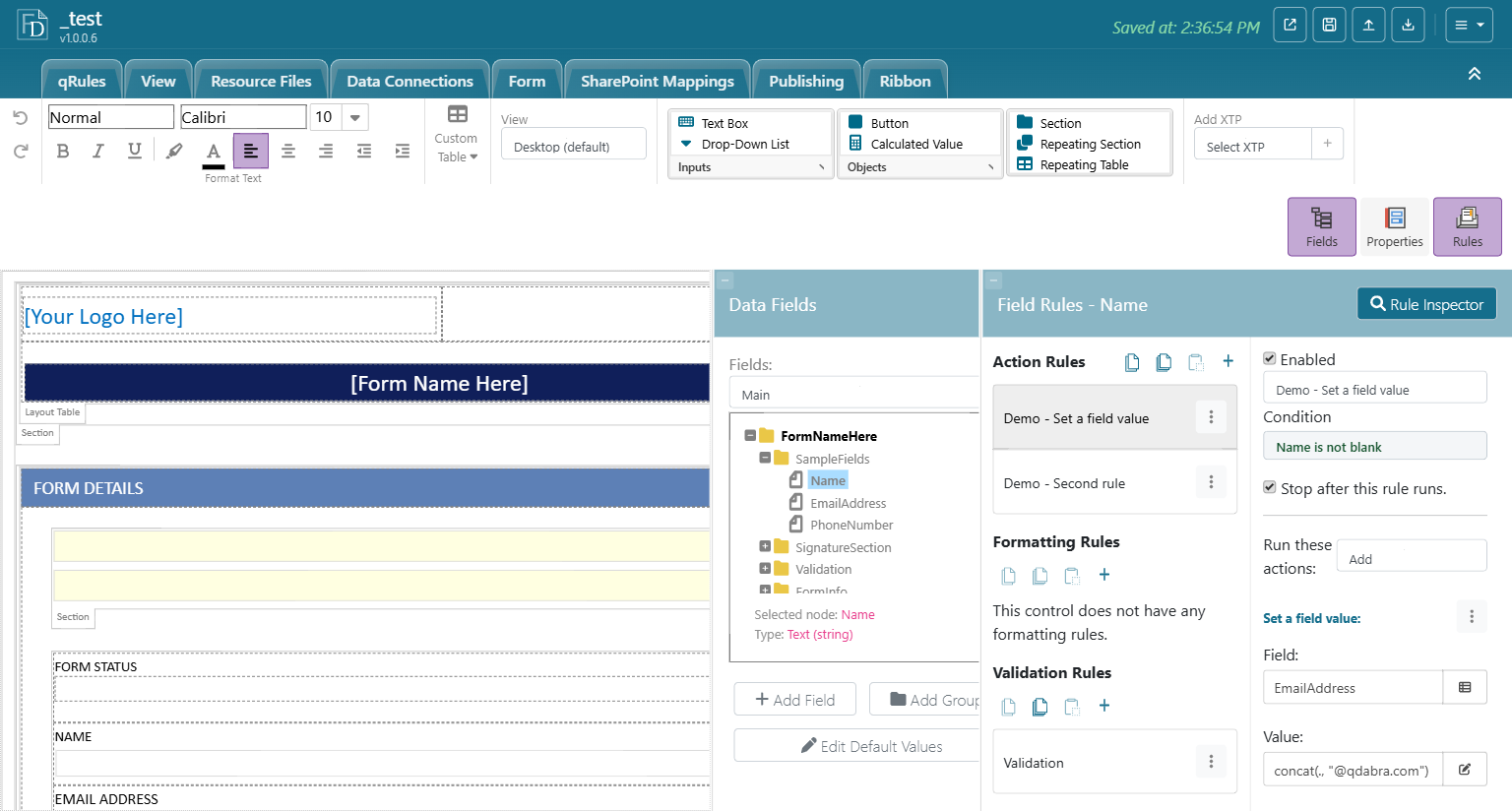
What you just used: a trigger (Name changes), a condition (Name is not blank), and an action (set another field). Chapter 3 lists the other actions.
Step 3 - A formatting rule: hide the phone box until there is a name
- Click the PhoneNumber text box on the canvas.
- In Formatting Rules click +. Name it
Hide phone until name entered. - Click the Condition line. The field dropdown starts at the parent group, so choose Select a field or group..., expand SampleFields, pick Name, OK. Choose is blank, OK.
- Tick Hide this control. The preview reads "(hidden)".
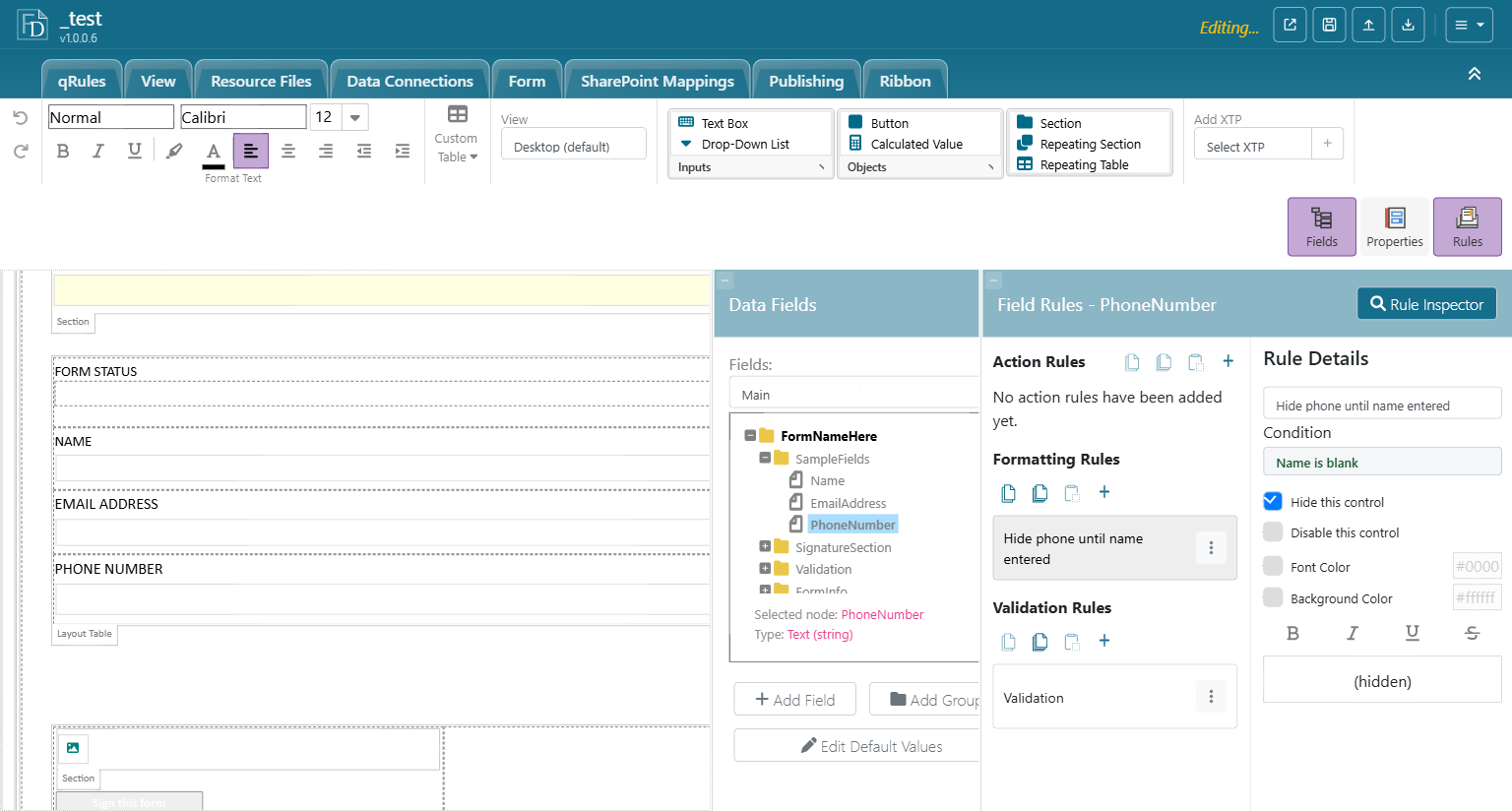
Formatting rules describe the state in which the formatting applies: here, "hidden while Name is blank". Chapter 5 covers Disable, colors, and text styles.
Step 4 - A validation rule: the e-mail must contain @
- Click the EmailAddress text box on the canvas.
- In Validation Rules click +. Name it
Email must contain @. - Condition: EmailAddress does not contain, Type text...,
@, OK. - Screentip:
Enter a valid email address (must contain @). - Leave Show screentip only selected.
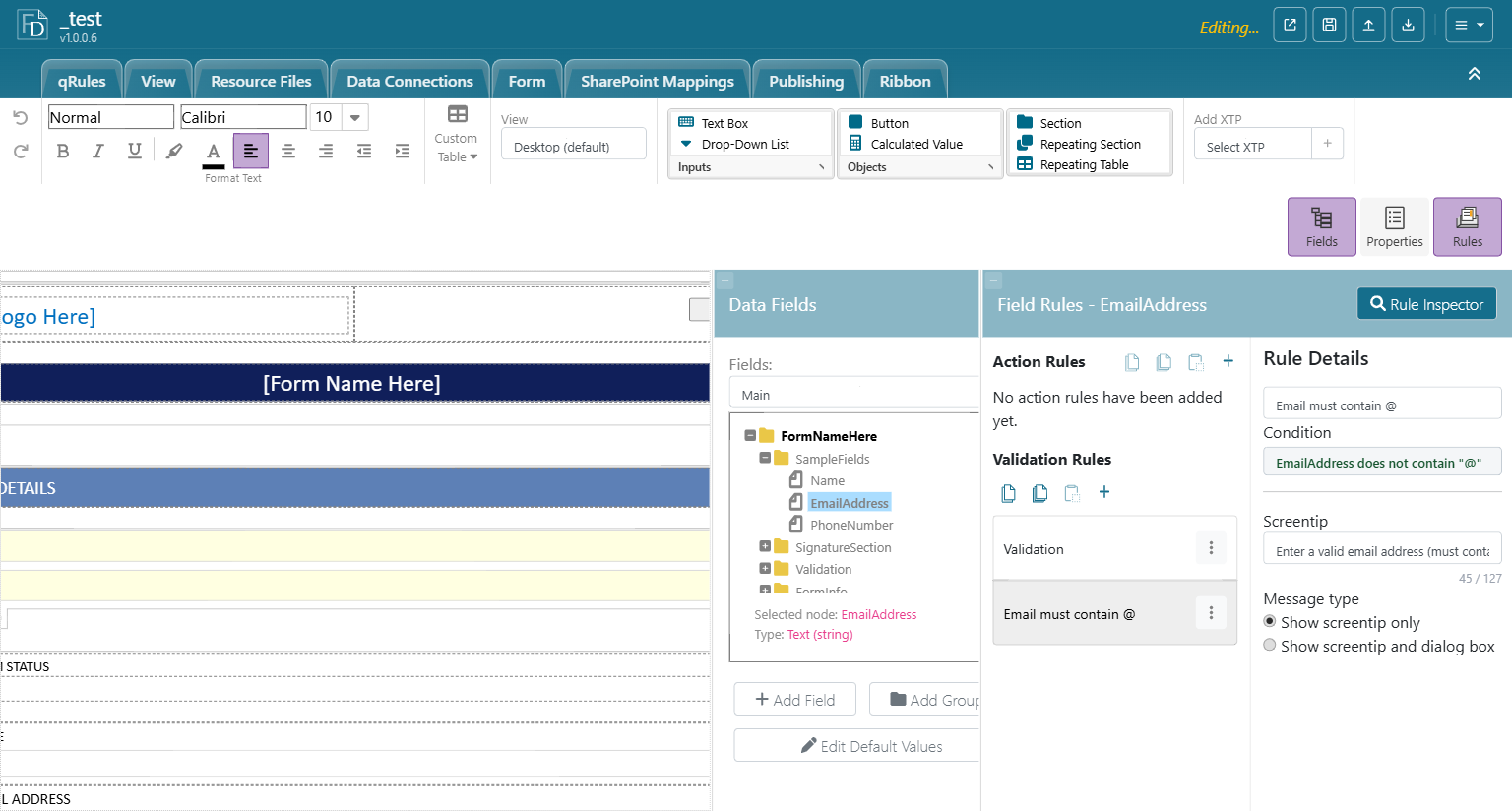
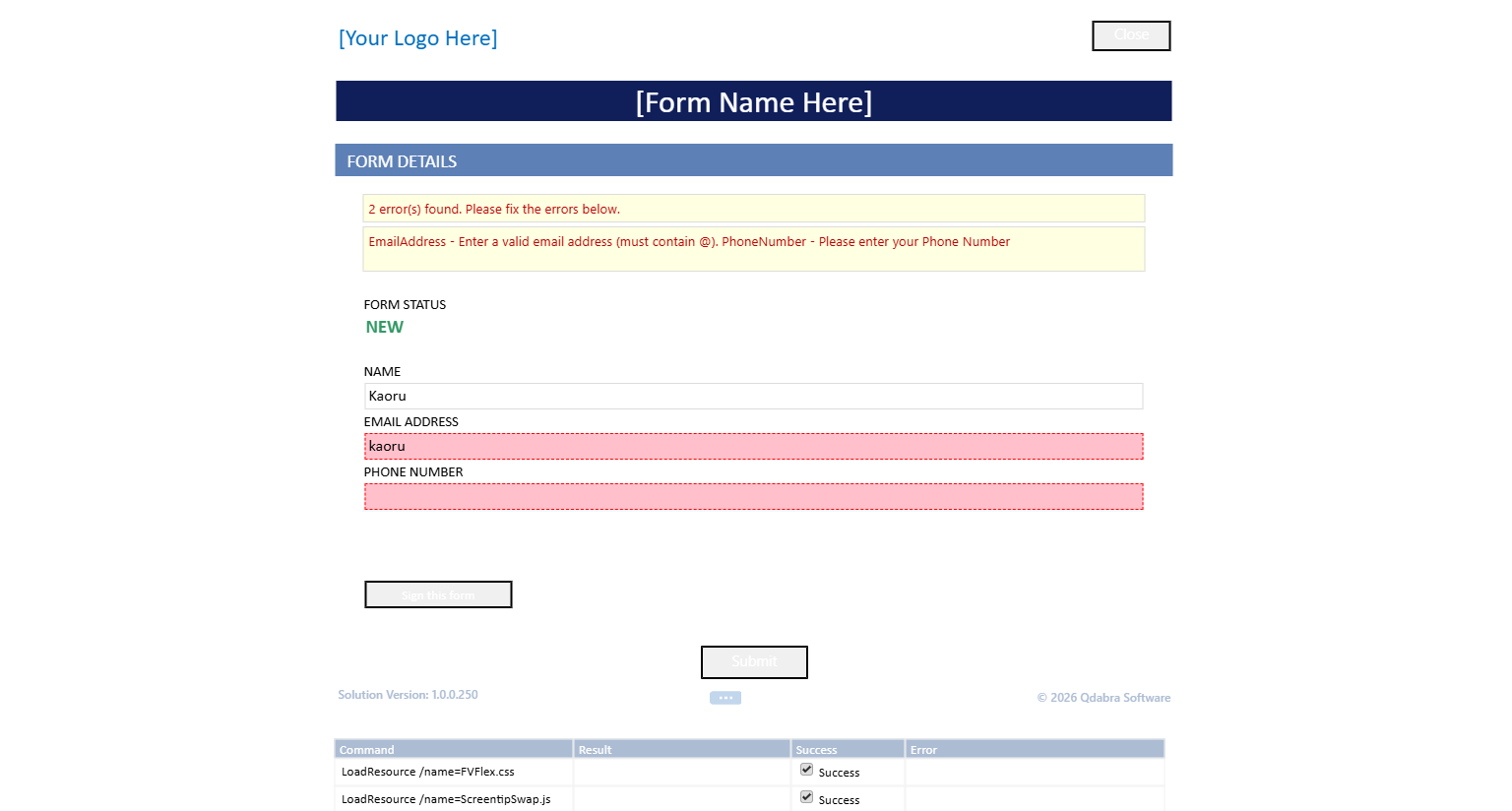
Validation conditions describe the state that needs attention, and the screentip says what to do about it. On its own the rule only draws a red border when a check runs; the sample template's Submit button runs that check with the qRules command GetErrors and shows the messages above the form. Chapter 4 explains this wiring.
Step 5 - Try it
Click Open (Ctrl+O) in the title bar. The draft opens in FormsViewer; no publish is needed to test.
| What you do | Action rule | Formatting rule | Validation rule |
|---|---|---|---|
| Open the form | Nothing yet | Phone box is hidden | Nothing yet |
Type Hanako in Name and tab out |
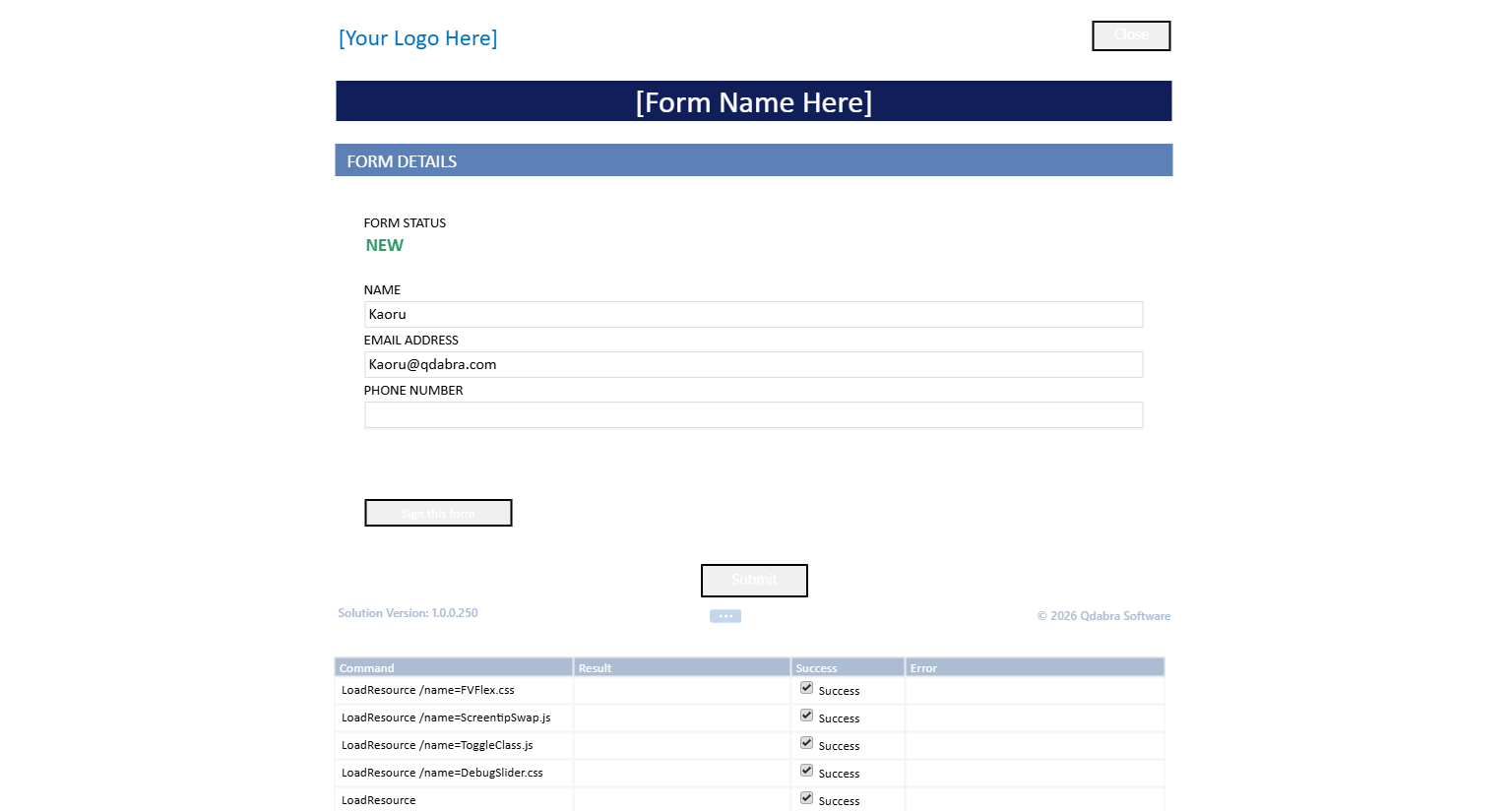
E-mail becomes [email protected] |
Phone box appears | Nothing (e-mail contains @) |
Change the e-mail to hanako |
Nothing (e-mail no longer blank, and Name did not change) | No change | Red border and message when you click Submit (GetErrors runs) |
| Clear Name | Nothing | Phone box hides again | No change |