Chapter 5 - Formatting Rules
A formatting rule changes how a control looks or behaves while its condition is true: hide it, disable it, or change its text style and colors. Formatting rules are how you build forms that show only what applies, for example an approver section that appears once a request is submitted.
5.1 Where formatting rules live
Formatting rules belong to a control, not to a field. Select the control on the canvas, click the Rules button, and use the Formatting Rules section. If you select a field in the Data Fields tree instead, the Formatting Rules section is not shown because there is no control to format.
Sections, repeating sections, and repeating tables are controls too, so you can hide a whole block with one rule. Container controls support Hide and Background Color only; Disable and the text styles apply to input controls. In the current version a few input controls cannot be hidden with a formatting rule (date pickers, check boxes, option buttons); if you need to hide one, wrap it in a section and hide the section. This is a limitation of the present build rather than a design rule, so check the option list on the control you are working with.
5.2 Anatomy of a formatting rule
| Setting | Meaning |
|---|---|
| Rule name | Shown in the list and in the Rule Inspector. |
| Condition | The formatting applies while this is true. Required. |
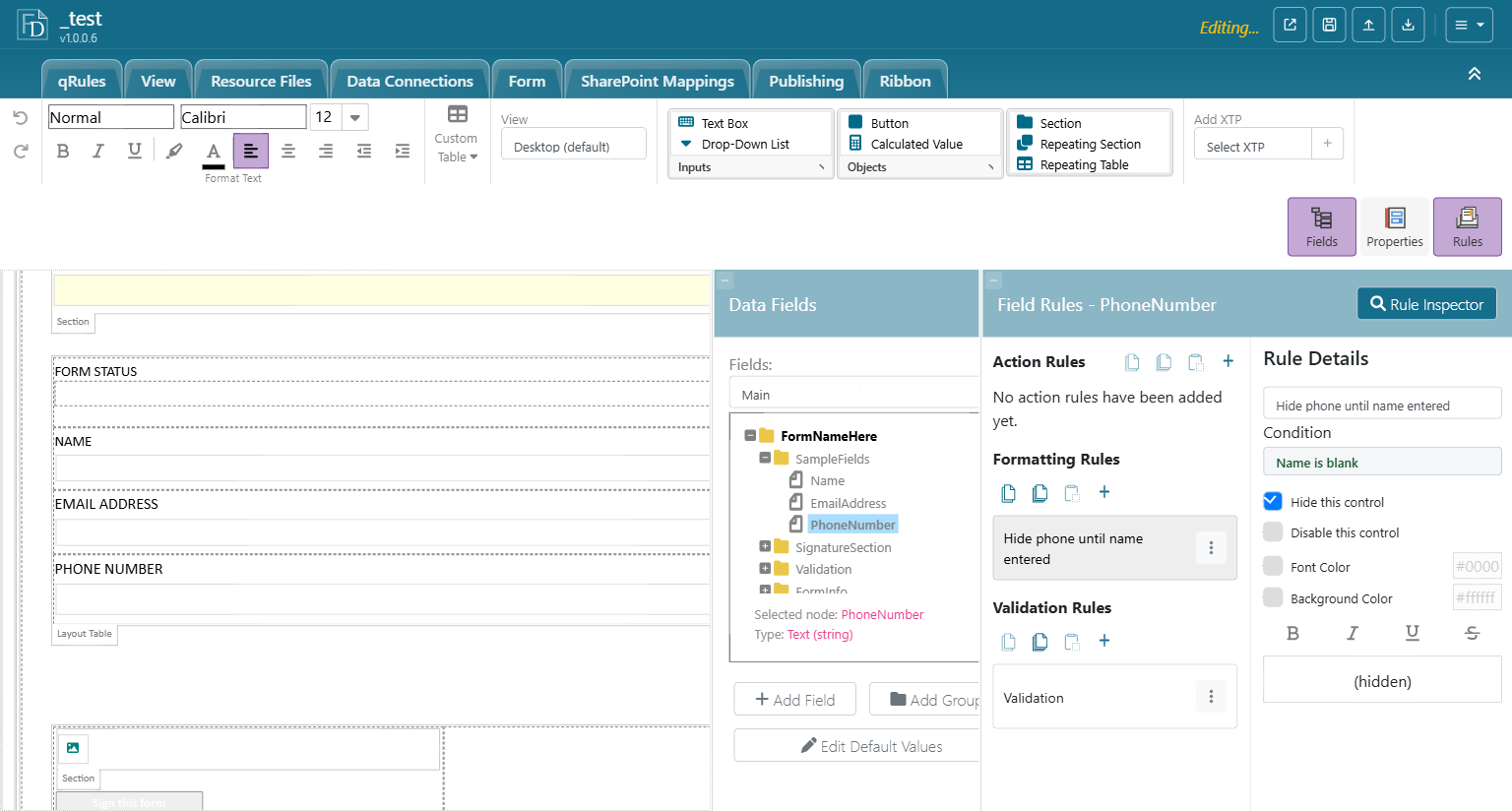
| Hide this control | Removes the control from the view. When checked, the other options are greyed out because they no longer matter. |
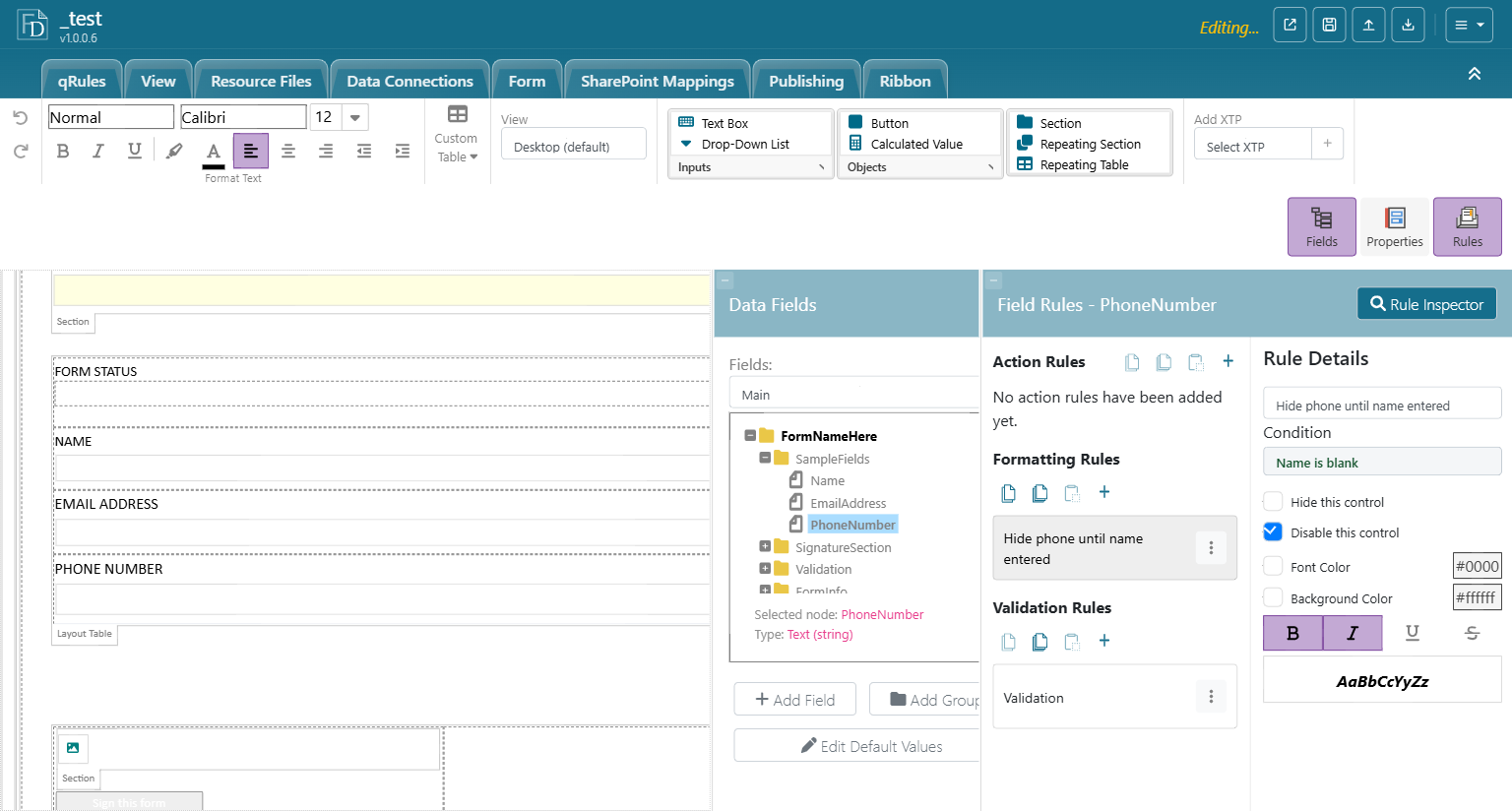
| Disable this control | Shows the control read-only. |
| Font Color / Background Color | Color swatches; click to pick. |
| B I U S | Bold, italic, underline, strikethrough. |
| Preview | The AaBbCcYyZz sample shows the combined text style, or "(hidden)" when Hide is checked. |
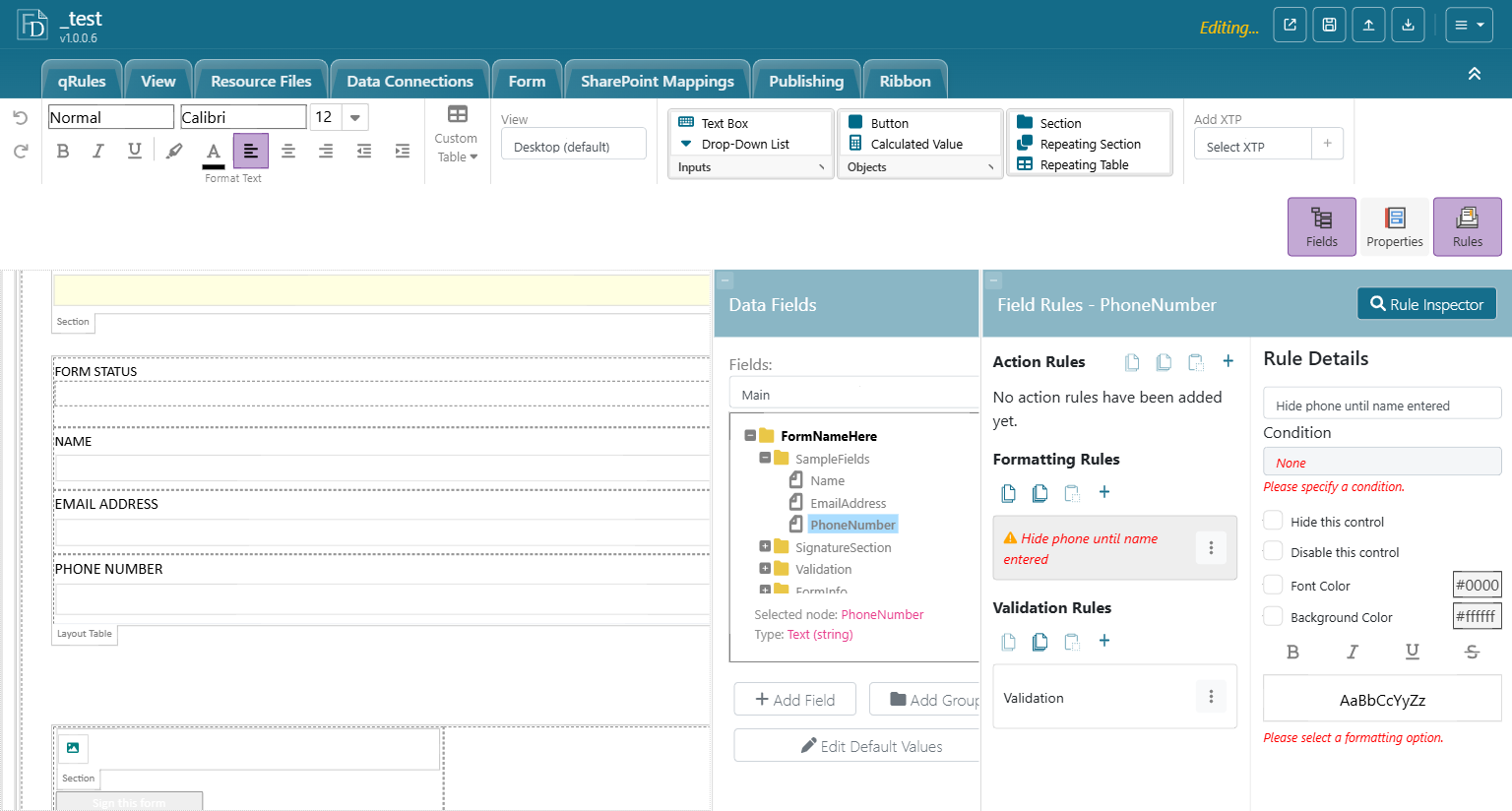
At least one formatting option must be chosen; until then the panel shows "Please select a formatting option."
5.3 Creating a formatting rule
- Select the control on the canvas and click the Rules button.
- In Formatting Rules, click + and name the rule.
- Click the Condition line and build the condition (Chapter 2). See 5.4 for which fields the dropdown offers.
- Check Hide this control, Disable this control, or pick text styles and colors.
5.3.1 Seeing the result
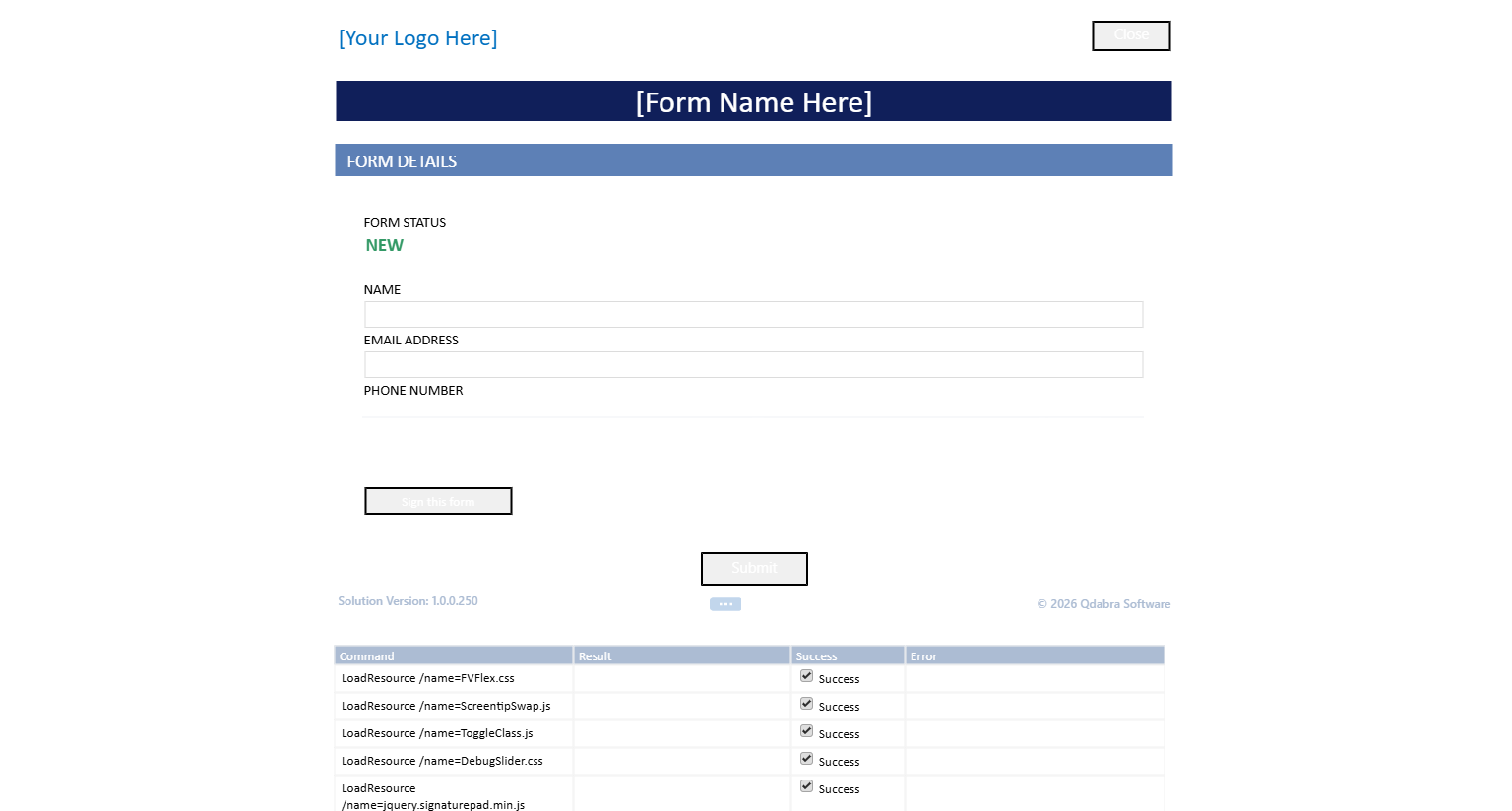
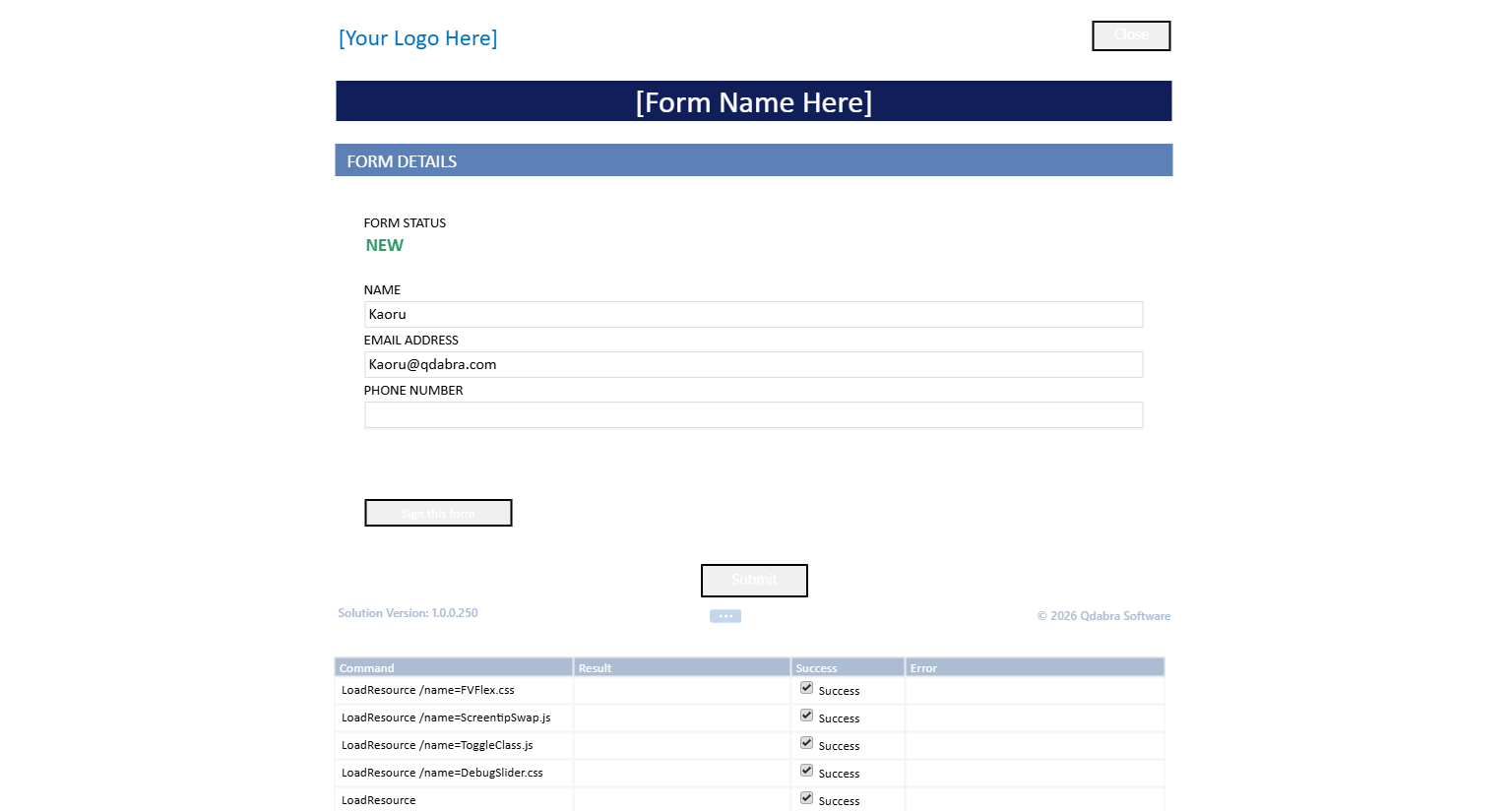
Click Open (Ctrl+O) in the designer's title bar to run the draft in FormsViewer. With the rule above, the phone number box is absent while Name is empty and appears as soon as a name is entered.
5.4 Which fields the condition sees
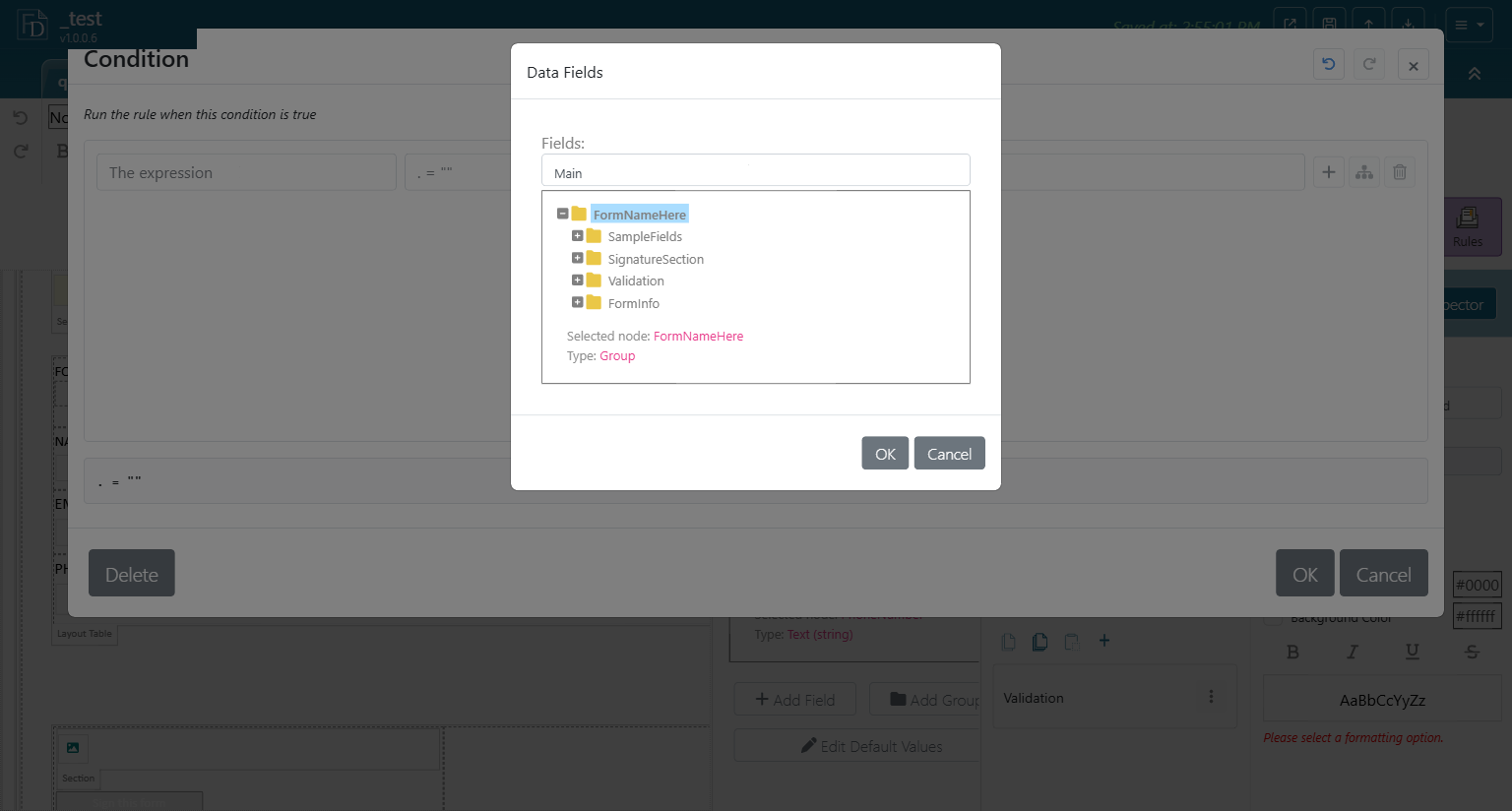
Because a formatting rule belongs to a control rather than to a field, the Condition editor starts from the control's context: the parent group of the bound field for input controls, or the bound group itself for a section or repeating table. The field dropdown therefore shows that group, The expression, and Select a field or group...; use the picker to reach fields such as Name or EmailAddress. Chapter 2, section 2.2 explains the starting-point rule for every kind of rule owner.
5.5 Common patterns
| Goal | Control | Condition | Option |
|---|---|---|---|
| Show a section only after submission | Approval section | Status ≠ Submitted |
Hide |
| Lock a field once approved | Amount text box | Status = Approved |
Disable |
| Hide a comment box until it is needed | Comment text box | NeedsComment ≠ true |
Hide |
| Highlight overdue rows | Due date in a repeating table | DueDate < today() |
Font Color red, bold |
| Grey out optional fields for a role | Several controls | IsManager ≠ true |
Disable |
Hide rules usually describe the not applicable state, so the condition is often a negation, just like validation rules.
5.6 Hidden versus disabled
| Hidden | Disabled | |
|---|---|---|
| Visible | No | Yes, read-only |
| Value kept in the form data | Yes | Yes |
| Validation rules still evaluated | Yes | Yes |
| Good for | Sections that do not apply | Values the user may see but not change |
Because hidden controls keep their data and their validation rules, a required field inside a hidden section can still block submit. Take care whenever a section you hide contains validation rules; the usual fix is to make those rules conditional on the same flag that hides the section (Chapter 4, section 4.5). Clearing the fields with an action rule is also possible, but a cleared value can itself trip another validation rule, so test that path.
5.7 Several formatting rules on one control
Rules are evaluated top to bottom, and only the first rule whose condition is true is applied; the rules below it are ignored for that control, and the effects do not merge. This holds for every option, Hide and Disable included: a Hide rule placed below a matching color rule does not hide the control. So put the rule that must win first (Hide first, if it must always win), keep the conditions mutually exclusive where you can (Status = New, Status = Submitted, Status = Approved), and keep one condition per rule so the list stays readable.
5.8 Summary
- Formatting rules attach to controls; select the control on the canvas.
- Hide, Disable, colors, and text styles; when a Hide rule matches, the other options are greyed out in that rule.
- The condition's default field is the control's parent group; use the picker to reach the fields you need.
- Hidden controls still hold data and still validate.
- With several rules on one control, only the first matching rule applies; order them accordingly.