Chapter 3 - Action Rules
An action rule runs one or more actions when its trigger fires and its condition is true. This is where most form logic lives: copying values between fields, showing messages, querying data connections, switching views, and running qRules commands.
3.1 Anatomy of an action rule
| Part | Where you set it |
|---|---|
| Trigger | Decided by what the rule is attached to: a field (runs when the field's value changes), a button (runs on click), or form load (runs when the form opens). See Chapter 1. |
| Condition | The Condition line. Optional. See Chapter 2. |
| Actions | The Run these actions list. One or more, executed top to bottom. |
| Stop flag | Stop after this rule runs. Skips every rule below this one in the same list. |
3.2 Creating an action rule
- Select the field, button, or Form > Form Load Rules (Chapter 1).
- In the Action Rules section, click +.
- A rule named "Rule 1" appears and its details open. Type a meaningful name.
- Optionally click the Condition line and build a condition.
- Open the Add dropdown under Run these actions and pick an action. Repeat for each action you need.
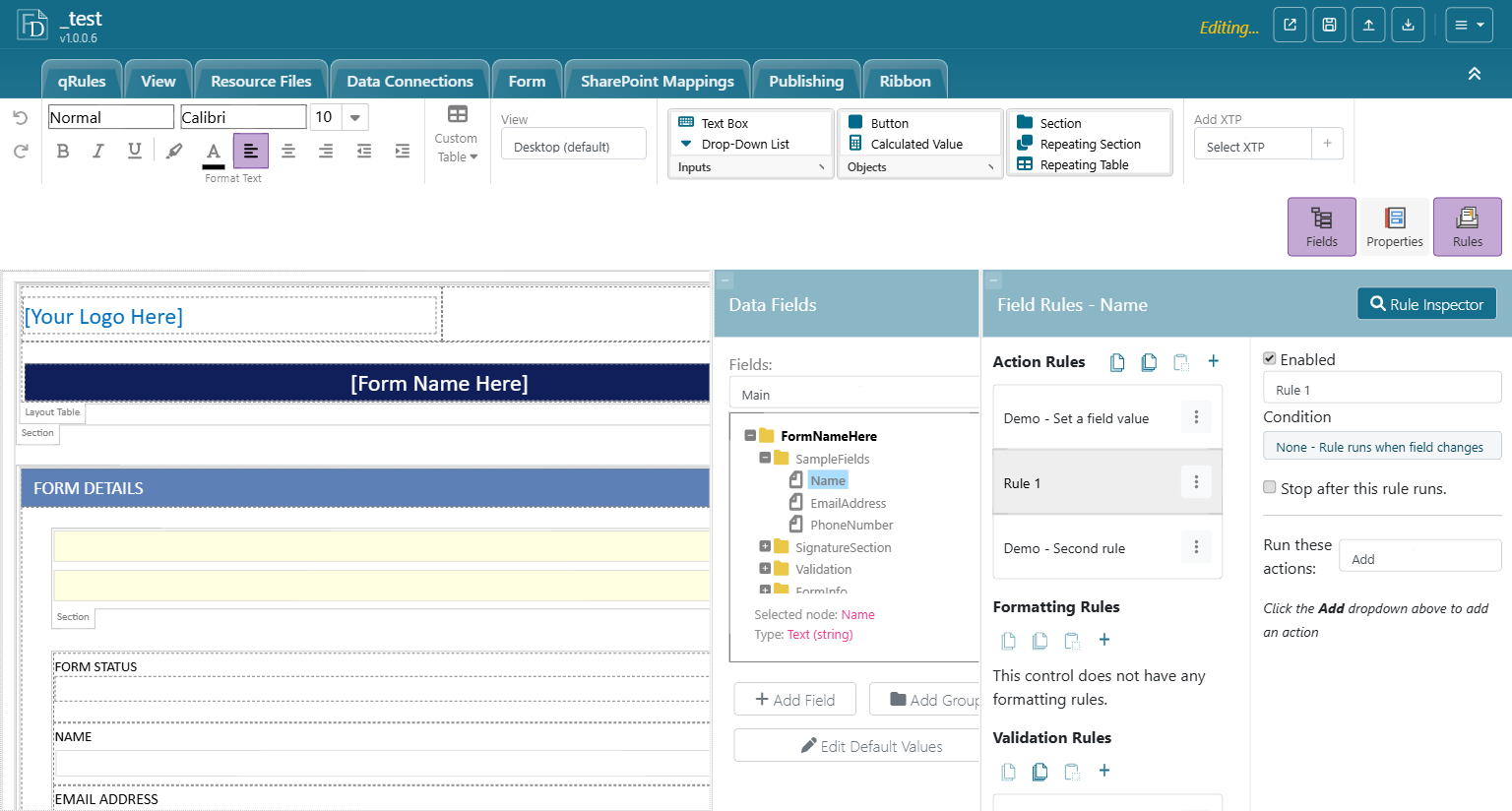
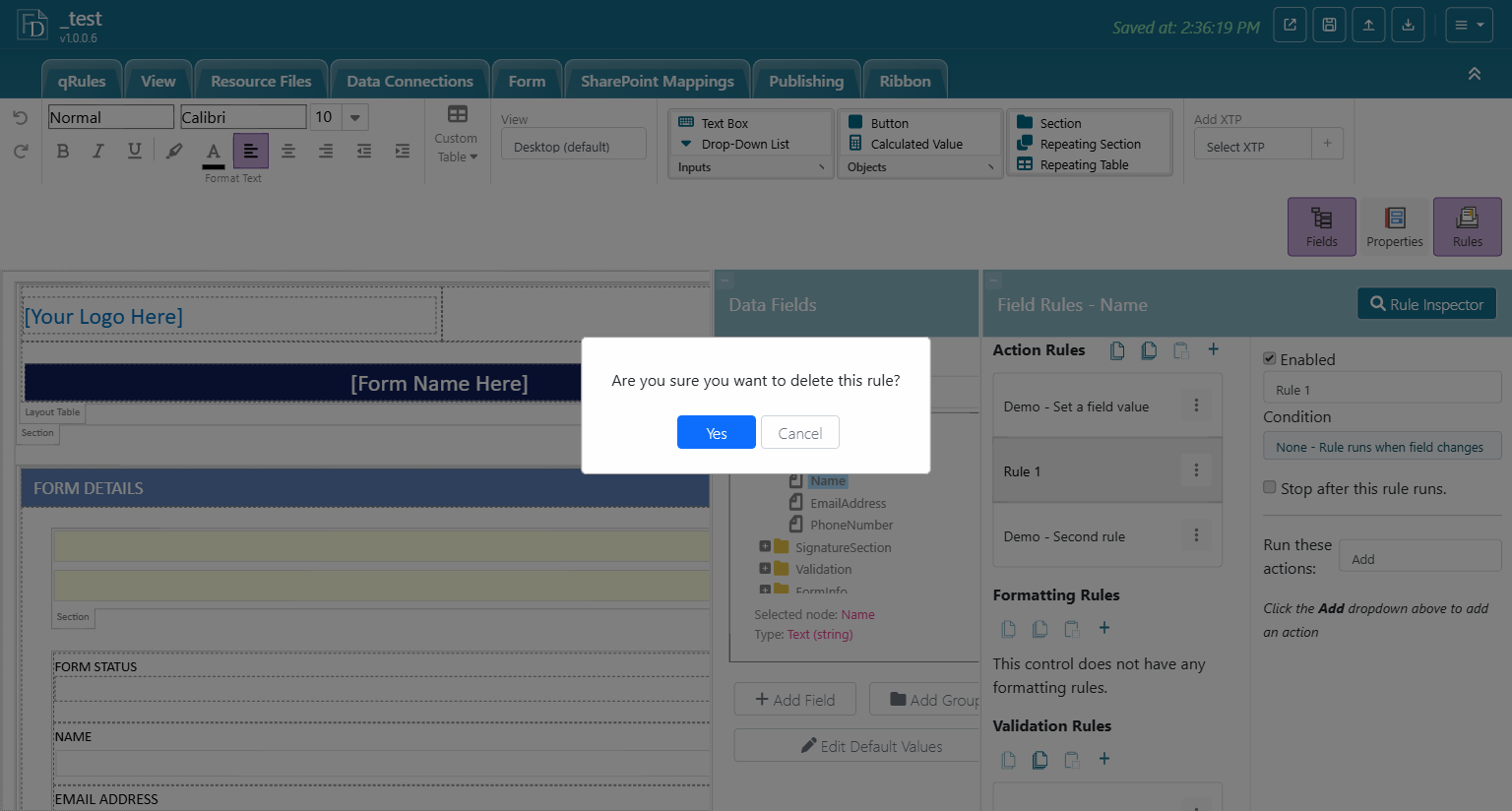
To remove a rule, open its three-dot menu, choose Delete Rule, and confirm.
3.3 The action types
The Add dropdown lists the actions offered for the current trigger. The table shows what the sample template offered for each trigger; treat the per-trigger columns as a guide and check the dropdown in your own template.
| Action | Field | Button | What it does |
|---|---|---|---|
| Set a field value | yes | yes | Writes a value or formula result into a field. |
| Show the value of a field or formula | yes | yes | Pops up a dialog with a computed value. Handy for debugging. |
| Show a message | yes | yes | Pops up a dialog with fixed text. |
| Switch views | yes | Changes the current view. | |
| Query for data | yes | yes | Runs a query (receive) data connection. |
| Submit data | yes | yes | Runs a submit data connection. |
| Run a qRules Command | yes | yes | Runs any qRules command. |
| Close the form | yes | Closes the form. |
Run a qRules Command is listed only when the template contains qRules (the qRules ribbon tab reports "This form already has qRules!"); inject qRules from that tab first if it is missing.
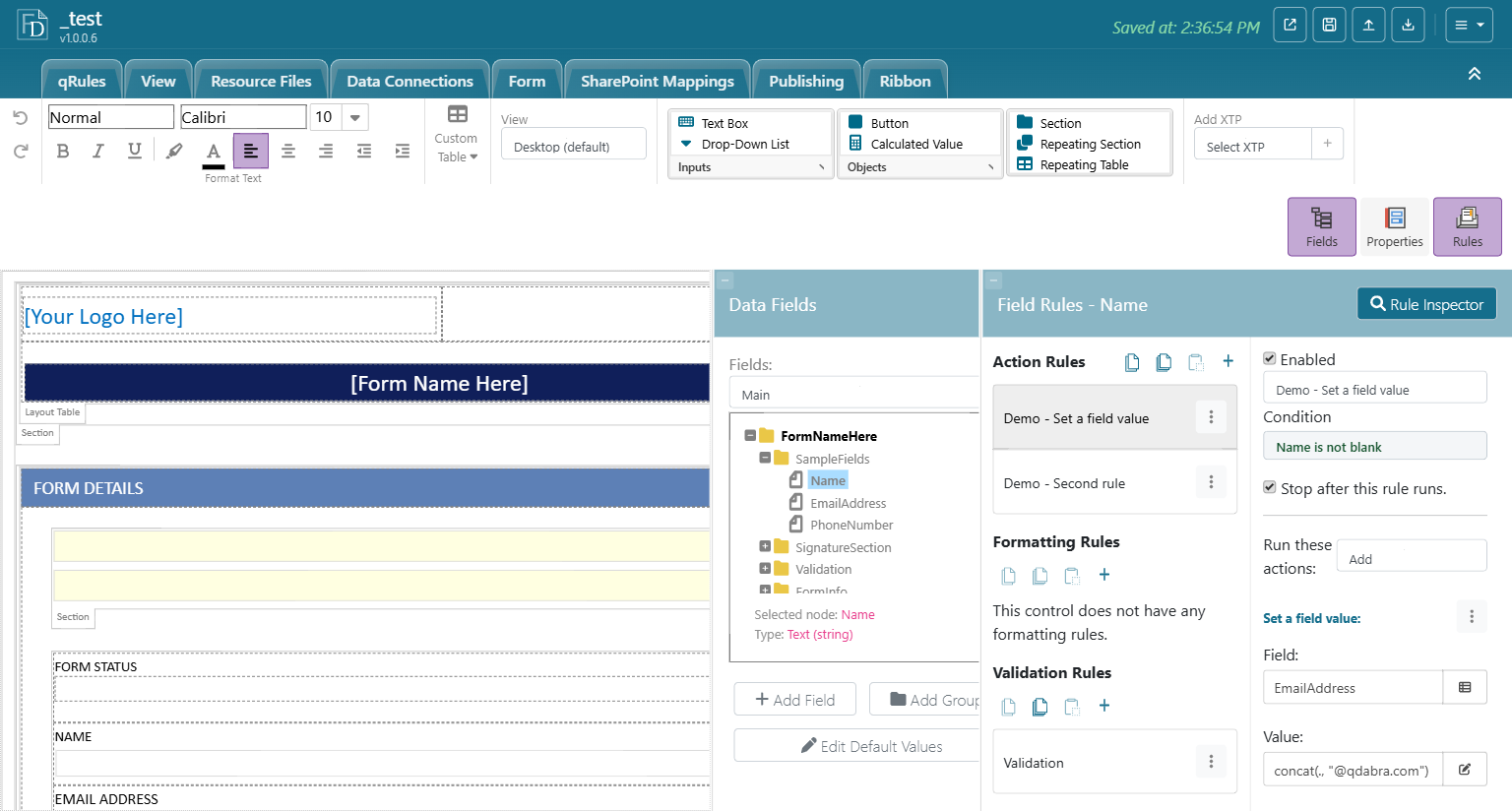
Each action you add gets its own editor under the dropdown. When a rule has several actions, only the one you are editing is expanded; the others collapse to a one-line summary such as Set a field value: EmailAddress = concat(...). Click a summary to expand it.
3.3.1 Set a field value
| Setting | Notes |
|---|---|
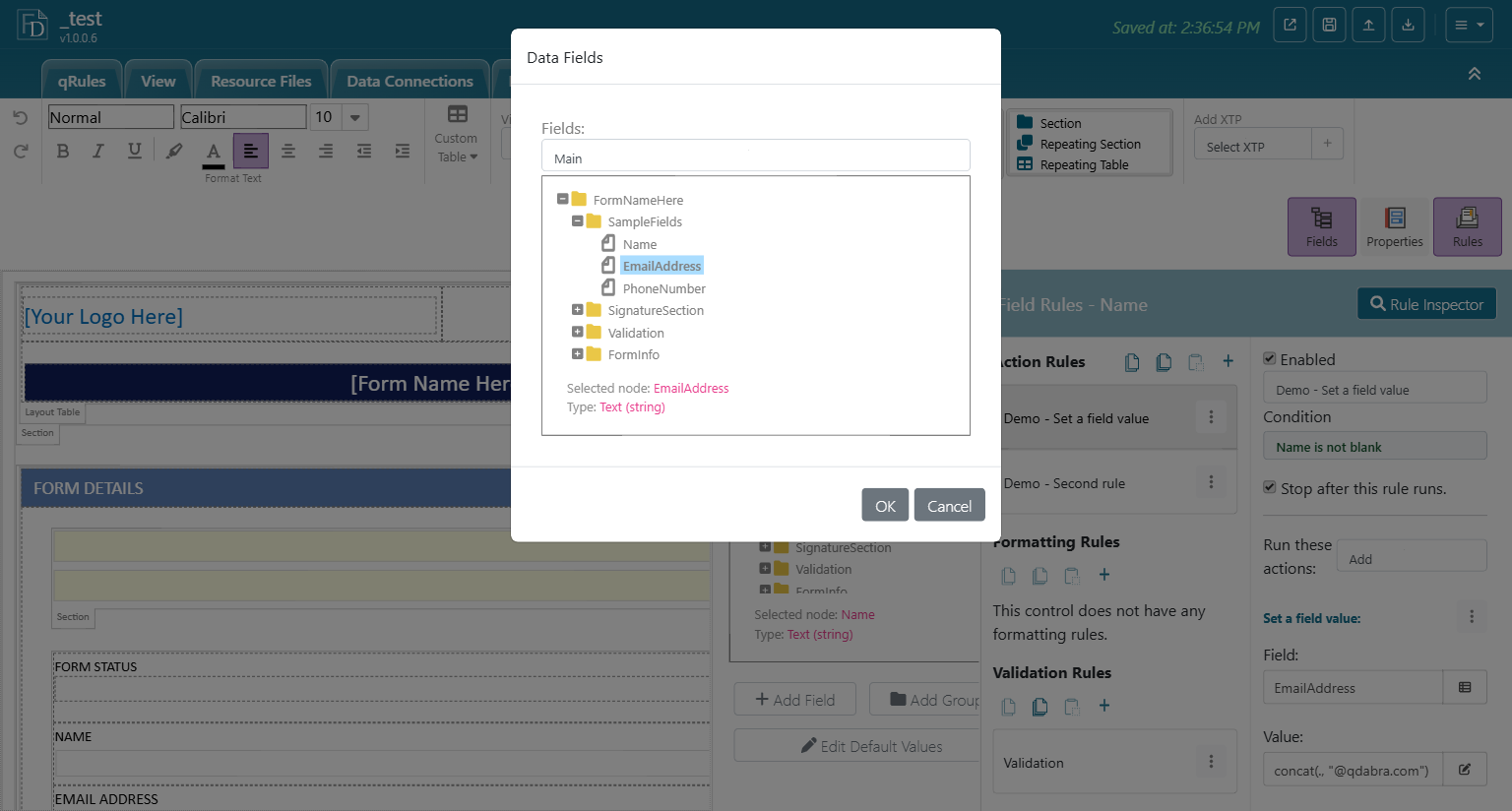
| Field | The target. Click the picker button to open the Data Fields dialog and choose the field. Any data source is allowed. |
| Value | What to write. Type a literal in quotes, or click the fx button to open the Formula editor. |
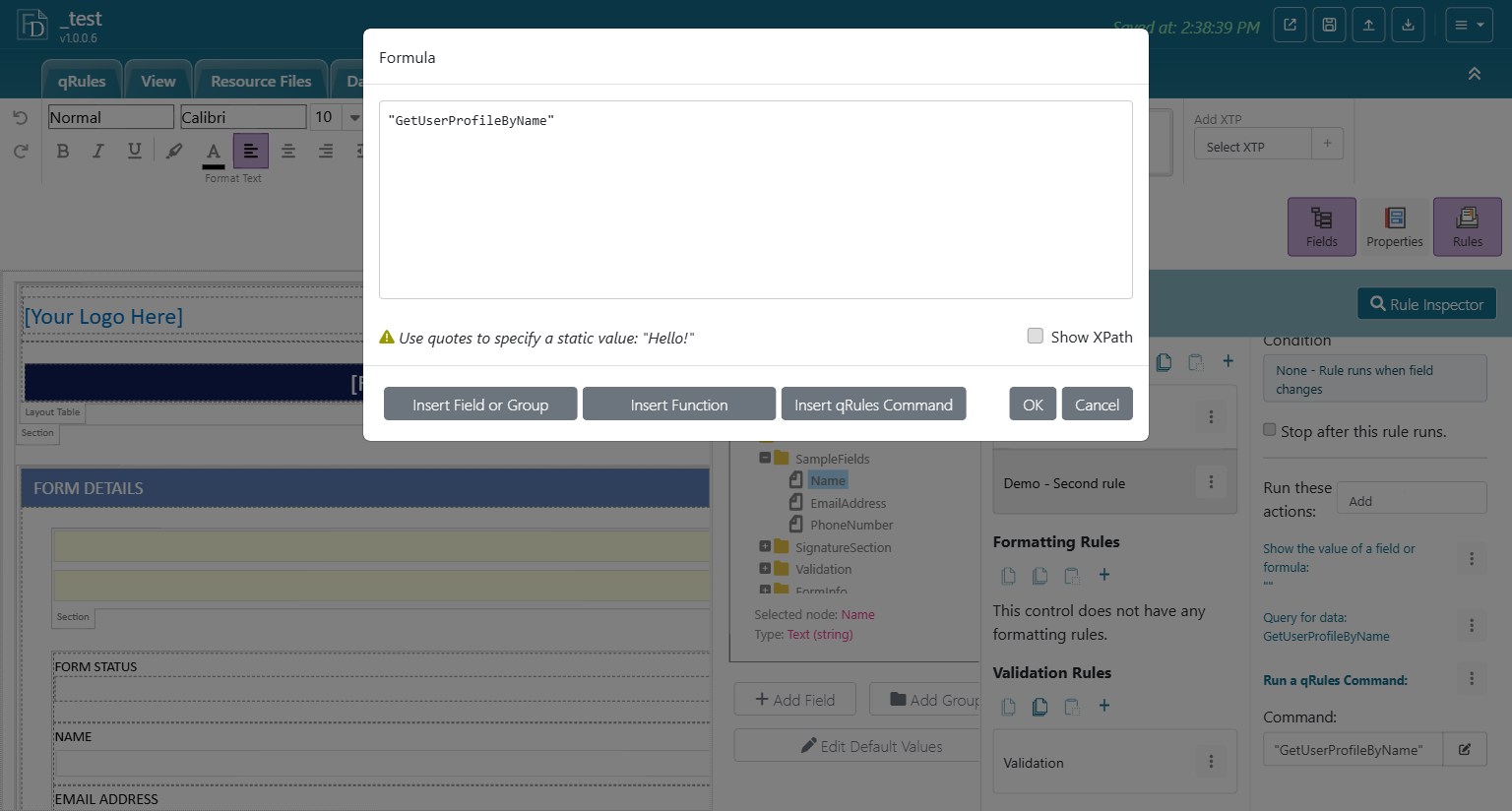
3.3.2 The Formula editor
Every place that accepts a formula opens the same editor.
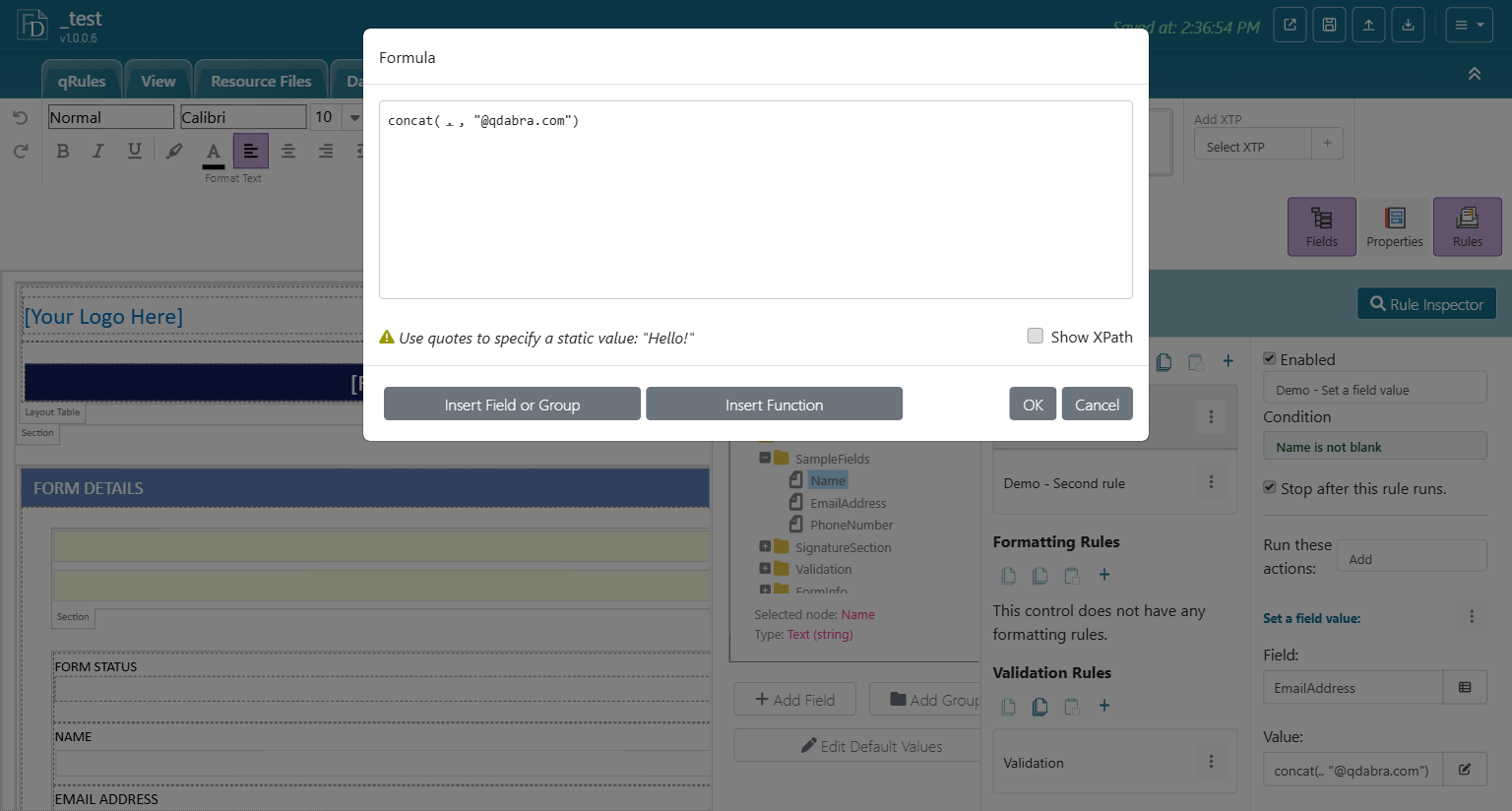
| Element | Purpose |
|---|---|
| Text area | The XPath expression. . is the rule's own field; siblings are ../my:FieldName. |
| Insert Field or Group | Opens the Data Fields picker and inserts the correct XPath for the chosen field. This picker also offers Add Filter... for conditions on repeating data. Always use it instead of typing field names. |
| Insert Function | Opens the function catalog (below). |
| Show XPath | Shows the raw XPath instead of friendly field names. Turn it on when you need to see exactly what will be saved. |
| Hint line | "Use quotes to specify a static value: "Hello!"". Unquoted text is treated as a field reference. |
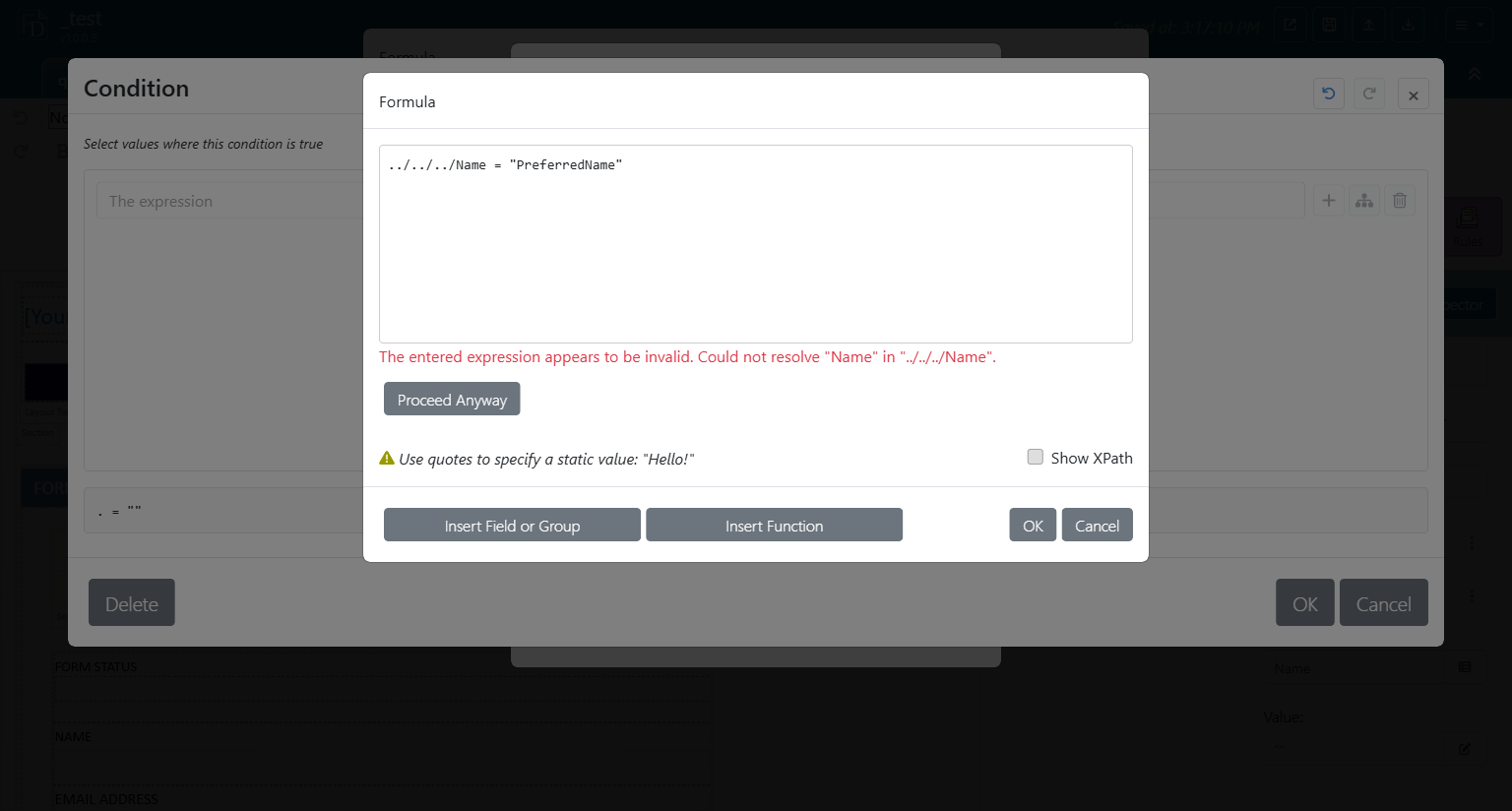
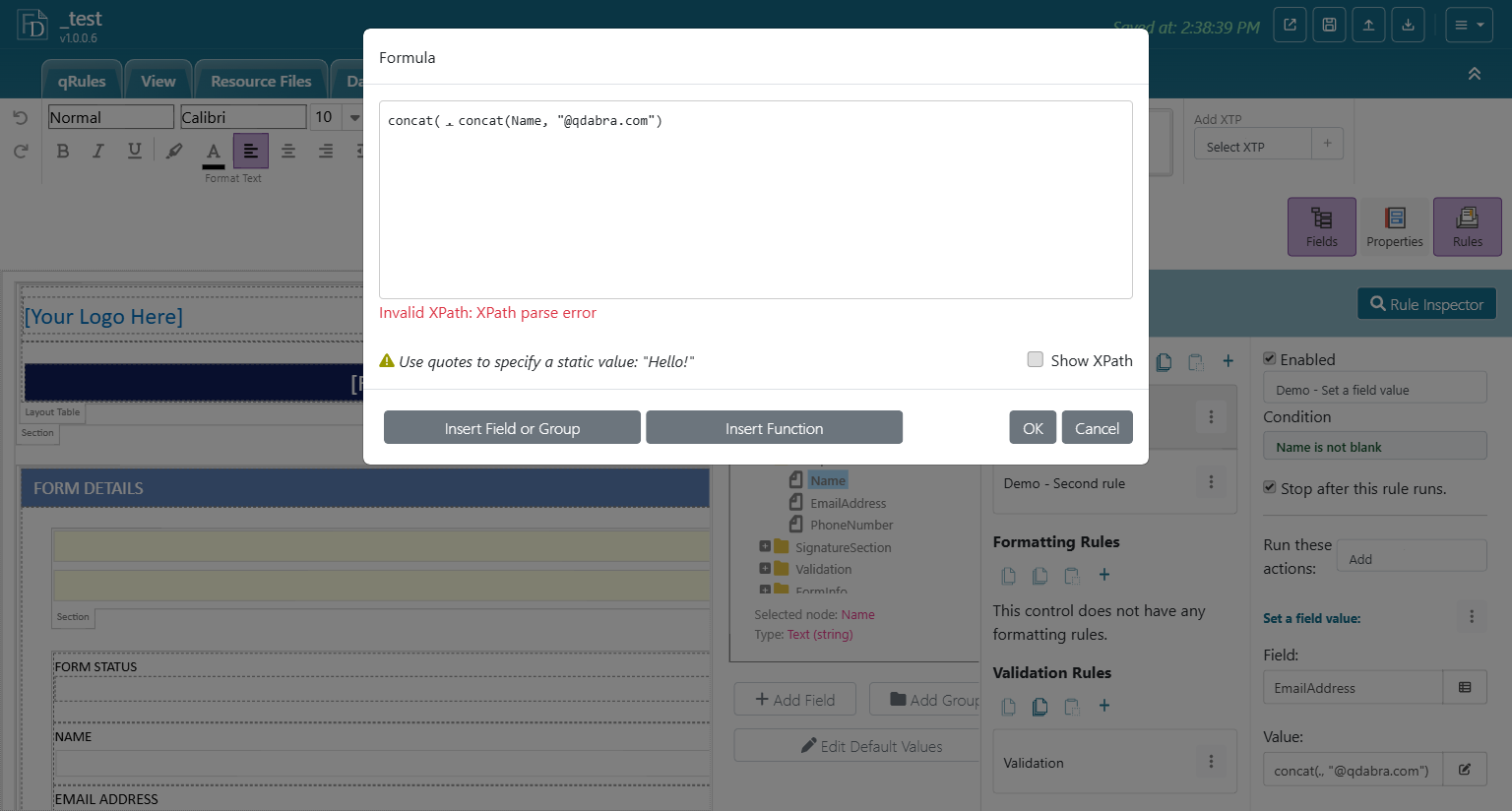
When you click OK the editor checks the expression:
- A bare field name that does not resolve produces "The entered expression appears to be invalid. Could not resolve "Name" in "Name"." together with a Proceed Anyway button. Fix it with Insert Field or Group; only use Proceed Anyway when you know the path is valid at run time.
- A syntax error produces "Invalid XPath: XPath parse error" and OK stays blocked until you fix it.
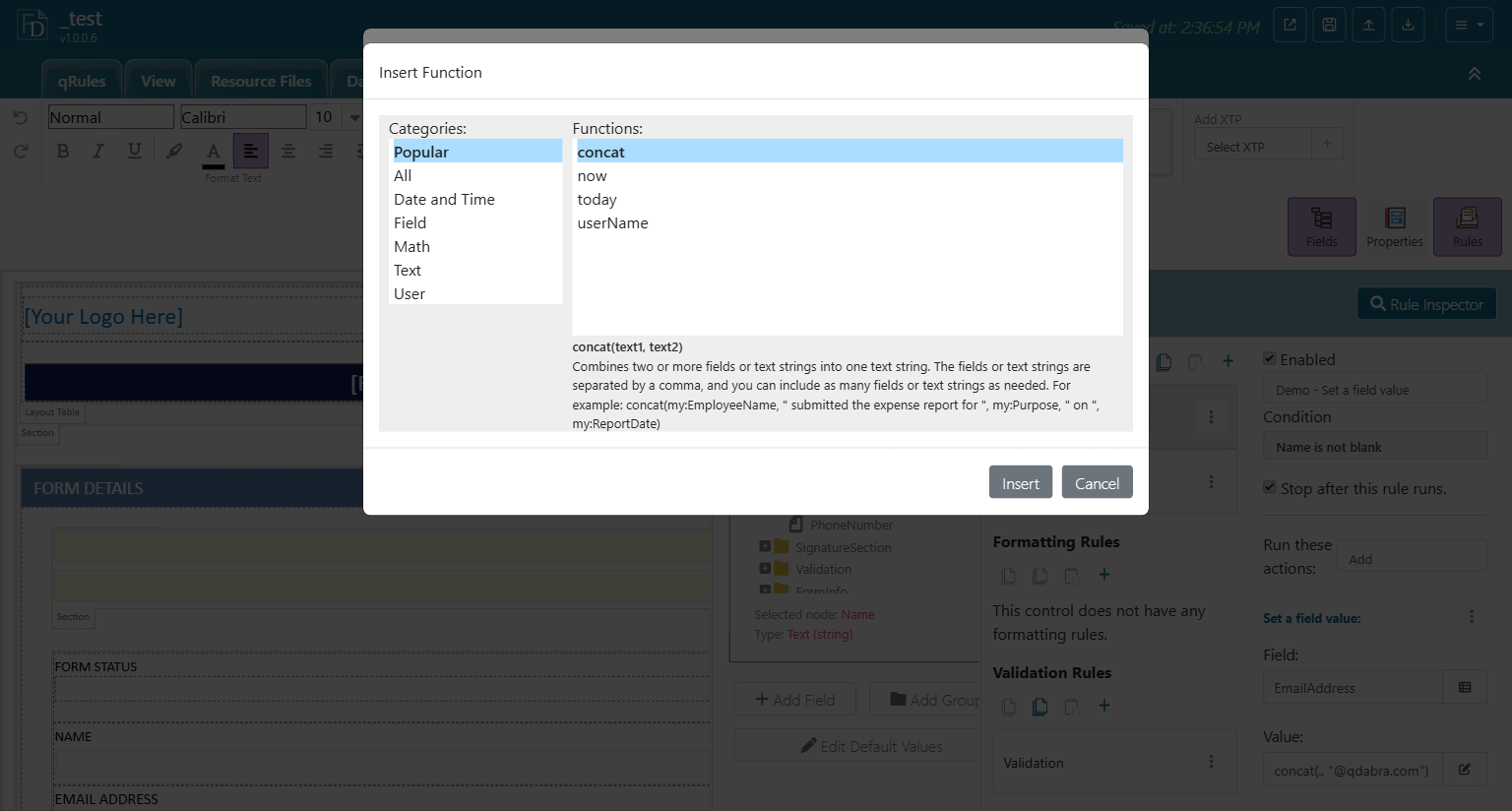
Insert Function groups functions into Popular, All, Date and Time, Field, Math, Text, and User. Selecting a function shows its signature, a description, and an example before you insert it.
3.3.3 Show the value of a field or formula, and Show a message
- Show the value of a field or formula has one setting, Value, with the same fx button. The dialog shows the evaluated result. Use it to inspect intermediate values while building a form, then remove it.
- Show a message has one setting, Message, plain text.
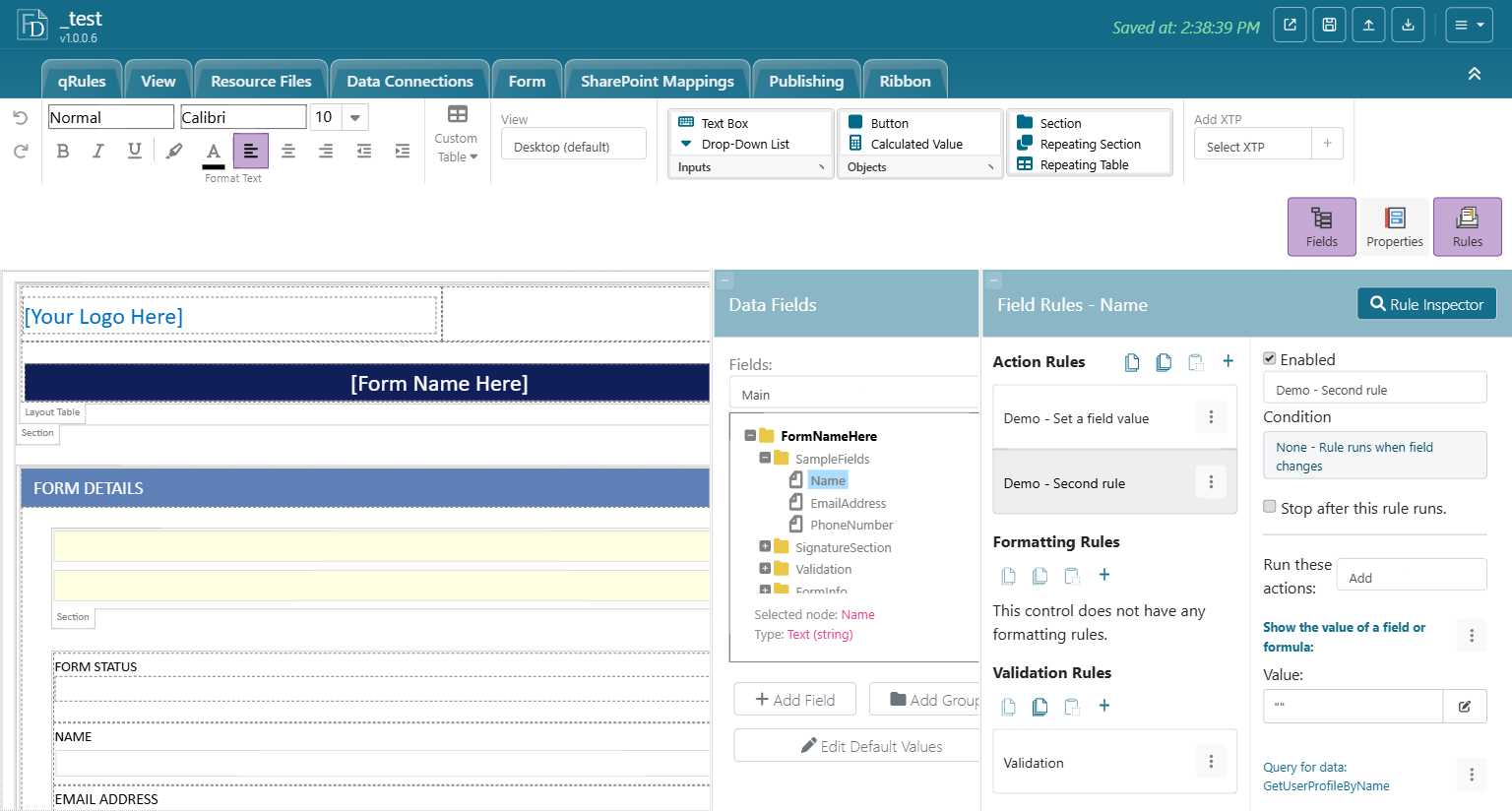
3.3.4 Query for data
One setting: Data connection, a dropdown of the template's query connections. The action runs the query and the results become available in that connection's secondary data source. Chapter 6 uses this to load the current user's profile.
3.3.5 Submit data
One setting: the submit connection to run. If the template has no submit connection yet, choosing this action shows "This form does not currently have any data sources that can be submitted." and nothing is added. Create the connection on the Data Connections tab first.
3.3.6 Run a qRules Command
One setting: Command, the command string. Click the edit button to open the Formula editor, which in this case has an extra Insert qRules Command button.
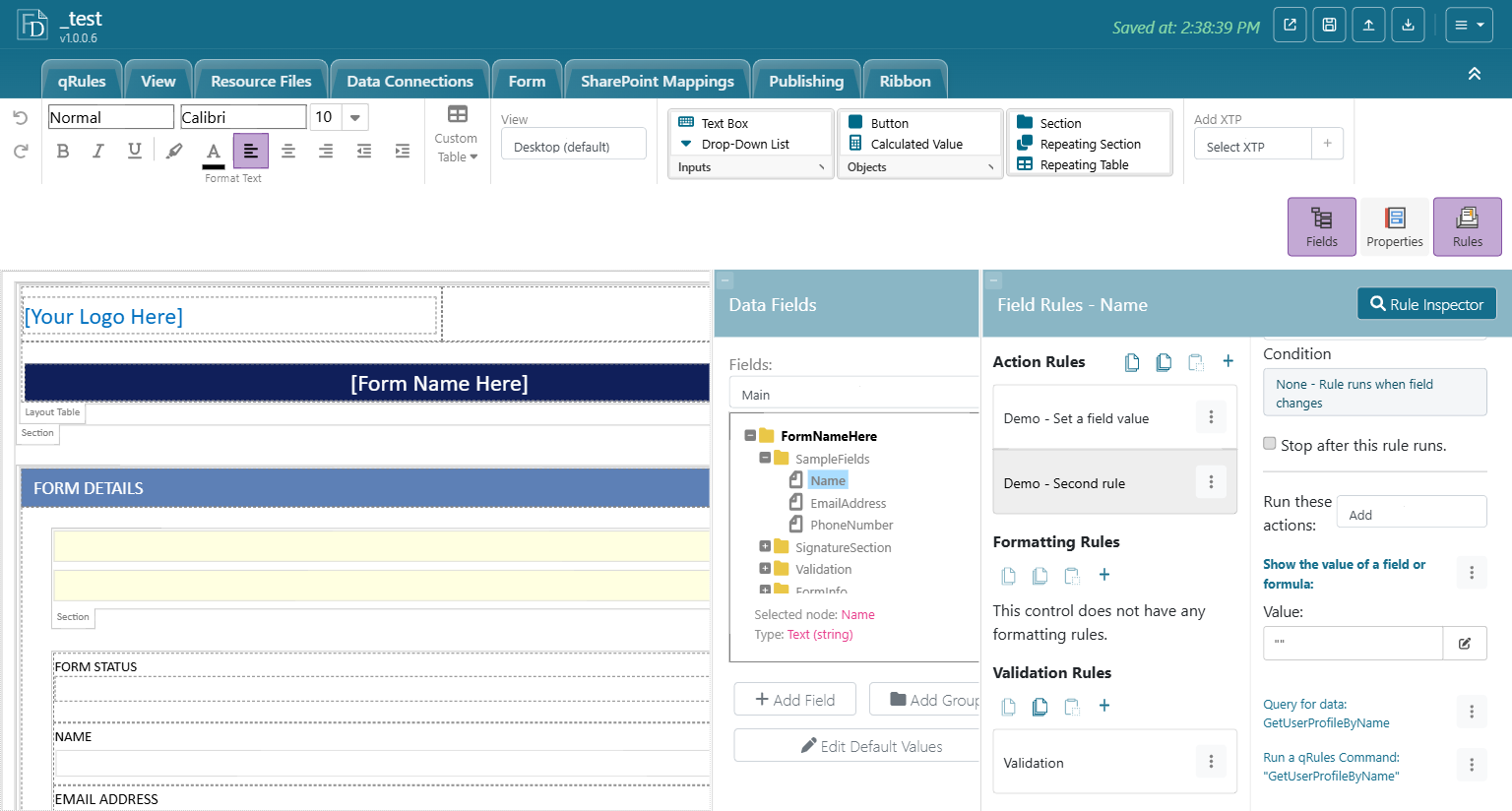
Insert qRules Command opens the qRules Command Builder:
- Search or scroll the command list. Each entry shows a one-line description.
- Pick a command. The builder shows its description, its optional parameters, and a live Command Preview.
- For each parameter choose Static (type a value) or Dynamic (take the value from a field). Dropdown-typed parameters such as
dsnameorsourcelist the valid choices. - Click OK. The quoted command string is inserted into the Formula editor.
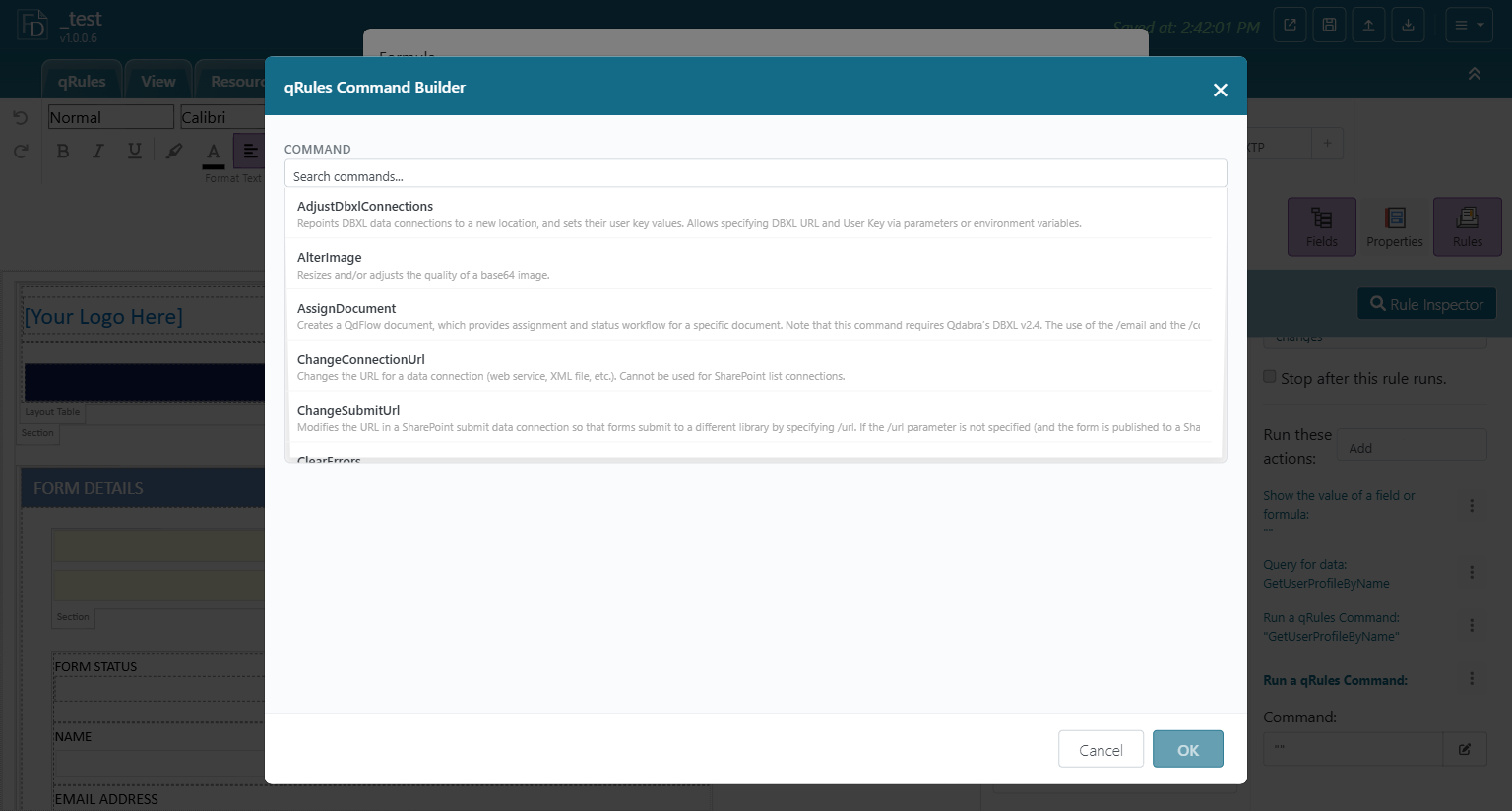
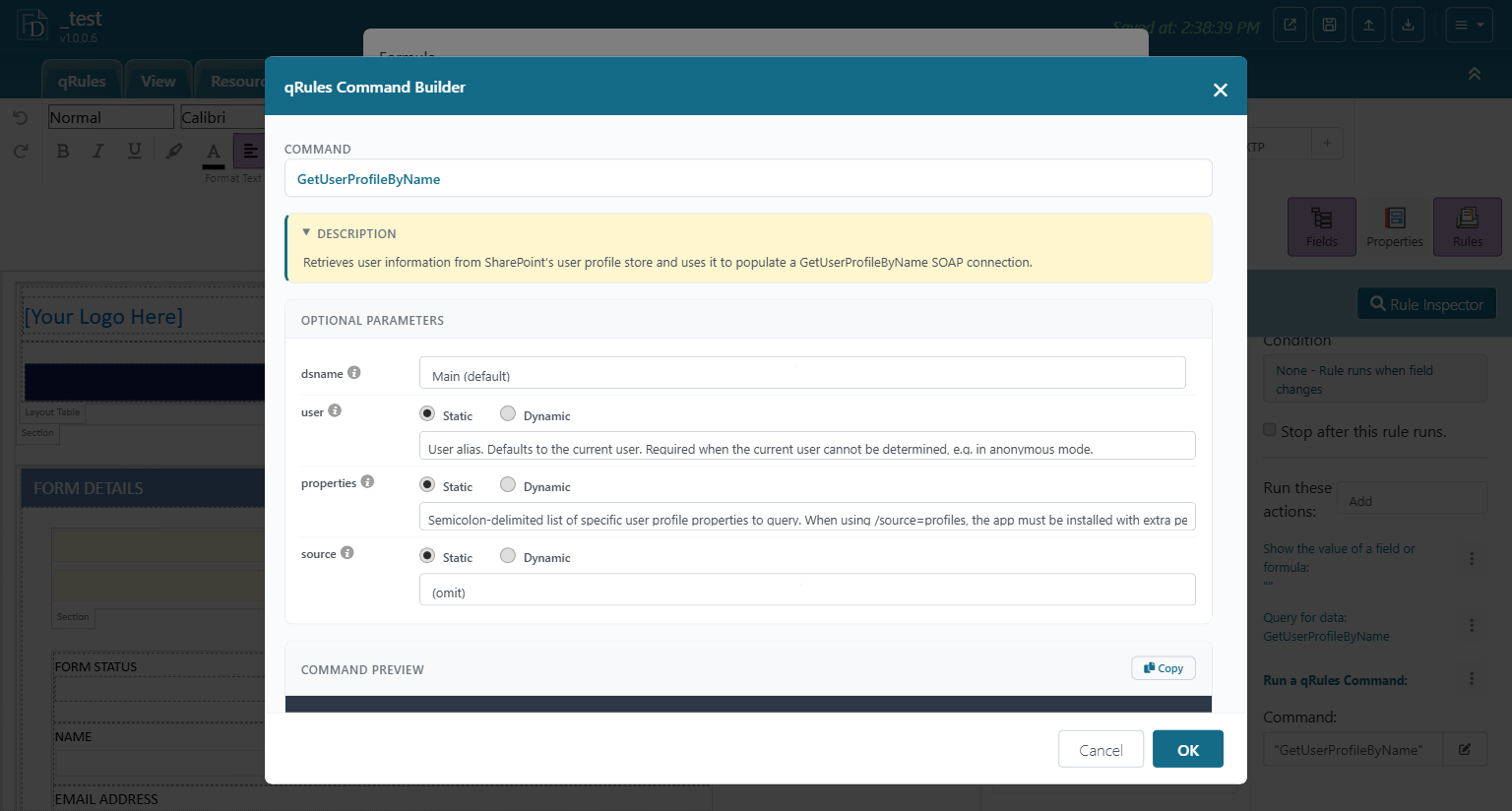
The command list is the same one shown on the qRules ribbon tab under Command Reference. Chapter 6 walks through GetUserProfileByName in detail.
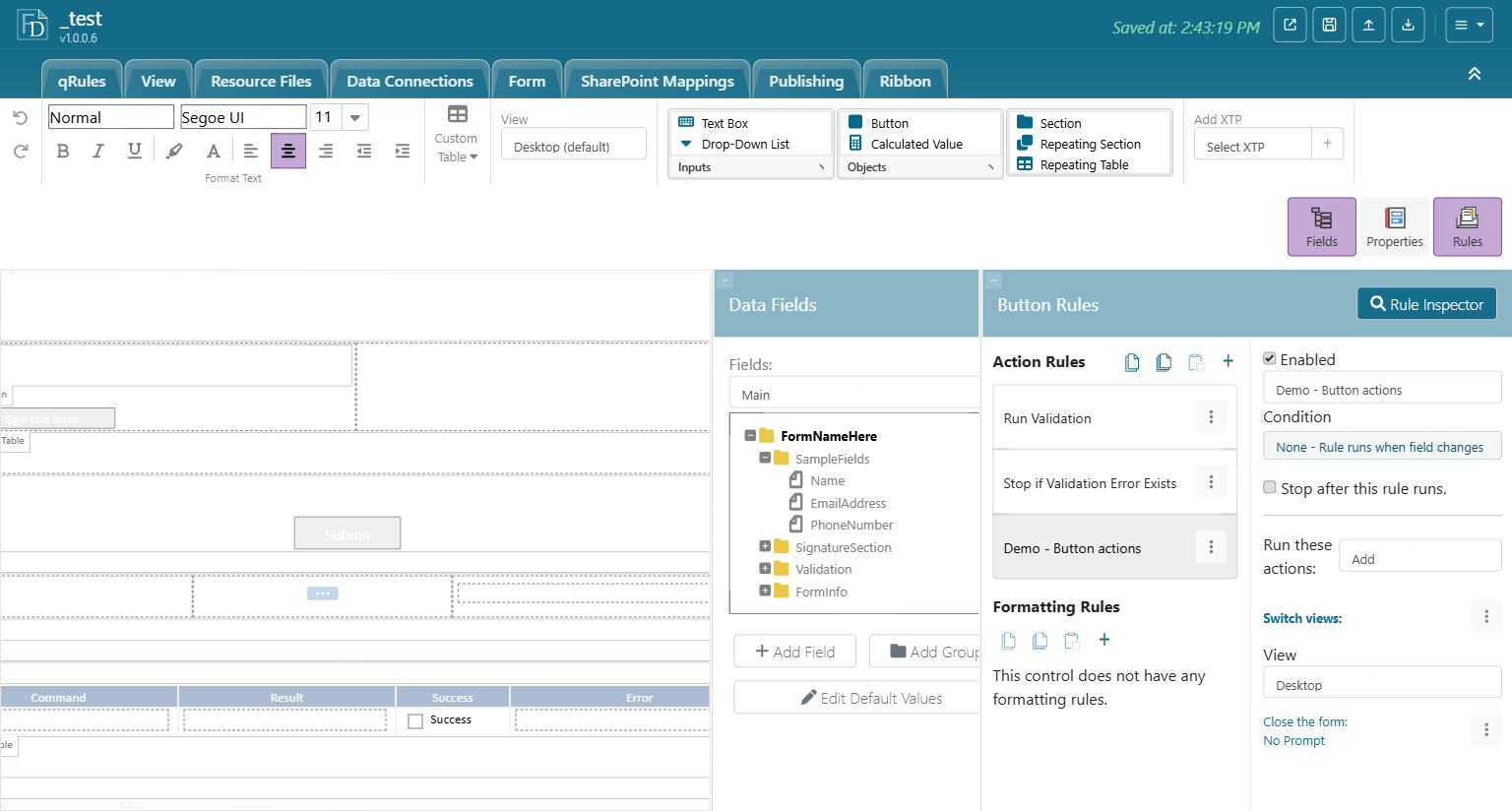
3.3.7 Switch views and Close the form
- Switch views has one setting, View, a dropdown of the template's views.
- Close the form has no settings. Its summary line reads "No Prompt".
3.4 Ordering actions
Actions run top to bottom within the rule. Each action has a three-dot menu with Move Up, Move Down, and Delete; you can also drag an action to a new position.
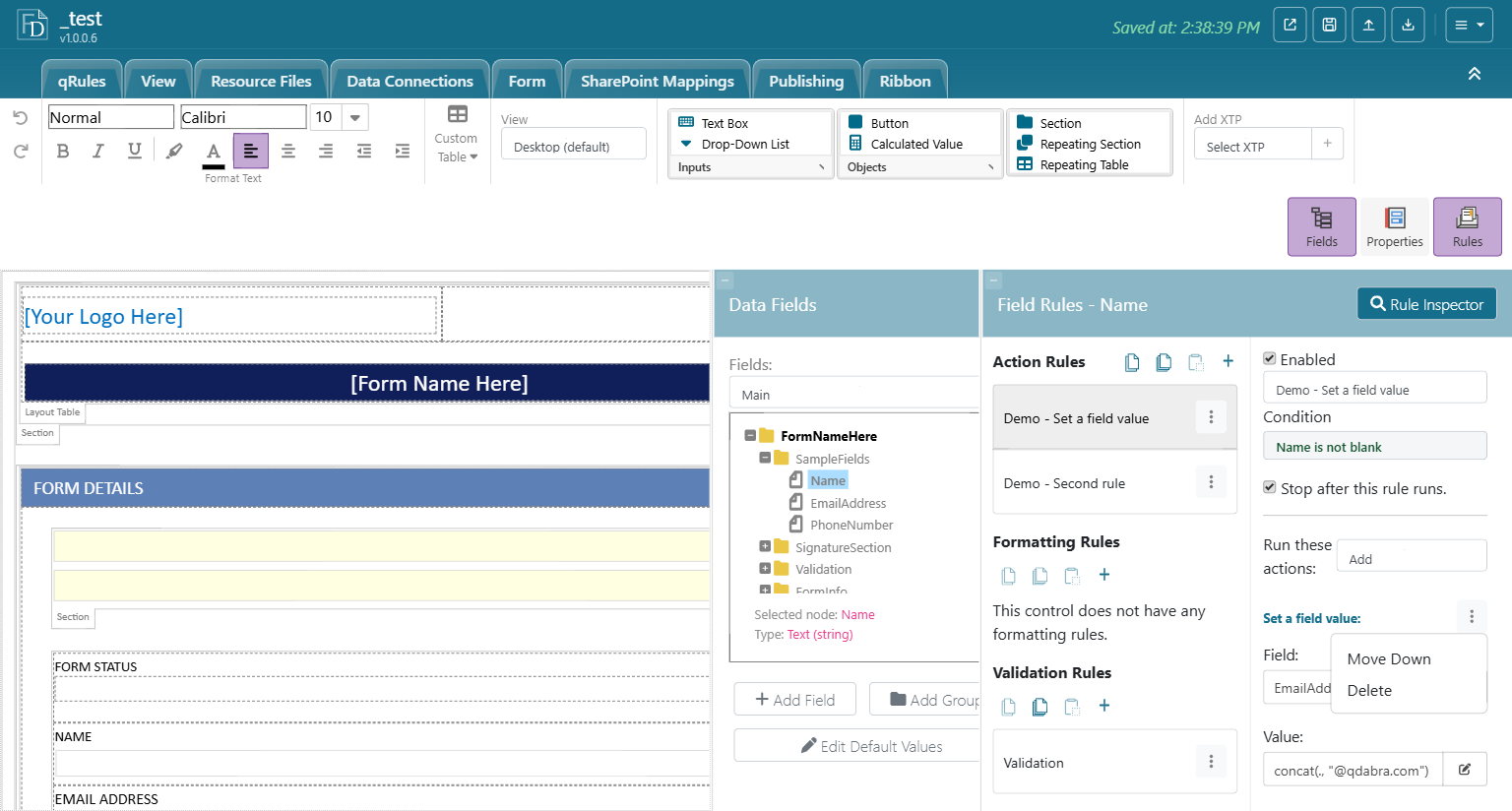
Order matters whenever one action depends on another. The usual shape is: run a query or a qRules command first, then set fields from its result, then show a message or switch views.
3.5 A worked example: validate before submit
The Submit button in the sample template carries two rules that together stop a submit when the form has validation errors. It shows the stop flag, qRules commands, and multiple actions working together.
Rule 1 - Run Validation (no condition)
- Run a qRules Command:
"GetErrorCount /novalidate=false" - Set a field value:
ErrorCount = concat(GetDOM("QdabraRules")/QdabraRules/Result, " error(s) found. Please fix the errors below.") - Run a qRules Command:
"GetErrors /format=fieldAndMessage /novalidate=false" - Set a field value:
ErrorMessage = GetDOM("QdabraRules")/QdabraRules/Result
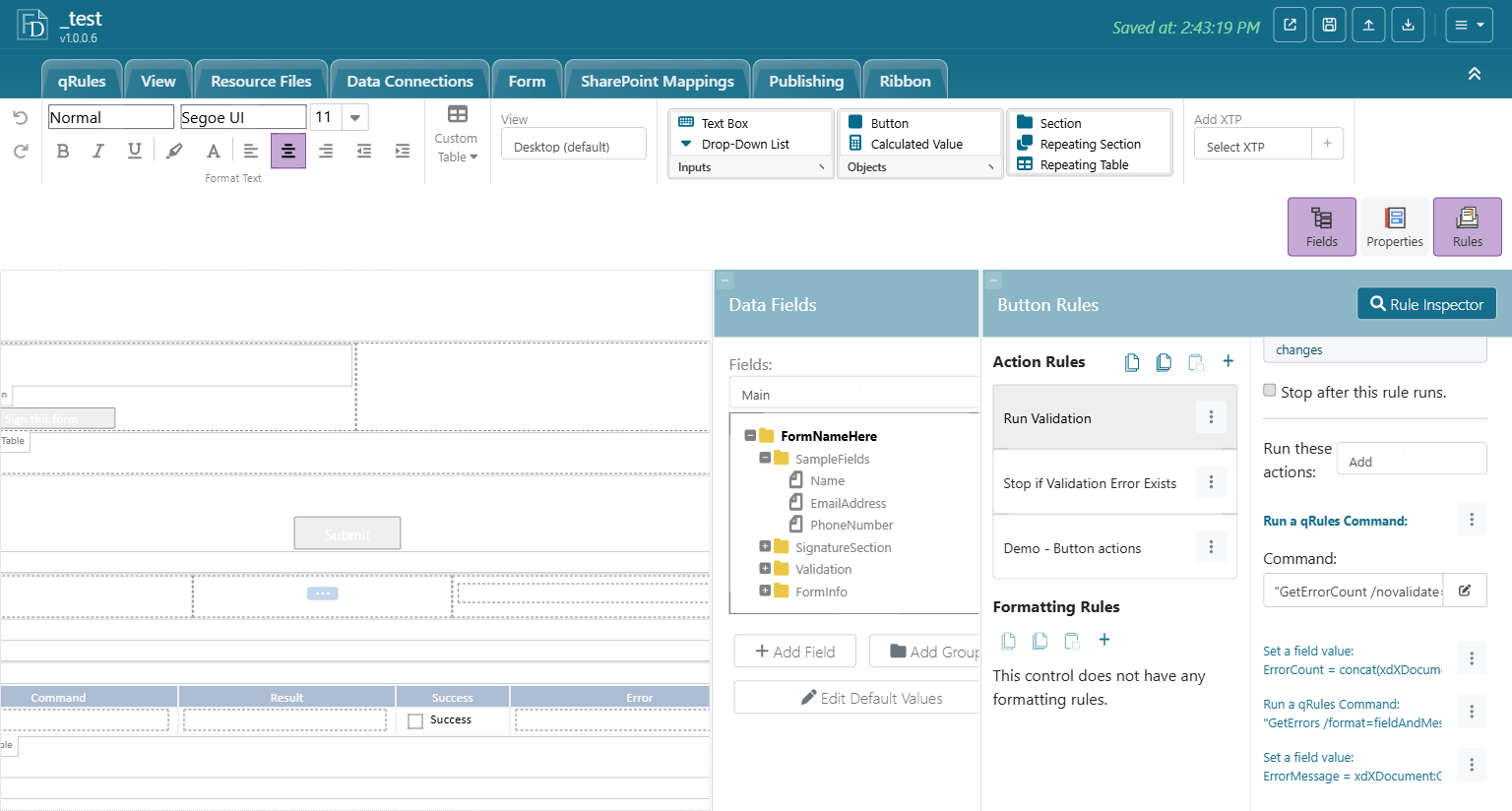
Rule 2 - Stop if Validation Error Exists (condition: ErrorMessage is not blank, Stop after this rule runs checked)
- Set a field value:
@stop = ""(a harmless action; the rule exists for its stop flag)
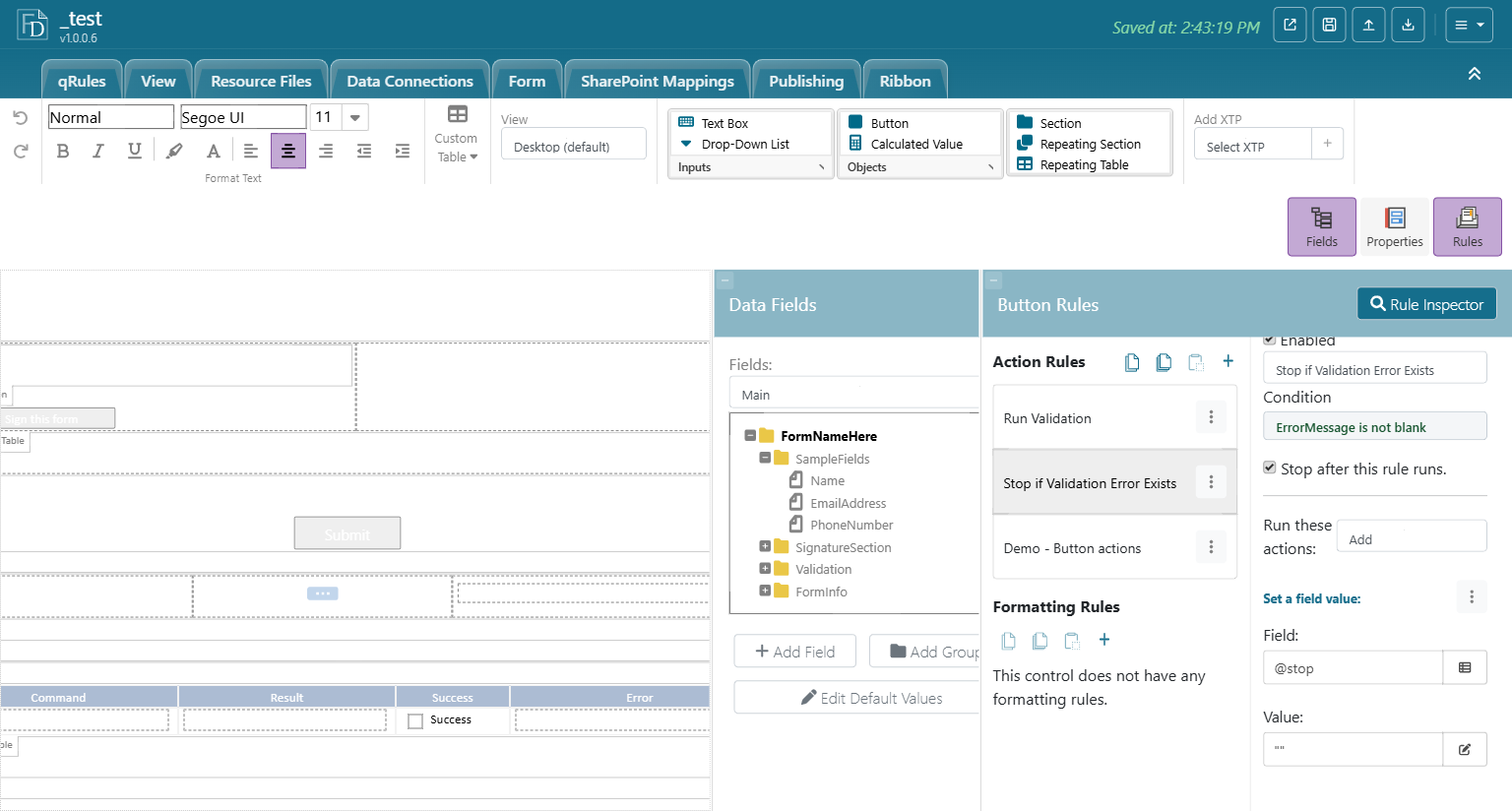
Put the real Submit data rule third. When the form is clean, ErrorMessage is blank, Rule 2 does not fire, and the submit runs.
3.6 Tips
- Keep one purpose per rule. It makes the stop flag and the Rule Inspector far easier to reason about.
- Insert fields with the picker. Typed names are the most common cause of "Could not resolve" errors.
Next: Chapter 4 - Validation Rules.