Chapter 1 - The Rules Pane
FormsDesigner keeps all form logic in one place: the Rules pane on the right side of the designer. This chapter explains where the pane is, when it becomes available, and how the three kinds of rules are organized. Later chapters cover each kind of rule in detail.
1.1 What a rule is
A rule attaches behavior to a part of the form. Every rule has three parts:
| Part | Meaning |
|---|---|
| Trigger | What causes the rule to be evaluated: a field value changing, a button being clicked, or the form loading. |
| Condition | An optional test. The rule only acts when the condition is true. See Chapter 2. |
| Effect | What the rule does: run actions (Chapter 3), flag input that needs attention (Chapter 4), or change how a control looks (Chapter 5). |
By their effect, there are three kinds of rules: Action Rules, Validation Rules, and Formatting Rules. Section 1.3 describes each kind.
1.2 Opening the Rules pane
Above the right-hand panel are three buttons: Fields, Properties, and Rules. The Rules button is disabled until you select something that can own rules.
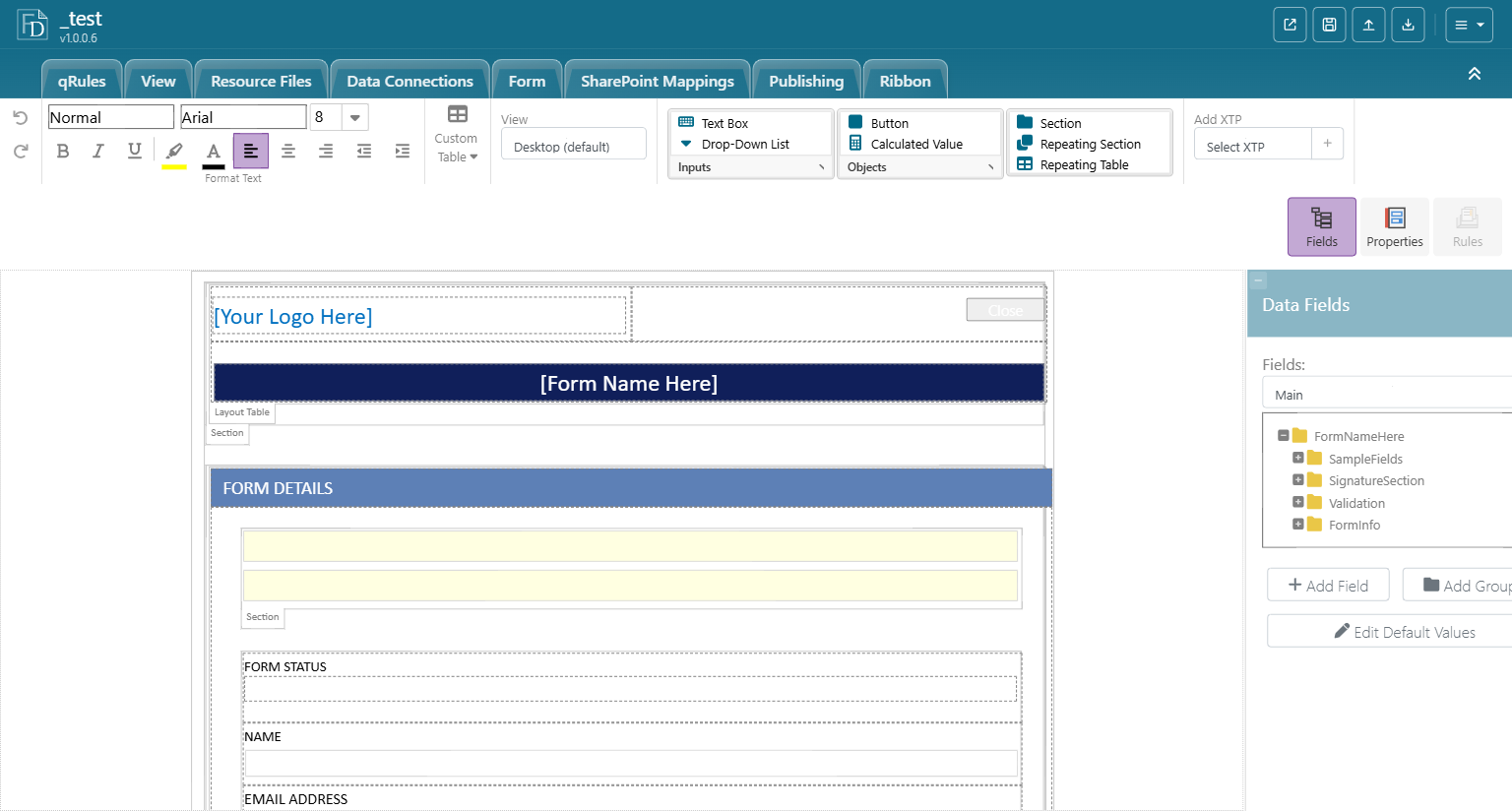
To enable it, select one of the following:
- A control on the canvas (text box, drop-down, button, section, and so on).
- A field or group in the Data Fields tree on the Fields tab. Use this when the field has no control on the canvas, or when you want to add rules to a field in a secondary data source.
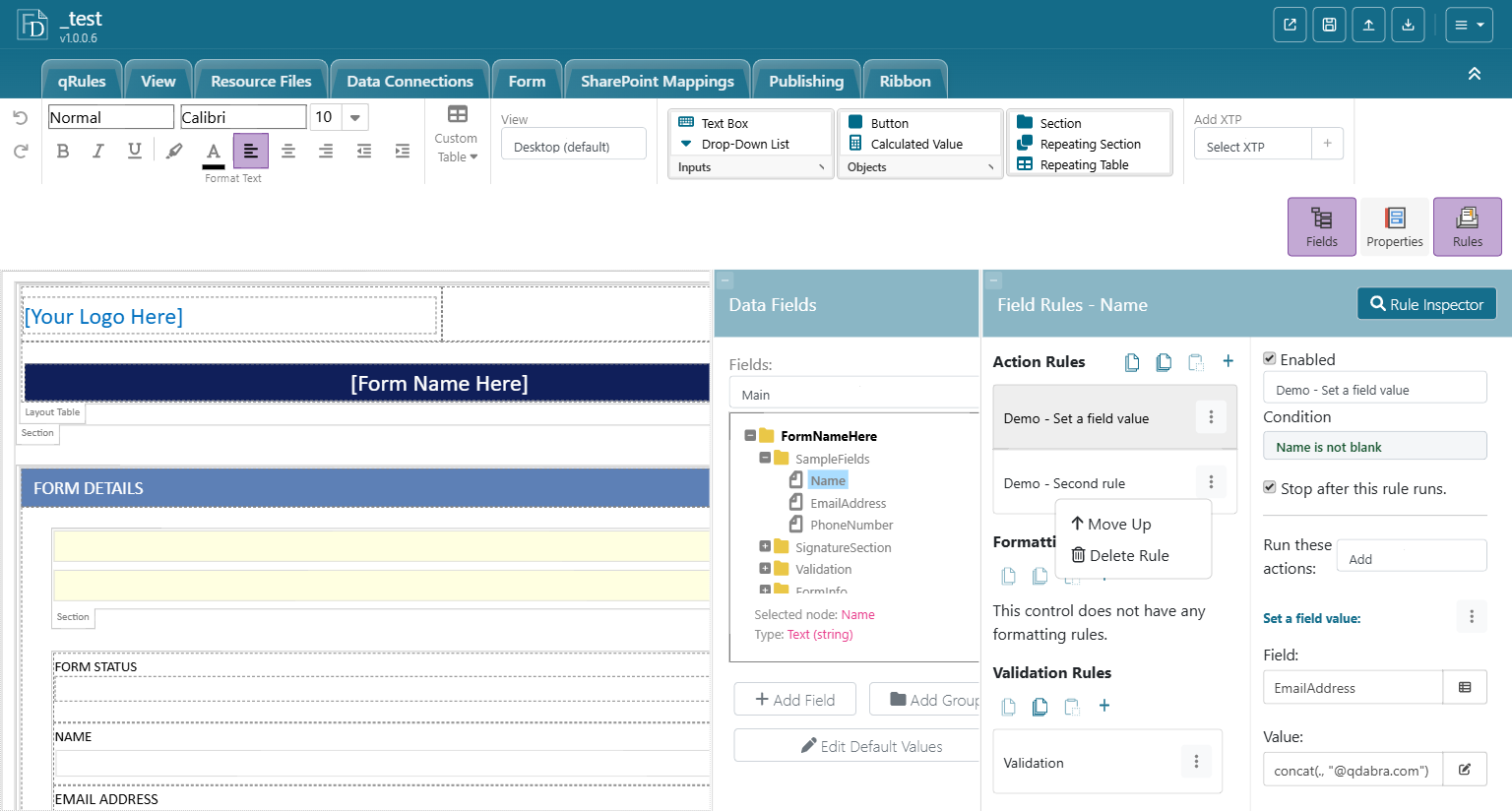
Then click the Rules button. The Rules pane opens, and its header tells you what you are editing rules for, for example Field Rules - EmailAddress.
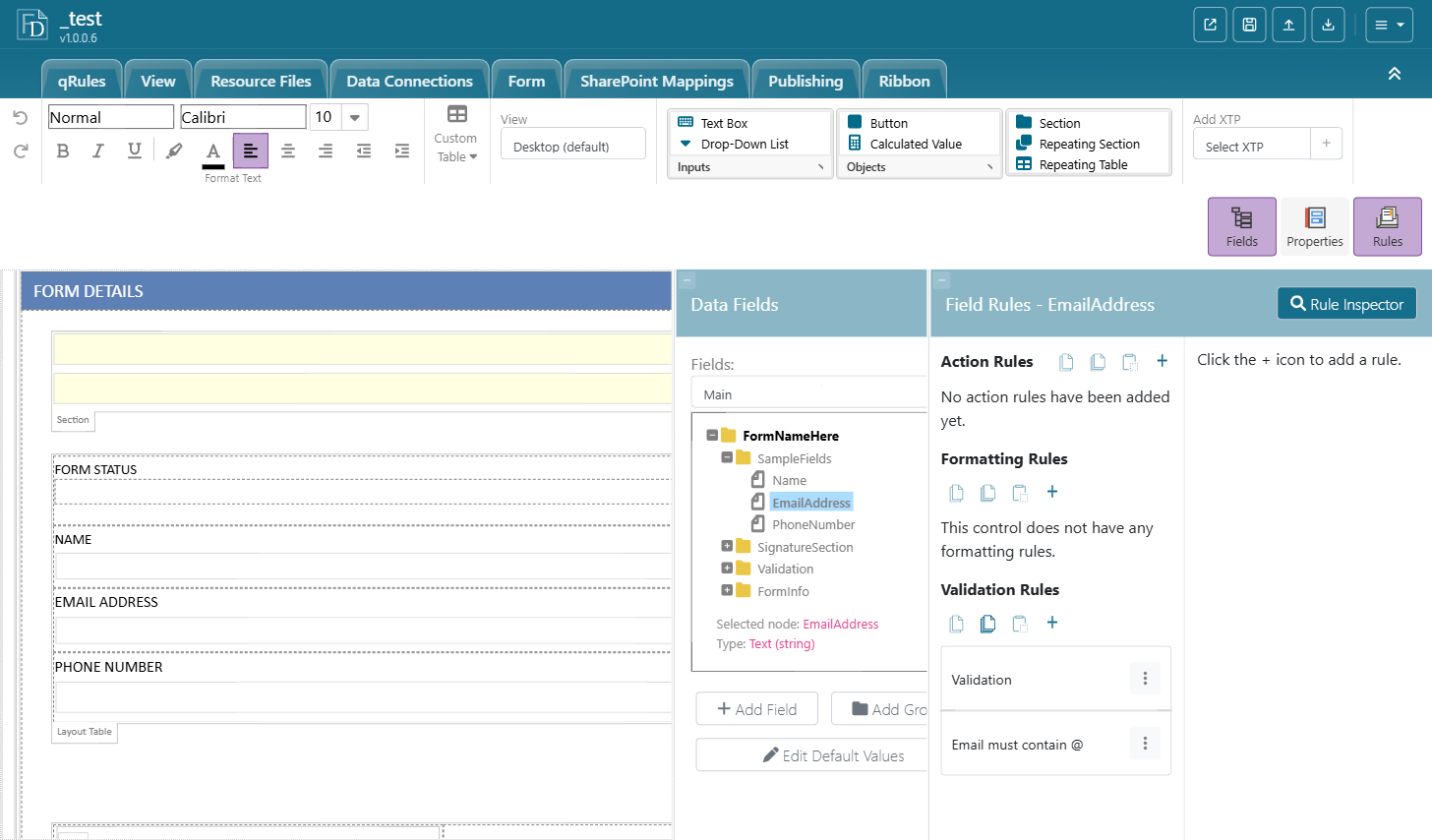
Tip: The three buttons are toggles. Clicking Rules again hides the pane; Fields and Properties show and hide the Data Fields and Properties panes the same way. Hiding a pane changes nothing in the form.
1.3 The three kinds of rules
| Kind | What it does | Chapter |
|---|---|---|
| Action Rules | Run one or more actions when the trigger fires: set another field, show a message, query a data connection, switch views, run a qRules command, and more. | 3 |
| Validation Rules | Flag a value that needs attention and show a message while a condition is true. | 4 |
| Formatting Rules | Hide, disable, or restyle a control while a condition is true. | 5 |
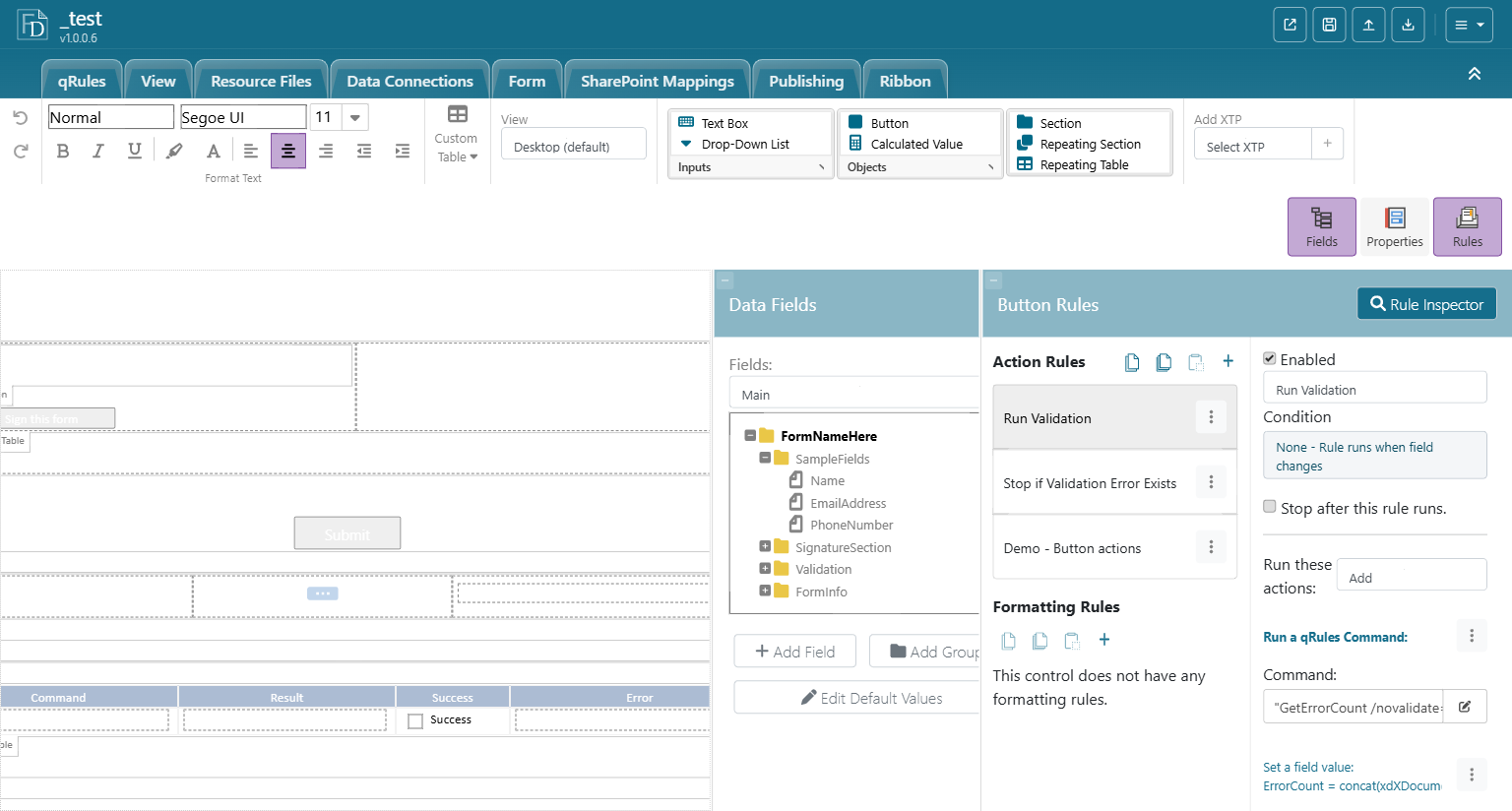
The Rules pane shows only the kinds of rules that apply to what you selected. A field bound to a text box gets all three; a button, for example, has no data to validate, so it shows no Validation Rules section. Section 1.4 has more on this.
Every section that is shown has the same four buttons in its header:
| Button | What it does |
|---|---|
| Copy Selected Rule | Copies the highlighted rule to the rules clipboard. |
| Copy All Rules | Copies every rule in the section. |
| Paste Rules | Pastes copied rules into this section. Use it to move logic between fields; pasted rules get a "(copy)" suffix and their field references are re-based on the new owner, so check conditions and actions after pasting. |
| + (Add Rule) | Creates a new rule and opens it for editing. |
When a section has no rules yet it says so, for example "No action rules have been added yet." or "Click the + icon to add a rule."
1.4 What you see depends on what is selected
The pane header names the owner (Field Rules - FieldName, Button Rules, On Load Rules), and the sections and the list of available actions follow from it. As a guide: a control bound to a field offers all three kinds; a field picked in the Data Fields tree has no control to format, so Formatting Rules does not appear; a button has nothing to validate, so Validation Rules does not appear. The chapters that follow describe each case where it matters.
1.5 Working with the rule list
Rules in a section run from top to bottom. Click a rule to open its details on the right.
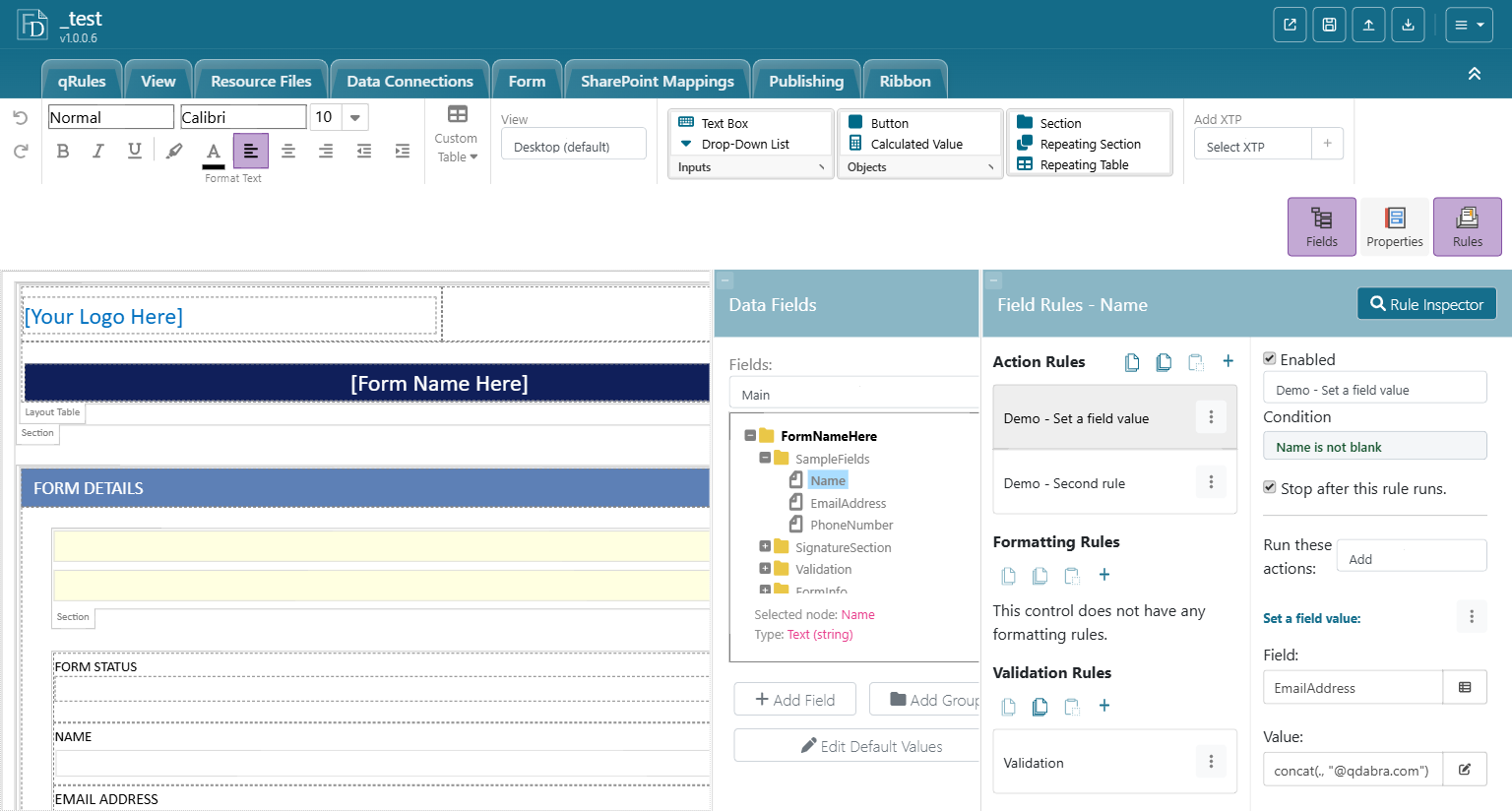
The details panel always starts with the same controls:
| Control | Notes |
|---|---|
| Enabled | Unchecking keeps the rule in the form but stops it from running. Useful for troubleshooting. |
| Rule name | Free text. Give every rule a name that says what it does; the name is what you see in the list and in the Rule Inspector. |
| Condition | Shows "None" until you set one. Click it to open the Condition editor (Chapter 2). |
| Stop after this rule runs. | When the condition is met, the rule runs its actions, and then every rule below it in the same list is skipped. See 1.5.1. |
1.5.1 Ordering rules and "Stop after this rule runs"
Because rules run in order, the order matters whenever one rule depends on another, and it matters a great deal when you use the stop flag. Two ways to reorder:
- Drag a rule by its row (the row tooltip reads "Drag to reorder").
- Open the rule's three-dot menu and choose Move Up or Move Down. The same menu has Delete Rule.
A typical use of the stop flag is a guard rule placed above the real work:
- Rule 1 "Validate" runs the checks and writes any error text into an ErrorMessage field.
- Rule 2 "Stop if errors" has the condition ErrorMessage is not blank and Stop after this rule runs checked.
- Rule 3 "Submit" does the submit.
If Rule 2 fires, Rule 3 never runs. Chapter 9 shows this recipe end to end.
Two things the stop flag does not do: it does not stop before the rule's own actions (they always run first), and it does nothing when the rule's condition is false (the list simply continues to the next rule). A rule with no condition and the stop flag on therefore blocks everything below it every time the trigger fires.
Likewise, a Condition of "None" does not mean "never runs". It means the rule runs every time its trigger fires: on every change of the field, on every click of the button, or on every form load.
1.6 Rules that run when the form opens
Form-load rules are not attached to a control. To reach them:
- Click the Form tab in the ribbon.
- Click Form Load Rules.
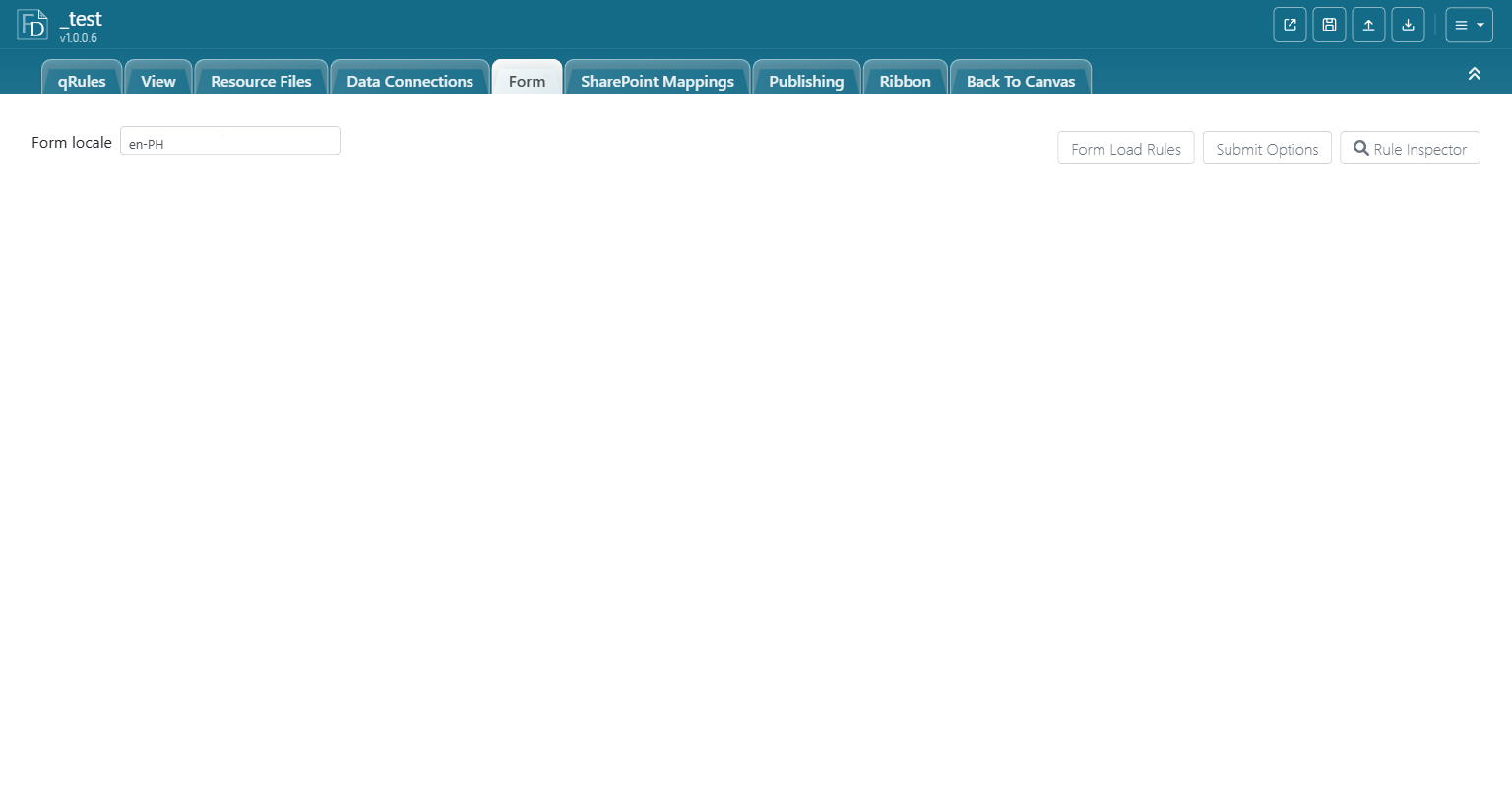
The Rules pane opens with the header On Load Rules.
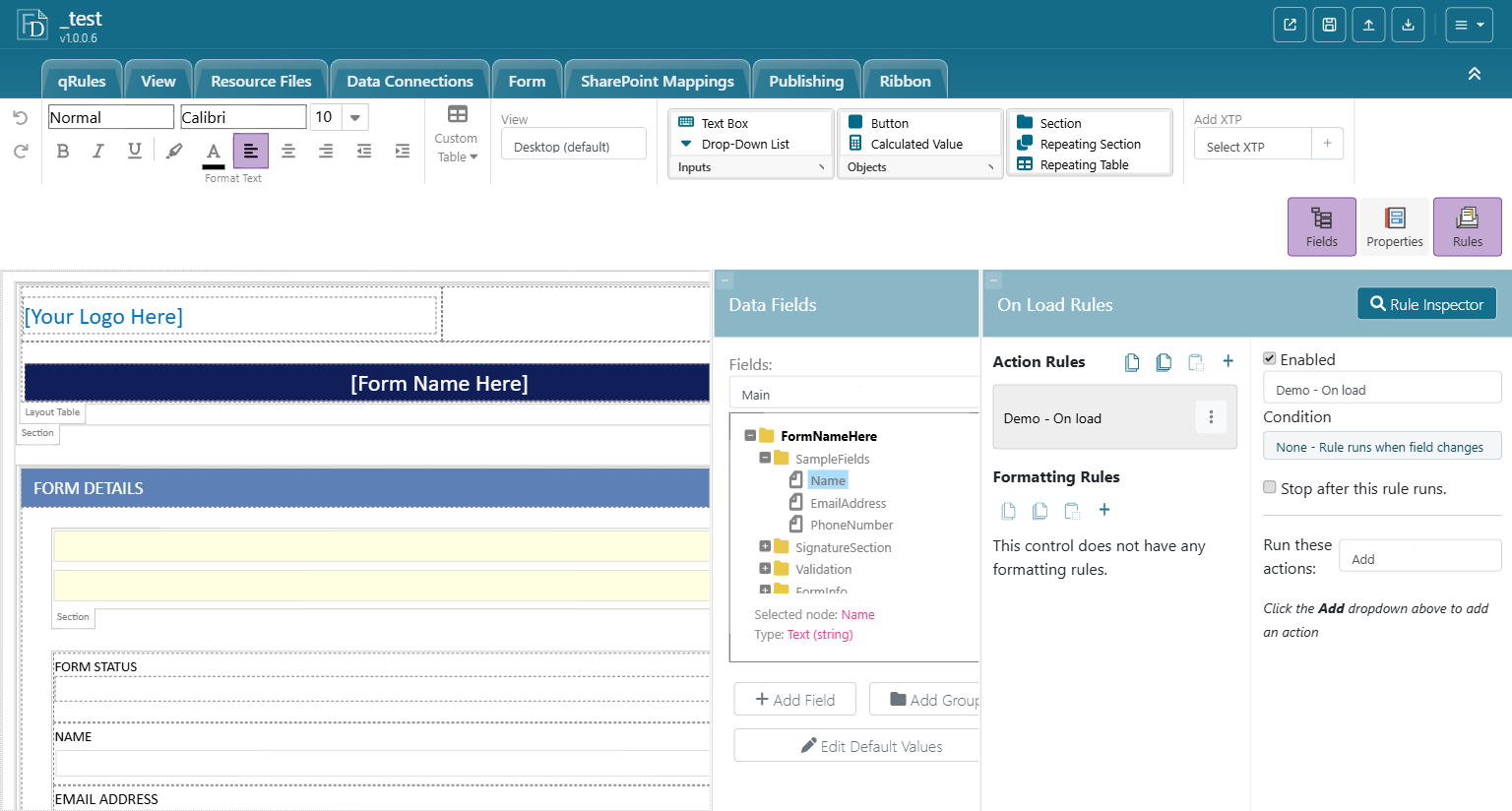
Note: The Condition line of a new on-load rule reads "None - Rule runs when field changes". For on-load rules the trigger is the form opening, not a field change.
1.6.1 Recommended: put start-up logic on qRules finishedLoading instead
Qdabra recommends leaving Form Load Rules empty in templates that use qRules, and writing the start-up logic as rules on the finishedLoading attribute of the QdabraRules data source instead (Data Fields > QdabraRules (Secondary) > finishedLoading > Rules). The reasons:
- Timing. finishedLoading is the first trigger that runs rules when the form opens. qRules sets it as soon as it is ready, FormsViewer runs its rules to the end, and only then runs the Form Load Rules. Rules on finishedLoading can use every qRules command, and the start-up work placed there is done before anything in Form Load Rules.
- One ordered list. The starter template already keeps its start-up work on finishedLoading: load resources, run Dynamic Data Connections, read form properties, switch to the mobile view. Adding your own rules to the same list gives one place to read, and one order to control, instead of logic split between two triggers that run at different moments.
- Correct data. Rules that query lists or libraries must run after Dynamic Data Connections has pointed the connections at the current site. That ordering is only possible when the query rules sit below the Dynamic DC rule in the finishedLoading list. Chapter 7 explains this in detail.
Form Load Rules still work, and they run after the finishedLoading list. Keep them for simple, independent steps such as setting a constant default. When in doubt, use finishedLoading.
1.7 Saving
FormsDesigner saves as you work. The status text in the title bar switches between "Editing..." and "Saved at hh:mm:ss". There is no separate save step for rules. Save (Ctrl+S) in the title bar forces a save if you do not want to wait.
Publishing the template to users is a separate action (Publish in the title bar or the Publishing tab) and is outside the scope of this manual. One message to know: if you publish when nothing has changed since the last publish, the dialog can report "No draft exists for this template". That is not an error; there was simply nothing new to publish.
1.8 Summary
- Select a control or a data field, then click Rules.
- Three kinds of rules: Action, Validation, Formatting. The pane only shows the kinds that apply to what you selected.
- Name every rule, keep them in the order you want them to run, and use Stop after this rule runs to build guard rules.
- Form-load rules live under Form > Form Load Rules, but in qRules templates put start-up logic on QdabraRules > finishedLoading instead (1.6.1).
Next: Chapter 2 - Conditions.