Chapter 7 - Release Notes
If you are having an issue with DBXL, this is the first place to look. Press Ctrl+F and search for a keyword related to the issue you have encountered.
This chapter contains a list of known issues, troubleshooting hints and workarounds for a variety of issues related to the current and previous versions of DBXL (these notes cover DBXL up to v3.6). To reduce the size of this document, any release notes related to obsolete scenarios from previous versions of DBXL have been removed.
7.1 What's new in DBXL 3.6
Published on April 28, 2026.
7.1.1 Security
- Performed a comprehensive AI-assisted security audit of the DBXL server; all findings were addressed.
- Template stylesheet processing hardened: script execution is disabled and external resource loading is blocked for untrusted templates.
- Fixed a SQL injection issue in query filter processing; filter values are now strictly validated, and malformed filter XML returns an explicit error.
- Blocked path traversal in template file serving.
- Hardened outbound requests (QuerySharePoint and data connection file fetches) against server-side request forgery.
- Hardened XML parsing against XXE and entity-expansion attacks across document ingest and import paths.
- Added standard HTTP security response headers, MIME-sniffing protection, and cookie hardening.
- Began retiring legacy DBXL User Keys in favor of Client Secret token authentication (FormsViewer 11.12 adds support for Client Secret-based communication with DBXL).
7.1.2 On-demand PDF generation from the DBXL Admin Tool
- Download or open any document as a PDF, with no workflow required.
- Access current or historical versions as PDF.
- Bulk download: select multiple documents and receive a ZIP of PDFs.
- URL-based PDF access that respects document type permissions.
- Flexible view selection: set a default per document type or override it per action.
7.1.3 JSON Web Token (JWT) authentication for FormsViewer-to-DBXL connections
- Short-lived bearer tokens as a modern alternative to DBXL User Keys.
- Centralized rotation and revocation, with no static secrets in config files.
- Aligns with SOC 2, ISO 27001 and HIPAA expectations for credential lifetime management.
- Configurable per DBXL instance: run different issuers and policies per tenant or environment.
- Standards-based: works with any OIDC provider (Entra ID, Okta, Auth0) for SSO and MFA.
- Extends JWT authentication to Central Flows submissions, removing the need for long-lived User Keys in the Central Flows workflow configuration.
The sections below are the known issues, troubleshooting hints and workarounds collected across DBXL versions.
7.2 Integrated scenario
Integrated installs are no longer supported. Please install DBXL v3.6 on a server separate from SharePoint.
If you are running an earlier version of DBXL (before v2.8) and it is deployed on the same server as SharePoint (i.e. the Integrated Scenario), please refer to DBXL v3.0 Release Notes.
The release notes below are included because they may still be relevant when installing DBXL on a separate server.
7.2.1 Installation
Page Not Found error after installing DBXL
After installing DBXL, you may see a "Page Not Found" error when accessing the asmx pages. Possible reasons for this are:
- DBXL was installed on a port other than 80. To fix this, make sure that you have unblocked that port from the network's firewall.
- The website is configured to use multiple host names and IP addresses. The easiest workaround is to access your site settings (via the IIS management console) and temporarily remove all hostnames/IP addresses that will not work. Make sure to leave only the hostname that the currently logged-in user can access. Uninstall DBXL and reinstall it. After DBXL installs successfully, you can re-add the additional hostnames and/or IP addresses.
- The DBXL installer creates a
QdabraWebServicefolder on the site where it was installed. Please check that this folder allows Read permission to authenticated users. This is usually granted by the DBXL installer automatically, but in rare cases the person installing DBXL will need to manually add the permission.
Error message: Client found response content type of 'text/html; charset=utf-8', but expected 'text/xml'
When installing DBXL (especially on servers with MOSS 2007) you may get the following error:
Error initializing DBXL database. Client found response content type of 'text/html; charset=utf-8', but expected 'text/xml'.
The error may also show as:
The installation failed, and the rollback was performed. --> An error occurred configuring system doctypes.
The event viewer, in turn, will show:
Error bootstrapping system doctypes. Call to BoostrapSystemDocumentTypes at http://<servername>/QdabraWebService/ failed. Encountered a critical error and needs attention.
Here are some solutions to try if you encounter this:
- This error usually relates to local machine accounts not having database administration rights or membership in the SharePoint permissions groups. Verify that the account you are using to execute the installer and the Network Service (or the account you are selecting for DBXL) have administrative permissions in SQL.
- Once SharePoint is installed and the default SharePoint web site (on port 80) is provisioned, the "Default Web Site" on the machine is locked down. Typically, one would want to install DBXL on the "SharePoint - 80" web site. However, the initial configuration panel of the DBXL installer defaults to "Default Web Site". "Default Web Site" and "SharePoint - 80" are not the same; ensure that "SharePoint - 80" is selected as the web site for installation.
- Ensure that the SharePoint site (from step 2) is not stopped in IIS.
DBXL installation produces an HTTP error 405
During installation, you may encounter an error that reads:
The installation failed, and the rollback had been performed. Error initializing DBXL database. The request failed with HTTP status 405: Method not allowed.
The problem arises when ASP.NET has not been registered with IIS, which happens when .NET 2.0 is installed before IIS. To remedy this problem, run
aspnet_regiis.exe -i
found in C:\WINDOWS\Microsoft.NET\Framework\(Version)\.
Note: DBXL v3.6 requires .NET Framework 4.6.2 or later (4.8 recommended).
DBXL installation produces an HTTP error 404
There are four known reasons for an HTTP Error 404 when installing DBXL.
- Please check that ASP.NET is enabled in the web service extensions of IIS manager. When setting up the server where DBXL is going to be installed, there is an option to allow ASP.NET applications under Windows Components Application Server. This needs to be installed for DBXL to install and run correctly.
- Your site may be configured to use multiple hostnames or multiple IP addresses. If DBXL picks the wrong hostname/IP, the installation could fail. The easiest workaround is to access your site settings (via the IIS management console) and temporarily remove all hostnames/IP addresses that will not work. Make sure to leave only the hostname that the currently logged-in user can access. After DBXL installs successfully, you can re-add the additional hostnames and/or IP addresses.
- The HTTP 404 error could be caused by a proxy setting in Internet Explorer. Please disable the proxy to allow the installation to succeed.
- The final possibility involves applications that use ports 80 or 443. The section "Issues with applications that use ports 80 or 443" (7.4.1) covers this scenario.
DBXL will assume SSL port number when installing on a site with HTTPS
If you install DBXL on a website configured to use HTTPS but later change the configuration to HTTP and reinstall DBXL, you will receive the error:
Could not initialize the database
When you configure the web site to use HTTPS it stores the port number as 443. Then, when you remove the server certificate from the default website and reconfigure it to use http, it is not removing the SSL port number from that default website.
To prevent this problem, you will have to remove the port number manually. In inetmgr, open the properties of the web site which was configured to use HTTPS and delete the SSL port number.
DBXL installer encounters 503 error
When installing DBXL, you may encounter the following message:
The installation failed, and the rollback has been performed --> Error initializing DBXL database. --> the request failed with HTTP status 503: Service unavailable.
Should you come across this:
- Make sure the App pool is not stopped. If it is stopped, there is likely a problem with the user account and password combination being used. You can try resetting it in the Identity tab of the app pool's property page, then restart the app pool, and then try installation again.
- Make sure that you installed to the correct site (and not a disabled site).
- If using SharePoint 2007, make sure the Network Service account is in the
WSS_WPGgroup.
IIS site configured to run as 32-bit may not work with DBXL 64-bit
The Cablib.dll installed with the 64-bit installer is for a 64-bit environment. But it may be that an IIS site is configured to run as 32-bit and thus fails to load the 64-bit cablib.dll. If this is the case, please try installing the 32-bit version of DBXL.
Virtual directory not created during installation
During installation, you may encounter the following error:
The specified path'/LM/W3SVC/769376297/ROOT/QdabraWebService' is unavailable.
This causes the installer to stop. A workaround is to click OK in the error dialog, then go to IIS Administration and create the virtual directory. The QdabraWebService folder should have been created under the website; right-click on it, select Properties, click Create and click OK. Then switch back to the installer and complete the installation.
Site dropdown defaults to HTTPS
During installation the site dropdown will default to HTTPS on some environments, even if there is no SSL certificate installed. Change the dropdown to not use HTTPS if no certificate is configured; otherwise installation might fail.
Reinstallation of DBXL will not work if App Pool is changed to Integrated pipeline mode
During installation of DBXL, the DBXL App Pool is set to Classic .NET App Pool by default. If later you change the DBXL App Pool to "Integrated" Pipeline mode to support SharePoint workflow, reinstallation of DBXL will not work.
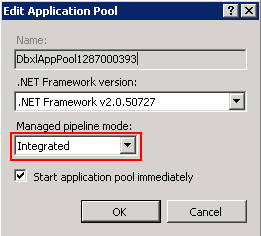
To prevent this problem, you will have to delete the DBXL App Pool. In IIS, open the Application Pool and delete the DBXL App Pool from the list, and then re-run the installation.
Disable loopback check to complete installation
On load balanced servers you might encounter an issue installing DBXL; this is an issue encountered for any web service, not just DBXL. The issue is well described in the following link: DisableLoopbackCheck - Unauthorized (401.1) Exception calling Web Services in SharePoint
Microsoft Support also discusses the issue here: You receive error 401.1 when you browse a Web site that uses Integrated Authentication and is hosted on IIS 5.1 or a later version
To install DBXL:
- Add the
DisableLoopbackCheckregistry entry discussed in this Microsoft KB article. Note: you will need to reboot your server before theDisableLoopbackChecktakes effect. - Be sure to add your load balanced host name for your web farm to the Hosts file on each front end web server. Use the loop-back IP address (127.0.0.1). This will ensure that each web server looks at itself to access the web services, preventing any trips back out to the load-balancer, and possibly calling the web service on another web server in the farm. This would be much less efficient.
If this problem appeared to be inconsistent (sometimes erroring, sometimes successful), this is most likely due to having multiple web servers. The call to the web service will be successful if by chance the load balancer redirected the call to the same (self) web server to access the web service. It will fail when trying to call across to a different web server.
DBXL inherits modules from parent sites
When installing DBXL Server edition, you may run into an error that begins with the following text:
Error bootstrapping system doctypes Client found response content type of 'text/html; charset=utf-8', but expected 'text/xml'. The request failed with the error message:
Please review the entire error recorded in the Event Viewer; it may mention <httpModules>. If it does, it is likely that some SharePoint or web site add-on may not function properly with DBXL's application pool. These modules are inherited by the QdabraWebService from parent sites.
This can be easily resolved by specifying that it be removed for the QdabraWebService virtual directory. You can edit the SharePoint web.config, in the parent folder of the QdabraWebService. Add the following section just before the </configuration> at the bottom of the web.config file.
<location path="QdabraWebService">
    <system.web>
        <httpModules>
            <remove name="your_module_name_here" />
        </httpModules>
    </system.web>
</location>
DBXL inherits the web.config settings, and manual exclusion using the <location> node is the only way to exclude them without uninstalling them. Of course, the other option would be to uninstall the solution which had originally added the httpModules.
This could also happen with <httpHandlers>, in which case they can be excluded as shown below:
<location path="QdabraWebService">
    <system.web>
        <httpHandlers>
            <clear />
            <add path="trace.axd" verb="*" type="System.Web.Handlers.TraceHandler" validate="True"/>
            <add path="WebResource.axd" verb="GET" type="System.Web.Handlers.AssemblyResourceLoader" validate="True" />
        </httpHandlers>
    </system.web>
</location>
Error when adding a content type mapping to a signed form with code
If your InfoPath form template is a signed form with code, and you want to use a content type mapping, you might encounter an error when saving the document type in DAT.
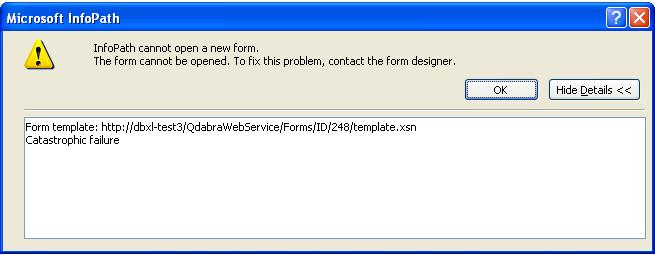
The steps to reproduce this error are as follows:
- Publish XSN as site content type to a SharePoint library [ShPLibrary1].
- Add the content type to ShPLibrary2.
- Add the published content type to DBXL using link in ShPLibrary1 [e.g.
http://<servername>/MyContentTypes/InvistaForm.xsn] - Check "Form template is signed".
- Go to SharePoint tab in DAT.
- Insert mapping to
http://<servername>/InvistaTest4/Forms/AllItems.aspx - Click Save.
- Click Download button in DAT's General tab.
Though it's not clear why InfoPath shows "Catastrophic failure", it is not possible to open signed forms from DAT, so this is not a valid scenario because the publishUrl in the XSN will be different from DBXL's template URL. In place of the error shown above, it is possible that you obtain a different error (about not being able to open the form from its location) for the same scenario.
DBXL permissions when sandboxing forms in SharePoint 2010
If you're working on SharePoint 2010 and your InfoPath form has code, DBXL will be using the Sandboxing feature in SharePoint to publish the form. If using the qRules command SaveToDbxl, you might encounter the following error:
Action: SaveToDbxl. Arguments: submit: SubmitDocument xpath: /my:myFields/my:File. Details: I0033Access denied. Stack: at Qdabra.Utilities.SubmitDocument(String docType, String name, String author, String description, SubmitDocument submitDocument, XPathNavigator xml, String& docId, String& refId) at Qdabra.Tools.RulesLibrary.Commands.SubmitQdFileToDbxl(String submit, String domainId, String&base64Value, String& fileName, String& fileExtension) at Qdabra.Tools.RulesLibrary.Commands.SaveToDbxl(String submit, String dsname, String xpath, Boolean qdimage, String domainid) at Qdabra.Tools.RulesLibrary.Commands.SaveToDbxl() at Qdabra.Tools.RulesLibrary.Commands.ExecuteCommand()
In that sample scenario, the workaround is to enforce permission in the QdFile system doctype so that everyone (NT AUTHORITY\Authenticated Users) is allowed to Add. This is necessary because, when using sandbox, users authenticate as the service account, so the service account needs permissions to add QdFiles.
If left idle, Submit button in browser form fails
In browser (IPFS) forms you might have issues with the submit button if the form is left idle. Please check the following:
- There is a proxy server set in Internet Explorer and the SharePoint URL was not in the bypass list. Make sure you bypass the proxy when using
QdabraWebService. - Open SharePoint Central Administration > Application Management > Configure InfoPath Forms Services and make the following changes:
- Default Data Connection Timeout: 60000
- Maximum data connection timeout: 60000
- Number of postbacks per form session state: 200
- Number of Actions per postback: 400
- Maximum size of form session state: 4096
- Select the location to use the storing form session state: Set this radio button to "form view"
- Open the InfoPath form in design mode and click on Tools > Form Options > Browser. Deselect the option to "Refresh the form before submitting it if form data might change during processing".
SharePoint 2010 and trusted root certificates
SharePoint 2010 requires adding trusted root certificates in SharePoint Central Admin before SSL connections can be established in IPFS forms. If you encounter problems with data connections in browser-enabled (IPFS) forms, please verify whether these certificates have been added.
Installation fails due to SQL connection refused
If the DBXL install fails because the SQL connection was refused, it could be that the SQL Server is too busy to handle the connection. The installer attempts to determine if SharePoint is installed, which can result in the SharePoint site being started if it isn't already running. Depending on your system resources, the start-up of SharePoint may prevent SQL Server from having resources to handle additional connections. The workaround is to ensure that the SharePoint site has been pre-loaded on the system before continuing the installation. The steps are as follows:
- Start the DBXL installer and proceed to the setup dialog with the tabbed pages.
- Using Internet Explorer, navigate to the homepage of the website where DBXL is being installed.
- If the site shows a 'Cannot complete this action' error, wait a minute and click the 'Go back to site' link (or re-enter the SharePoint home page url). Repeat until the home page displays correctly.
- Once the page displays correctly, proceed to finish the DBXL install.
Moving the databases used by DBXL
- Move of QdabraDBXL and QdabraUtility databases (where database name IS NOT changed)
- a. Update the
web.configto point to the new database server. - b. Grant the DBXL account access to the QdabraDBXL and QdabraUtility databases.
- i. If using Network Service, it will be
DOMAIN\DBXLSERVERNAME$ - ii. If using Domain account, use
domain\useralias
- i. If using Network Service, it will be
- c. If Shredding databases are moved to same server as QdabraDBXL/QdabraUtility:
- i. If using Network Service, it will be
DOMAIN\DBXLSERVERNAME$ - ii. If using Domain account, use
domain\useralias
- i. If using Network Service, it will be
- d. Update mapping for each doctype to change Data Source of the shredding data connection.
- a. Update the
- Move of QdabraDBXL and QdabraSamples databases (where database name IS changed). IMPORTANT: There are QdabraDBXL database references in the QdabraUtility database. The only way to fix these is to reinstall DBXL using existing databases. Since the installer script does not drop and recreate, we will need to update DBXL scripts to drop first and recreate.
- a. Uninstall DBXL.
- b. Restore databases to new server.
- c. Install DBXL using existing databases.
- d. Update mapping for each doctype to change Data Source of the shredding data connection.
- e. Grant reader/writer access to shredding databases for DBXL service account.
- i. If using Network Service, it will be
DOMAIN\DBXLSERVERNAME$ - ii. If using Domain account, use
domain\useralias
- i. If using Network Service, it will be
- Moving DBXL front end
- a. Move databases per the steps in step 1.
- b. Reinstall DBXL on new server, pointing to existing databases.
- c. All doctypes will need to be resaved to fix up the xsn references. To do this simply click Edit then Save for each Document Type.
7.3 PDF rendering service
7.3.1 Rendering service does not start automatically
After DBXL installation completes, the Qdabra DBXL Rendering Service will not start automatically. You can either start it manually from services or reboot the machine.
7.3.2 XML rendering requires manual update to Qdabra.DBXL.Rendering.exe.config
XML Rendering is a feature added in DBXL v3.0. This feature lets dashboards pre-populate an XML form and send it to a recipient. This feature is very useful when dispatching jobs to field workers.
Unlike the PDF rendering which uses the QdRender XML doctype for updates, RenderXml does not have an equivalent doctype. To enable XML Rendering, a SQL connection string to the QdabraUtility must be added in the Qdabra.DBXL.Rendering.Exe.Config file. This connection string allows XML Rendering to update the RenderXml table after processing.
Locate the Qdabra.Dbxl.Rendering.exe.config file and manually update the connection string. For example:
<connectionStrings>
    <clear />
    <add name="DBXLUtility" providerName="System.Data.SqlClient" connectionString="Data Source=SQLSERVER;Initial Catalog=QdabraUtility;Integrated Security=TRUE" />
</connectionStrings>
To use XML Rendering, a dashboard or third-party application (such as Great Plains) must write records to the RenderXml table.
We hope to remove this manual step in a future release.
7.4 Upgrading and migration
7.4.1 Upgrading
Upgrading overwrites stored procedures on QdabraUtility
If you have created any custom stored procedures on QdabraUtility, upgrading DBXL will overwrite these custom changes, e.g. QdSendEmail. Before performing an upgrade, back up your existing databases, so that you may restore the modified stored procedures once the upgrade has been completed.
7.4.2 Migration
Importing documents with their RefIDs intact
The ImportDocuments method allows the user to import documents with their RefID intact. To do this, a data connection to the service must be manually created, with the importExistingRefId parameter set to "true". The Document Type's "XPath to inject RefId to" field must be filled out with an appropriate XPath. Note that once the RefID XPath has been established, changing it will break previously submitted documents.
Migration Tool could fail to import large local folders
If you have over 100,000 documents you wish to import into a DBXL Document Type, the Migration Tool may fail to read the directory and import the files. If you encounter this issue, break up the import folder into smaller batches.
7.5 General notes
7.5.1 Installation
DBXL can only be installed on machines that are part of a domain
Database Accelerator (DBXL) can only be installed on machines that are part of a domain. To verify that your machine is part of a domain, go to Start, right-click My Computer and choose Properties. Select the Computer Name tab and click Change. Verify that your machine is part of a domain. Workgroups will not work. You may still choose to install DBXL on a non-domain machine but, as a result, parts of DBXL that deal with authentication (such as the Active Directory web service) will fail to work.
Issues with applications that use ports 80 or 443
Here is a scenario that could take place with DBXL: You obtain an error that says:
Unable to start debugging on the web server. The server committed a protocol violation. Section=ResponseStatusLine.
Then you discover (in the IIS Management Console) that the web site is not running. When you try to start it, you get the error:
Unexpected Error 0x8ffe2740 Occurred.
This issue is not exclusive to DBXL. It is happening because some applications (e.g. Skype) that use common communication ports (e.g. 80 for http or 443 for https) can conflict with Internet Information Server. If the application is installed prior to IIS, then IIS will not have access to these ports. This can cause a 404 error when trying to access a web page hosted on the local server and may also generate errors when starting a website.
One remedy is to uninstall the application and verify that IIS is serving pages properly. The application can be reinstalled and will choose a different port if IIS is already using the common ports. However, note that some applications, like Skype, allow you to choose different ports to remedy this situation without removing the application.
How to activate the Qdabra DBXL feature at a site collection level
Running this line from the SharePoint Management Shell will enable the DBXL for SharePoint feature on all sites of the root site collection:
Get-SPSite http://shpserver | Get-SPWeb -Limit ALL | %{ Enable-SPFeature -URL $_.Url -Identity 32cae11a-7c8d-479e-816d-4c2218a3df3f }
7.5.2 SQL databases
Database names cannot contain spaces
Installation of DBXL will fail and produce an error message when the database name entered contains a space. By default, the database names are QdabraDBXL and QdabraSamples. You may change these, but you must use database names that do not contain spaces, periods or square brackets.
SQL full text search
In many SQL installations, the full text search option may not be checked by default. In order for all of DBXL's search capabilities to work, we recommend installing SQL Express and you will need to make sure that the full text search option in SQL is installed. Otherwise, DBXL installation will continue, but DBXL will not have access to full text search.
SQL setup produces a red flag on environment check
On IIS 7, users may find running a web setup MSI on a Windows Vista machine may not generate any useful error messages. To remedy this, uninstall SQL and then make sure that all the IIS features are turned on. Then you can reinstall SQL, making sure that there are no red flags on environment check.
SQL connection error concerning the shared memory provider
During installation of DBXL you might encounter an error that reads:
The installation failed, and the rollback has been performed. Error initializing DBXL database. Cannot initialize database 'QdabraDBXL' on server '<servername>'. See eventlog for details.
In Event Viewer, the details of this error read:
Shared Memory Provider, error: 0 - No process is on the other end of the pipe.
The workaround requires disabling the shared memory protocol for SQL Server using the configuration tool. Note that this error should only take place when SQL Server and DBXL are on the same machine.
SQL default database not set
After restarting SQL Server and/or IIS, you might encounter an error that reads:
Shared Memory Provider, error: 0 - No process is on the other end of the pipe.
Log into SQL Server under another admin login and check the properties stored for the usual login account. If you find that the default database is not set, reset the default database and then log in under the usual login account.
Best practice for database redundancy with DBXL
Large enterprises generally have redundancy mechanisms in place for critical SQL databases and are managed by an IT staff. For those without the large IT staff to manage your systems, you may still need something more than nightly backups. For high-availability without high cost, SQL Server 2005 Standard and Enterprise Edition introduced database mirroring support. Using a passive SQL Server to mirror the DBXL database, you can obtain high-availability without the need for an additional SQL Server license. The SQL instance can be on an existing or new server (including VMs) with sufficient resources to host the database. Just remember when using VMs that failovers should reside on different physical hosts. For additional information, refer to SQL Server 2005 Books Online topic Overview of Database Mirroring.
SQL Server 2005 Workgroup does not support database mirroring but does support transaction log shipping, which is similar to asynchronous database mirroring. For additional information, refer to SQL Server 2005 Books Online topic Understanding Log Shipping.
Additional licensing information can be obtained here.
"Cannot generate SSPI context"
When working with DBXL, SQL is required. Some organizations deal with multiple SQL instances and this can create a problem if some SQL instances are on different domains. When we attempt to connect to an SQL instance using SQL Server Management Studio, we might encounter an error that reads:
Cannot generate SSPI context.
Here's a workaround if you find yourself in a similar situation:
- Launch command prompt (
cmd). - Use
runasto launch SQL Server Management Studio, specifying theuserdomain\useraliasof the account user. -
For SQL Server 2008 Management Studio, the command will be similar to this:
runas /netonly /user:userdomain\useralias "C:\Program Files\Microsoft SQL Server\100\Tools\Binn\VSShell\Common7\IDE\Ssms.exe"
For Microsoft SQL Server Management Studio 2005, you'll use this:
runas /netonly /user:userdomain\useralias "C:\Program Files\Microsoft SQL Server\90\Tools\Binn\VSShell\Common7\IDE\Ssms.exe"
This should work on Vista, Windows 7 and Windows Server 2008, but has not been tested with 2003 or XP.
Changing the DBXL database connection string after installation
If you change the ConnectionString in DBXL's web.config file such that it references a different database after installation, you must invoke InitializeDatabase to update the database schema. You can call the method by using Internet Explorer to navigate to http://<servername>/QdabraWebService/DbxlAdmin.asmx, click InitializeDatabase and click Invoke.
7.5.3 Permissions
Using non-default values for permissions prevents DAT installation
During installation of DBXL you may receive the error:
Error publishing Admin Tool: Access Denied.
This could be the result of using non-default values in the Permissions tab during installation.
To complete installation, publish DAT manually. Log in to the server where DBXL was installed and navigate to the default.asmx page. Click on the DBXLAdmin web service and then invoke the PublishDATFormTemplate web method.
Users must have read permissions for the Document Type
The QueryDocuments web method requires Document Type Level Read permissions. If a user only has Document-Level Read permissions, the QueryDocuments web method will return the error "Access Denied". This limitation will be addressed in a future version of DBXL.
Changing document level permissions requires reshredding
If you add or change Document Level permissions for a configuration in DAT, the new permissions schema will not be enforced for documents that were created previous to the change. Please reshred documents to update existing documents.
Add permissions to the QdabraWebService folder
Typically it is sufficient to add admin users to the DbxlAdminAlias and the AdminGroupAlias as specified in the web.config file. This grants admin permissions to the members of those groups. However, if you find that your users need additional permissions to access the DBXL web service, we recommend adding permissions to the QdabraWebService folder instead of adding the users to the WSS_WPG group.
7.5.4 DBXL Administration web page (DAT)
Do not include special characters in Document Type name
If the name of your Document Type contains special characters (for example: !@#$%^&*) you will experience problems opening it. To work around this limitation, please use a Document Type name that does not include special characters.
Cannot remove Document Types that contain resources
After using the DbxlResource web service to create a new xml resource, you will receive an error if you attempt to delete the Document Type Configuration for which you have created the Resource. Before deleting such a Document Type, you must first delete the resource itself using the DeleteResource operation in DbxlResource.
Renaming a Document Type
Currently there isn't a way to change a document type's actual name via the DBXL Admin Tool's UI. It would typically be inadvisable to do so. A document type's Friendly Name, on the other hand, is designed to be changeable and in cases such as QdFlow e-mail notifications, it is the Friendly Name that matters. The steps to manually change the Friendly Name are:
- Export the Document Type configuration using the DBXL Migration Tool.
- Modify the exported XML to change the
FriendlyNamefield value. This can be done in a text editor such as Notepad. - Re-import the configuration.
Indexing features on the General tab in DAT
The General tab in DAT contains two features that allow DBXL to index its documents.

The XPath index is for use with the QueryDocuments() method and this has been available in versions previous to DBXL v2.7.
In DBXL v2.7, a new checkbox is intended to specifically speed up data connections that call QueryDocumentNodeSets(). Note that enabling XML indexes increases the space occupied in the database, but improves performance, especially for large XML documents.
7.5.5 Database mapping
GetDocumentSummaryByType is limited by SQL to 2100 items
The web service GetDocumentSummaryByType will produce an error if the document type being queried contains more than 2100 items. This is a SQL limitation. If you need to perform this query, we suggest using the QueryDB web service.
Shredding without a key returns error in database mapping
Mapping a form to a SQL database requires the existence of either a key column or an identity column. If the table does not have an identity column, and the user does not designate a column as the "key" column in the Database tab, DAT will return a validation error to the user.
Error message: Cannot open database requested by the login. The login failed.
When saving a Database mapping, the following error might arise:

Connection failed. Error message: Cannot open database <database-name> requested by the login. The login failed. Login failed for user <username>.
When facing this error, please check whether the database exists, whether your connection string is correct and whether the username in the error message has permissions to the database.
Cannot map to a database column that has Identity set to 'Yes'
When you map the DBXL DocID (DBXL::DocID) to a column in your database, make sure the column does not have Identity setting of 'Yes'. SQL tries to automatically set the value of identity columns, thus preventing the DBXL Web Service from setting it. This scenario leads to an error, and therefore you should never map a value into an identity column in the database.
DBXL does not support 'yes' and 'no' as Boolean values
When shredding Boolean values into a database, DBXL does not support 'yes' and 'no' as Boolean values. When shredding into 'bit' types in the database, the DBXL mapping should be 'Boolean' and the XML being submitted should set the field to either '1', 'true', '0' or 'false'.
Cannot delete documents when there is a mapping error
If a Document Type contains mapping errors, deleting a document in that Document Type will fail. Deleting the Document Type itself will also fail, because DAT attempts to delete all documents before deleting the Document Type. Remove the connection string in the Database tab, and then delete all documents. You will also need to manually clean up any databases where the data was previously mapped.
Reshred All fails due to timeout in DAT
When working with large database mapping or a large number of xml documents, you might encounter a timeout if you attempt to Reshred All in DAT. To work around this issue, please download our Document Deployer (also known as the Migration Tool) to reshred all documents in the background.
7.5.6 QuerySharePoint
Querying for a specific view
Using QuerySharePoint, we can query a specific SharePoint view. The viewName parameter, however, refers to a view GUID, and not the view's name.
Providing other arguments should override the view values
There is a bug in some of the QuerySharePoint methods. Providing other arguments should typically override the view value (viewName). However, as of DBXL v2.8, this is not the case for GetDropdownEntries and GetDropdownEntriesSiteAndGuid.
For GetListItemsStr and GetListItemsStrSiteAndGuid, the correct behavior is seen. That is, when the user provides both a viewName and a <query>, the (filtered) view is ignored, all items are returned and sorted according to the <query>.
These methods will be reviewed in a future version of DBXL to achieve consistent behavior.
QuerySharePoint fails on SharePoint 2003
If you are using SharePoint 2003 (WSS 2.0), users may encounter an error when calling the QuerySharePoint web service. The problem is that SharePoint 2003 will not accept the human readable name as column name.
To work around this problem, use the static name column as value for the following parameters: tns:valueColumn, tns:displayColumn, tns:sortColumn and tns:sortOrder. Remember to also modify your queries (in tns:query and tns:filterXml parameters) to use the static column name.
To get information about the static column name, navigate to http://<servername>/QdabraWebService/QuerySharePoint.asmx, and choose the DescribeListSchema method. You can then enter a SharePoint list name in order to retrieve all columns' static name values.
Using dynamic queries in repeating tables
If you are using QuerySharePoint in a repeating table, you might encounter a problem with dynamic queries set in a repeating field. The query (as generated by Query Builder) will not get updated when inserting new rows. To fix this error, replace the value in the concat query that shows <value>", RepeatingField, " </value> with a current() parameter.
For example:
concat("<query><columns><column name='Product_x0020_Code'/></columns><filter><eq><column name='Product_x0020_Name'/><value>", current(), "</value></eq></filter></query>")
If you experience the same with QueryDB, use the solution as recommended above.
Use CDATA when working with special characters
When using dynamic query in QuerySharePoint, data with special XML characters (& and <) will get rejected in the query and will return empty values in repeating tables. To avoid this problem, just add a CDATA tag in your concat query (the rule that sets the dynamic query for your QuerySharePoint connection). For example:
concat("<query><columns><column name='Product_x0020_Code'/></columns><filter><eq><column name='Product_x0020_Name'/><value><![CDATA[", current(), "]]></value></eq></filter></query>")
Make sure the value inside the CDATA sequence uses the current() parameter in order to get the correct value in the repeating field that runs the query. If the same error occurs with QueryDB, use the same solution as recommended.
7.5.7 QueryBuilder
Query Builder uses the local user's credentials to connect to SQL
QueryBuilder uses the person's local credentials to connect to SQL. Even if you enter a connection string with a username and password, while working within QueryBuilder, the local credentials are used. The workaround is to add database permissions for the user, even if temporarily, while designing the query in QueryBuilder. Once the query is designed, the user can be removed from the database permissions.
Qdabra's Query Builder tool uses the 2007 OM
Qdabra's Query Builder tool uses the 2007 InfoPath Object Model (OM). Therefore, it is not backwards compatible with InfoPath 2003. It is forward compatible with InfoPath 2010.
Uninstalling Qdabra's Query Builder InfoPath form tool
Qdabra's Query Builder InfoPath form tool needs to run with full trust so that it can execute shell commands. To install this full trust tool on your local computer, we use InfoPath's built-in support for URN based solutions. When the form is installed, InfoPath adds entries to your Windows registry. Unfortunately, due to a bug in InfoPath installer, sometimes uninstalling doesn't work and the registry entries are not cleaned up correctly.
QueryBuilder does not show user-friendly column names
When using older versions of QueryBuilder to build SharePoint queries, the form might display column names that are not user-friendly, as in the screenshot below.
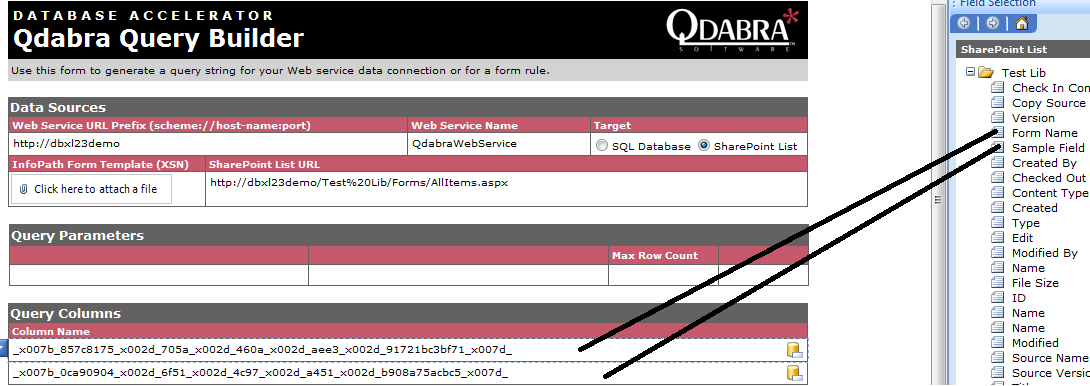
The <query> generated by QueryBuilder will still work, despite the column names. Please upgrade to the latest version of QueryBuilder to avoid this issue.
Invalid XML
When working with QuerySharePoint or QueryDB, you might encounter an error that says:
Data at the root level is invalid. Line 1, position 1.
This error indicates a problem with the <query> node. You could try using QueryBuilder to re-generate the value for <query>.
For example, in a dynamic query, you should check that the <query> that begins with concat() is used in rules and not in the data connection wizard.
Encoded spaces in the URL produce an error
When using QueryBuilder and QuerySharePoint, you need to enter the URL to your SharePoint list. Internet Explorer encodes spaces as %20, but DBXL produces an error if you use a URL containing a %20.
The workaround is simply to replace %20 in the URL with an actual space. This works in QueryBuilder as well as in the InfoPath data connection wizard.
7.5.8 QueryDB
User encounters "Database not registered for use" error when calling QueryDB
Before you can begin using the QueryDB web service, the database being queried needs to be added to DBXL's web.config file. Specifically, an entry of the syntax <database alias="DB_Alias" name="SampleDB" server="default" /> must be added to the configuration/qdabra.dbxl/enumdb/databases node. The SQL server declared during installation (where the databases QdabraDBXL and QdabraSamples are located) is added by default, but any additional databases must be added individually.
QueryDB uses the credentials of the web service instead of those of the querying user
QueryDB currently only uses permissions that are defined on the SQL Server that it is querying. Because the QueryDB web service acts as a liaison between the end user and the database, the database only receives requests from the web service. This means that any user accessing the web service has the same permissions as the user account (generally NETWORK SERVICE) that the web service is running as. Since most users have fewer permissions than the NETWORK SERVICE account, this is considered an Elevation of Privilege security hole. One way to reduce the risk is to create a new account for the web service to run as, and only allow that account access to query the DB. Qdabra will address this issue in a future release.
Using QueryDB with a dynamic SQL table
If your SQL table has the potential to change (for instance, adding a new column), you should have QueryDB access a SQL view instead of directly accessing the table. This will allow the underlying table to change, and small modifications to the view will prevent your InfoPath solution from breaking.
How can users query non-DBO tables using QueryDB?
When calling the QueryDB web service, you'll get an error message when querying non-DBO tables, such as certain AdventureWorks tables (e.g. HumanResources.Employee). This is a known limitation of the web service which will be addressed in a future version.
One workaround would be to give each table a separate view.
Another option is to manually change the table="" attribute to have the value SCHEMANAME.TABLENAME. This would allow you to query tables in any schema.
Invalid XML
When working with QuerySharePoint or QueryDB, you might encounter an error that says:
Data at the root level is invalid. Line 1, position 1.
This error indicates a problem with the <query> node. You could try using QueryBuilder to re-generate the value for <query>.
For example, in a dynamic query, you should check that the <query> that begins with concat() is used in rules and not in the data connection wizard.
Querying the QdabraDBXL database
The DBXL database should be accessed via QueryDB using the built-in alias #DBXLDB#. No additional alias is needed or should be added in web.config.
When the #DBXLDB# alias is used, QueryDB has logic to prevent access to vital columns in the Document and DocumentHistory tables, unless these are specified by the form designer in the queryxml. The specific columns that are excluded are: DataExtractedPlaintext, DocumentXml and DocumentIndexedXml.
7.5.9 Miscellaneous
Modify the duration of DBXL locks
When editing an XML, DBXL locks documents for 30 minutes by default. If you wish to modify this setting, please edit the DBXL web.config file, and change the DocumentLockDurationInMinutes parameter. Setting this to -1 (negative one) will make it an infinite timeout.
Active Directory web service query fails on Windows XP
If you install DBXL to Windows XP and you cannot query the Active Directory Web service (ADUserInfo.asmx) you will have to manually configure your machine's ASP.NET account. To verify that this is the problem, navigate to http://machine/QdabraWebService/ADUserInfo.asmx, click GetMyInfo and Invoke.
DBXL returns licensing/domain error when SQL is unavailable
If SQL Server Agent is not running for some reason, opening DAT results in this error:
The query cannot be run for the following DataObject: GetMyDomains
InfoPath cannot run the specified query.
The SOAP response indicates that an error occurred on the server:
System.Web.Services.Protocols.SoapException: Server was unable to process request. --->
System.ApplicationException: You have not installed a license to use the ADUserInfo service.
at Qdabra.Dbxl.WebService.AdUserInfo.GetMyDomains()
--- End of inner exception stack trace ---
DBXL cannot get licensing information because there's a problem with SQL. Restarting the SQL services usually solves this issue.
InfoPath errors on older Office service packs
You might encounter the error below if you have upgraded .NET but have not installed the latest Office service packs:
System.Security.SecurityException
Request failed.
at Microsoft.Office.InfoPath.MsxmlNavigator.IsValidNode(MsxmlNode test)
at Microsoft.Office.InfoPath.MsxmlNavigator.MoveToFirstChild()
at MS.Internal.Xml.XPath.XPathChildIterator.MoveNext()
at MS.Internal.Xml.XPath.ChildrenQuery.Advance()
at MS.Internal.Xml.XPath.AttributeQuery.Advance()
at MS.Internal.Xml.XPath.XPathSelectionIterator.MoveNext()
at System.Xml.XPath.XPathNavigator.SelectSingleNode(XPathExpression expression)
at System.Xml.XPath.XPathNavigator.SelectSingleNode(String xpath)
at Qdabra.Tools.RulesLibrary.Commands.ExecuteCommand(Application application, XmlFormHostItem formHost, XPathNavigator commandsNavigator)
at Qdabra.Tools.RulesLibrary.FormCode.QdabraRules__Command_Changed(Object sender, XmlEventArgs e)
at Microsoft.Office.InfoPath.Internal.XmlEventHost.GenericProxy(Object genericDelegate, DataDOMEvent dataDOMEvent, InfoPathEvents type)
at Microsoft.Office.InfoPath.Internal.XmlEventHost.ChangedProxy(DataDOMEvent dataDOMEvent)
at Microsoft.Office.Interop.InfoPath.SemiTrust._DataDOMEventSink_SinkHelper.OnAfterChange(DataDOMEvent pDataDOMEvent)
To solve this, simply install the latest Microsoft Office service packs.
Notifications email is delivered into the Junk E-mail folder
Microsoft Outlook (and other mail programs) may classify notification email as junk. To avoid this, add the sender to the "safe list" of your mail software. In the case of Microsoft Outlook, follow these steps:
- Right-click on the email that was delivered to the Junk E-mail folder.
- Choose Junk E-mail, click Add sender to Safe Senders List.
Digitally-signing documents for use in DBXL
To track documents, DBXL inserts a processing instruction into the XML on submit, which includes a unique DocID. After initial insertion, the DocID is used to identify the document when it is resaved, deleted, or reshredded. Because of this insertion, you cannot digitally sign a document before submitting it for the first time.
A workaround tool for Full Trust form templates was available from Qdabra; contact [email protected] if you need it.
Uploading large attachments in DBXL
When uploading large attachments in DBXL, a time-out error is likely to occur. This error is due to the IIS maxRequestLength setting in web.config. maxRequestLength is an optional Int32 attribute. It specifies the limit for the input stream buffering threshold, in KB. This limit can be used to prevent denial of service attacks that are caused, for example, by users posting large files to the server. The default is 4096KB. If the threshold is exceeded, a ConfigurationErrorsException error is thrown. To work around this limit, raise maxRequestLength in the <httpRuntime> element of the DBXL web application's web.config (for example <httpRuntime maxRequestLength="51200" /> for 50 MB) and restart the application pool.
Documents open in read-only mode in Windows Vista
If the client machine has Vista installed, DBXL documents open in InfoPath in Read-only mode. This has been a known issue in Vista. To get around this, you need to set up a Web folder connection from the client to the server machine where DBXL is installed.
In the Vista client machine, go to Start, right-click Network and select Map Network Drive. Alternatively, go to Start > Computer, and on the taskbar, click Map network drive.
- On the Map Network Drive dialog, click Connect to a Web site that you can use to store your documents and pictures.
- The Add Network Location wizard will open. Click Next.
- Select Choose a custom network location and click Next.
- In the Internet or network address field, enter your server url in the format
http://<servername>/QdabraWebService, and click Next. - When prompted, enter your Username and Password and click OK.
- Type a name for your network location, and click Next, then Finish to exit the wizard.
- Verify that you can now open DBXL documents in Read/Write mode.
Note that this workaround is session-based. When you log off your machine and log back on, Vista will override your credentials again. Since you have already set up a Web folder connection to your server, you only need to open the Web folder and enter your Username and Password once. Vista will then cache your credentials for that session.
Preserve more error events in Event Viewer
To preserve more error events in your event log, open Event Viewer, right-click on Qdabra and select Properties. By default, the Event Viewer log is set to "Overwrite Events As Needed" and to a maximum log size of 2048 KB. You may change the default settings as desired.
Removing clutter from the Qdabra event log
To help form developers debug their form mappings, DBXL logs informational messages to the Qdabra Event Log when a node is not found in the XML. If your form includes optional sections, a node missing from the XML is a common scenario. Therefore, these messages will create unnecessary clutter. To stop these messages from being logged, set the logShredWarnings value in DBXL's web.config to false.
7.5.10 SQL clustering
Document submission fails during a failover
If a user tries to submit a document to DBXL at the same time that a failover is happening, the submission will fail with an error such as:
InfoPath cannot submit the form.
An error occurred while the form was being submitted.
The SOAP response indicates that an error occurred on the server:
System.Web.Services.Protocols.SoapException: Server was unable to process request. --->
System.Exception: Exception Code: I9999
Exception Message: An unhandled exception was thrown: Timeout expired. The timeout period elapsed prior to completion of the operation or the server is not responding.
at Qdabra.Dbxl.DbxlDocumentServiceEx.CheckAndThrowException(StatusInfo info)
at Qdabra.Dbxl.DbxlDocumentServiceEx.Qdabra.Dbxl.Services.IDbxlDocumentServiceEx.SubmitDocument(String docTypeName, String xml, String name, String author, String description, String allowOverwrite, Int32& docId, String& refId)
--- End of inner exception stack trace ---
The workaround is to allow the failover to complete, and then resubmit the document.
Reshred All during a failover
If a Reshred All operation is executing at the same time a failover happens, the user will see an error such as:

Please allow the SQL failover to finish, then re-execute the Reshred All operation.
7.6 Support
If you have questions about the information in this document, please contact Qdabra Software for assistance.
Licensed customers can contact us via [email protected].
For help, active customers can use the Customer Support Portal. For anything else, use Contact Us or e-mail [email protected].