Chapter 6 - Rendering Service: Troubleshooting
This chapter provides steps for troubleshooting errors seen when running the Qdabra DBXL Rendering Service. If you encounter an issue that is not discussed here, contact [email protected] for assistance.
6.1 Where to look: the Qdabra event log
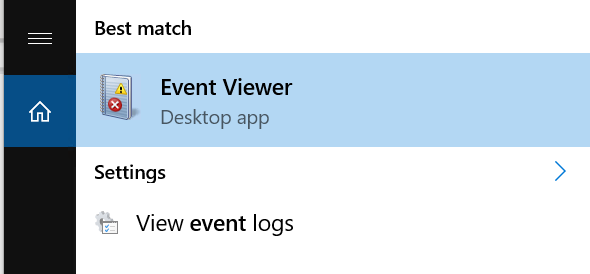
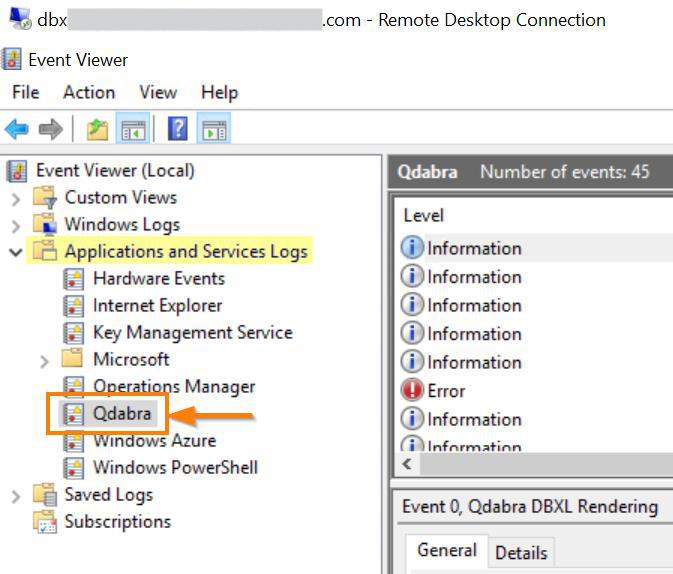
Normally, the Qdabra event log is the place to look for errors related to DBXL and its tools. On the server where DBXL is installed, open Event Viewer and locate the Qdabra event log under Applications and Services Logs.
6.2 Qdabra DBXL Rendering Service requires a DBXL Enterprise license
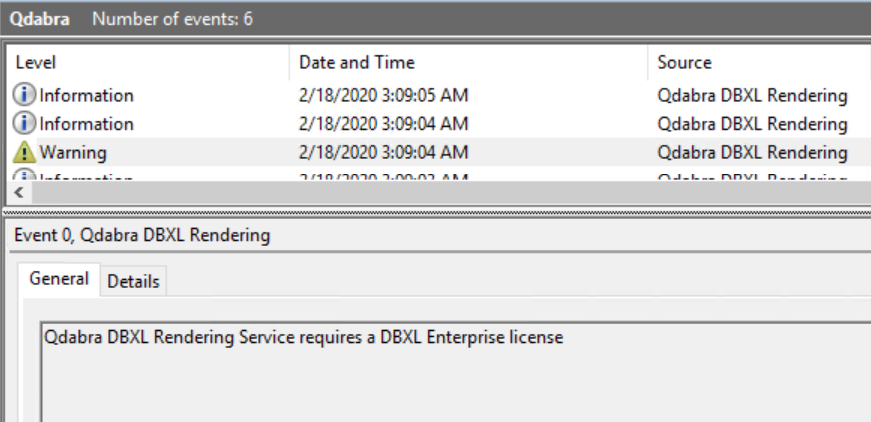
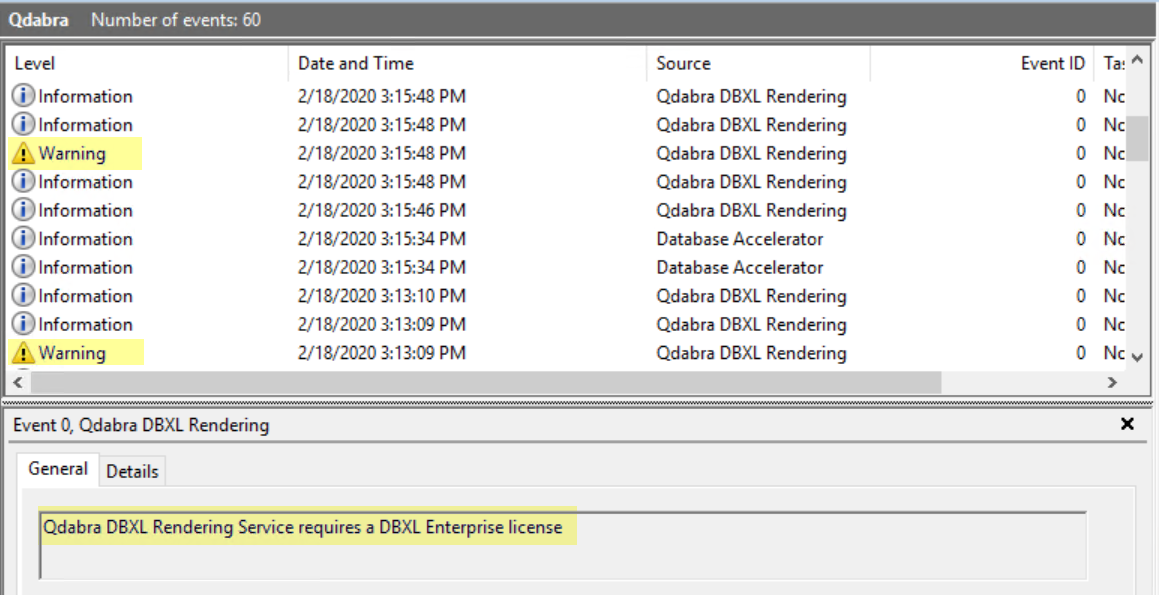
After starting the rendering service, the Qdabra event log shows this warning if DBXL does not have an Enterprise license:
Qdabra DBXL Rendering Service requires a DBXL Enterprise license
Because this requirement has not been met, the service will fail to start.
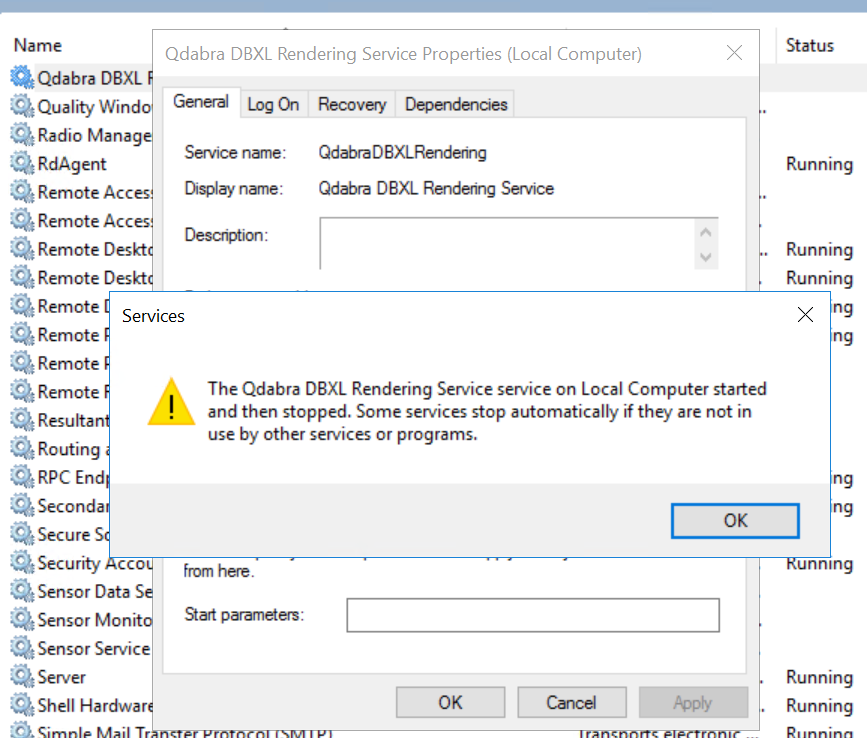
You may also get this error when attempting to start the service:
To fix this, add an Enterprise license in the License page of the DBXL Administration Tool (see Chapter 4 - Configuring a License).
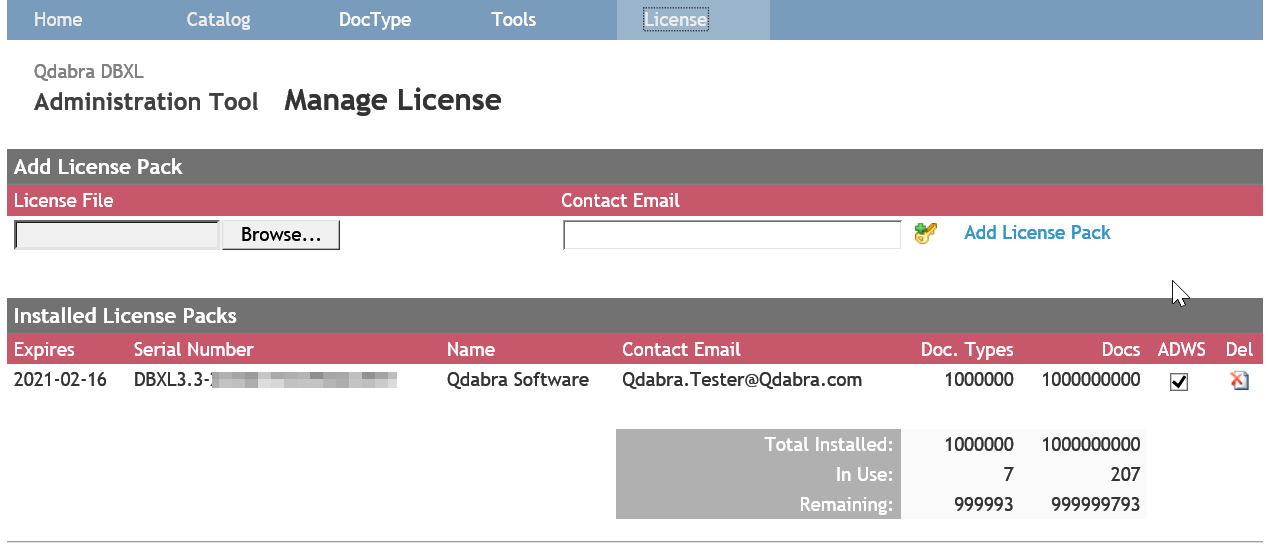
If you have already added an Enterprise license and the warning persists (as seen in the screenshot below), there could be an issue with the license file. You may ask Qdabra Support to generate a new license for your DBXL instance.
6.3 Rendering Service does not start automatically
After the DBXL Rendering Service installation completes, you will notice that it does not start automatically.

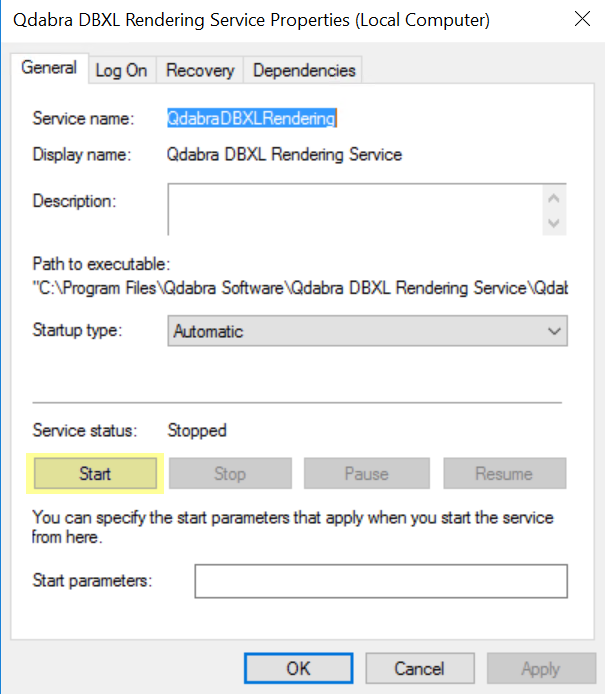
You can either start it manually from Services or reboot the machine.
6.4 Network-related SQL connection error
You may encounter a network-related error when the service connects to SQL:
A network-related or instance-specific error occurred while establishing a connection to SQL Server. The server was not found or was not accessible. Verify that the instance name is correct and that SQL Server is configured to allow remote connections.
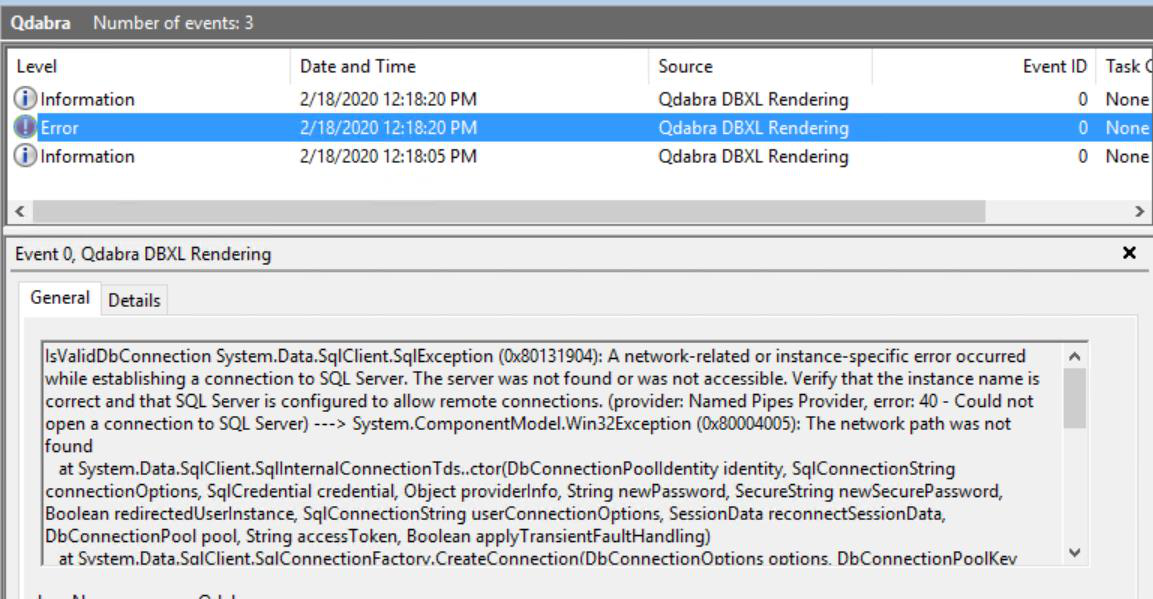
This error means that the service is not able to connect to the SQL Server used by DBXL, or the Data Source value in the connection string is invalid. The next entry in the list will show:
Qdabra DBXL Rendering Service started without xml rendering due to invalid connection string.
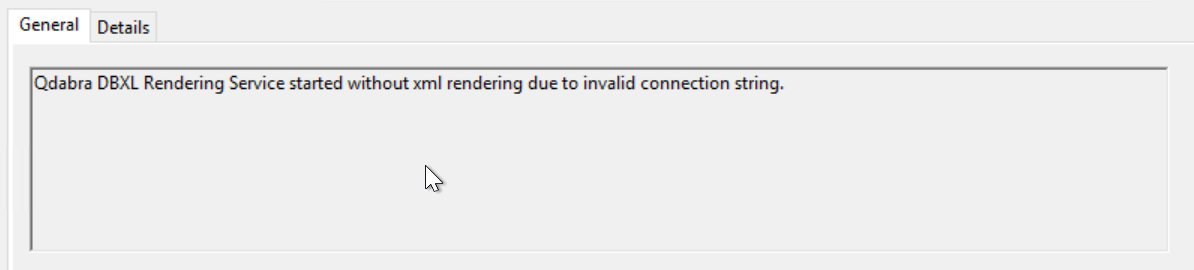
Locate the Qdabra.Dbxl.Rendering.exe.config file and check that the Data Source name in the connection string is correct.
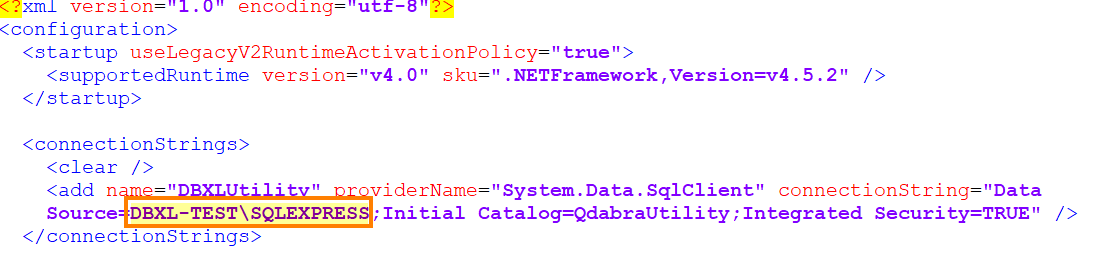
6.5 Cannot open database "QdabraUtility"
The DBXL Rendering Service connects to the DBXL default database called QdabraUtility to render forms as PDF. If you get the error below, the account used to run the rendering service is not in the DbxlAdmins group and therefore cannot access the database.
Cannot open database "QdabraUtility" requested by the login. The login failed.
Login failed for user 'NT AUTHORITY\NETWORK SERVICE'.
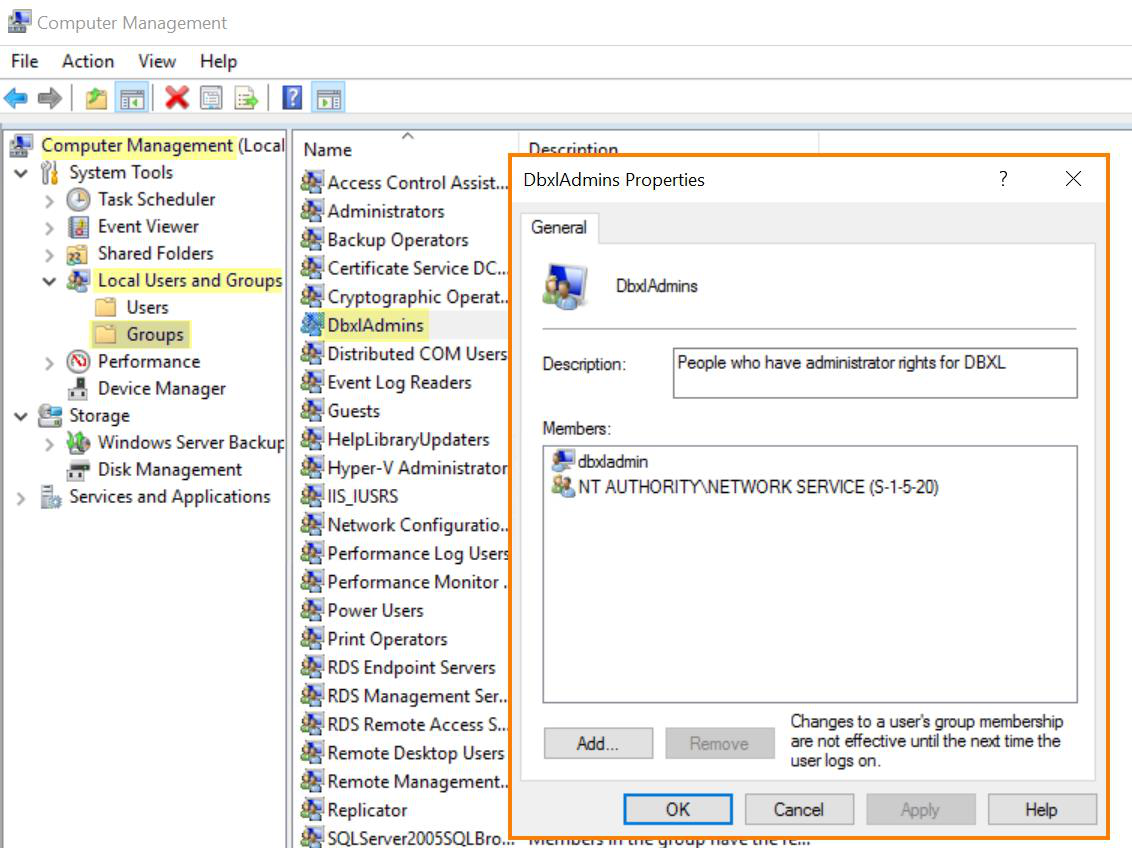
In the error above, the DBXL Rendering Service is installed using a predefined account, which is usually the Network Service account. You need to add the Network Service account to the DbxlAdmins group, or change the account that runs the service to an existing DBXL admin account.
Option 1: Add the Network Service account to the DbxlAdmins group.
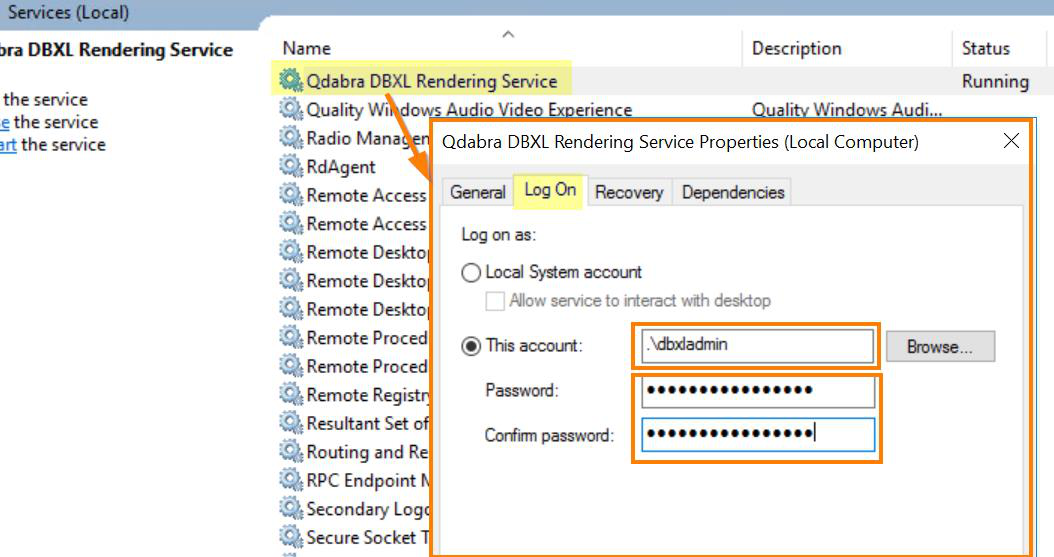
Option 2: Run the service using an existing DBXL admin account. Right-click the service, select Properties, and change the account on the Log On tab.
After doing option 1 or 2, restart the service.
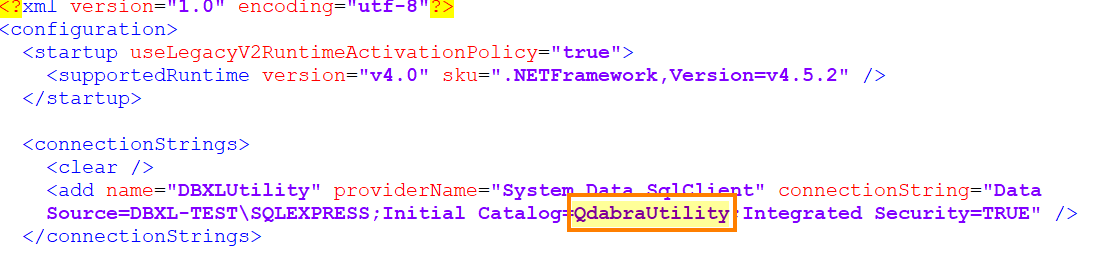
If you have corrected the issue using option 1 or 2 and the error persists, make sure that the connection string in Qdabra.Dbxl.Rendering.exe.config uses the correct QdabraUtility database. Sometimes DBXL is installed using a different QdabraUtility database name; the DBXL installation wizard provides an option to rename it. If that is the case in your DBXL install, ask your DBXL admin for the correct QdabraUtility database name, and replace the value of Initial Catalog in the connection string below:
6.6 Error 1001 during DBXL Rendering Service install
If you get Error 1001 during installation of the Qdabra PDF Rendering Service, this error usually occurs when a previous installation failed to uninstall properly. To fix it, follow these steps:
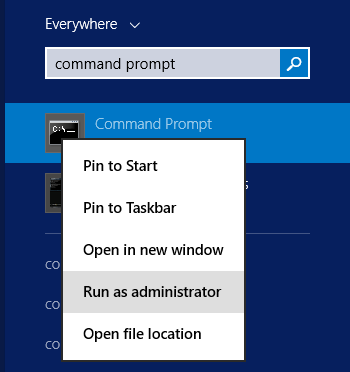
- Go to the Start menu and search for Command Prompt. Right-click it and select Run as administrator.
- In the Command Prompt window, type the following command, and then press Enter.
sc delete "QdabraDBXLRendering"
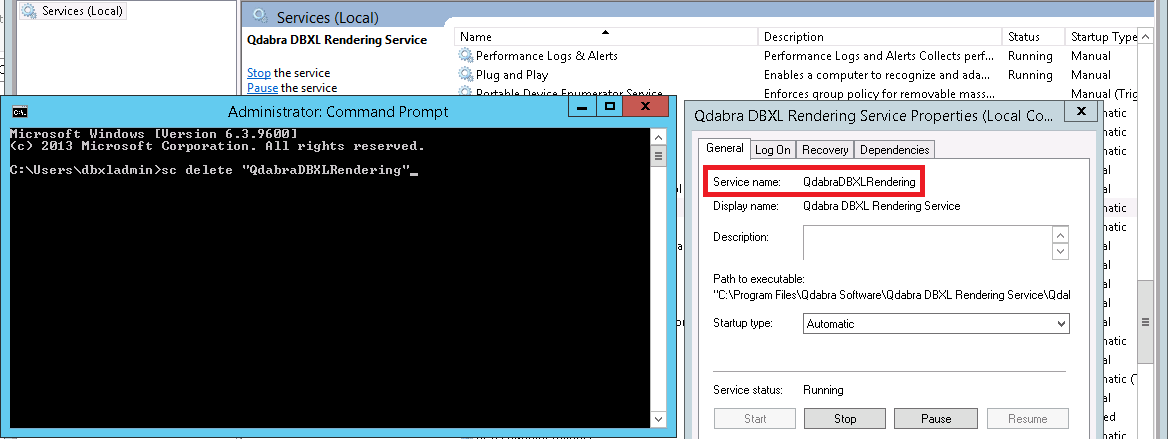
To make sure you are using the correct name of the service you are deleting, open Services.msc and check the Service name in the properties of Qdabra DBXL Rendering Service.
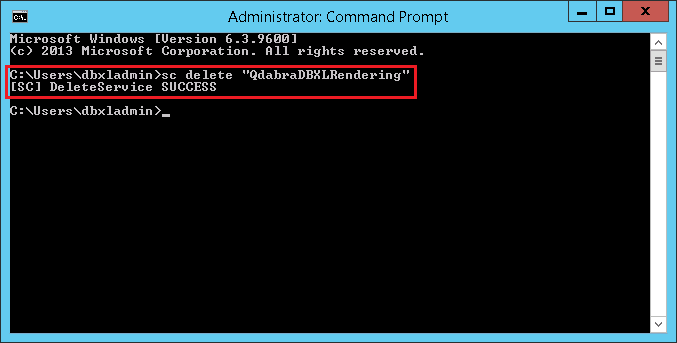
- You should see a success message confirming that the service has been deleted.
You should now be able to install the DBXL Rendering Service. Follow all the steps to install the DBXL Rendering Service as described in the installation guide (Chapter 5 - Rendering Service: Installation).
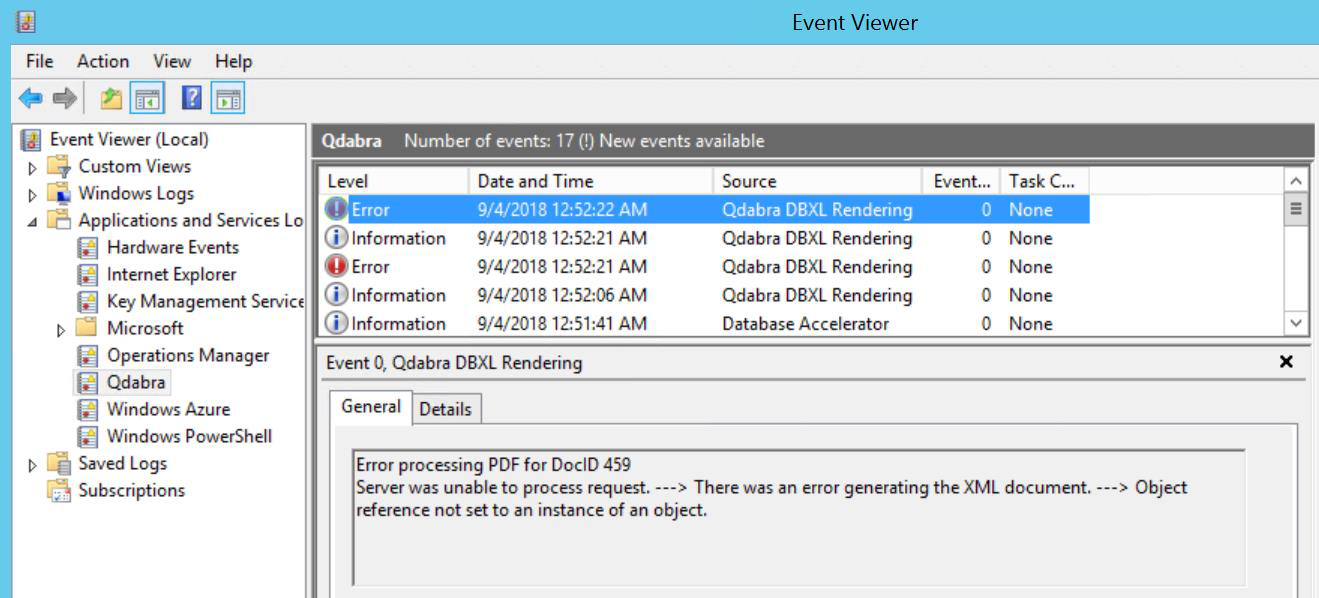
6.7 Error Processing PDF for DocID
If you get the error message Error Processing PDF for DocId, perform the following steps:
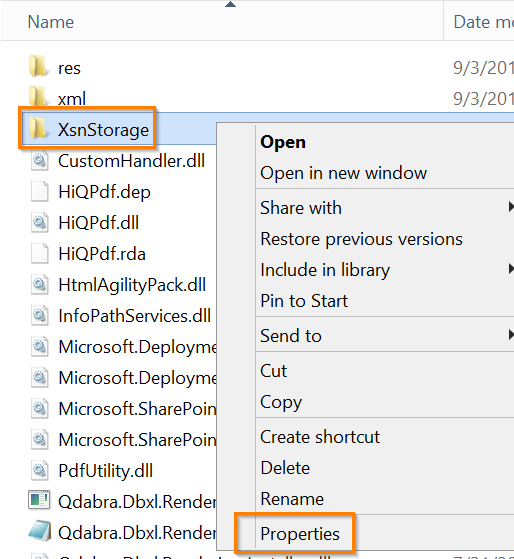
- In Windows Explorer, go to
C:\Program Files\Qdabra Software\Qdabra DBXL Rendering Service. - Right-click the
XsnStoragefolder and select Properties.
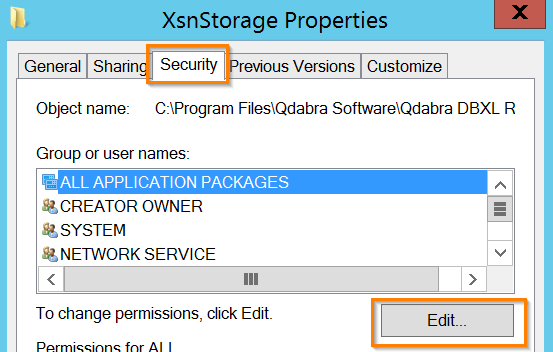
- In the Properties window, click the Security tab and click Edit.
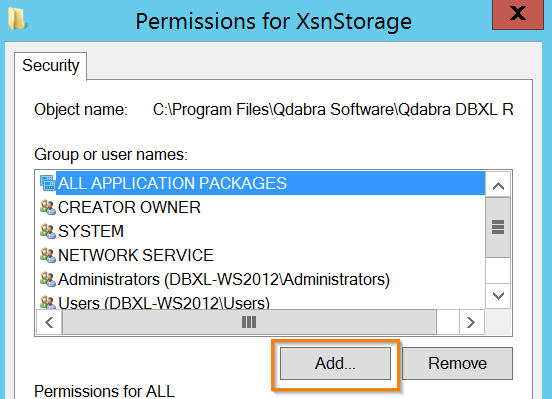
- In the next window, click Add.
- In the next window, type
Network Serviceand click Check Names.
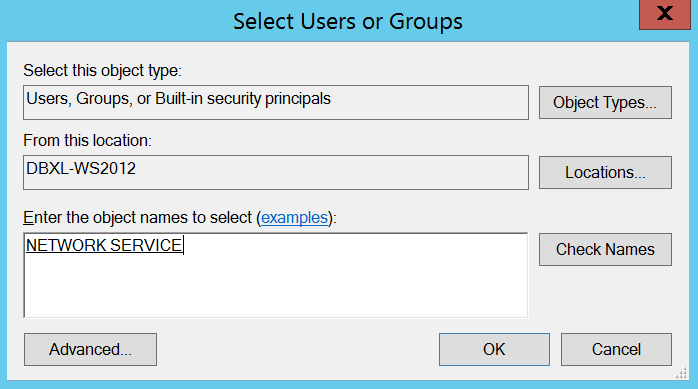
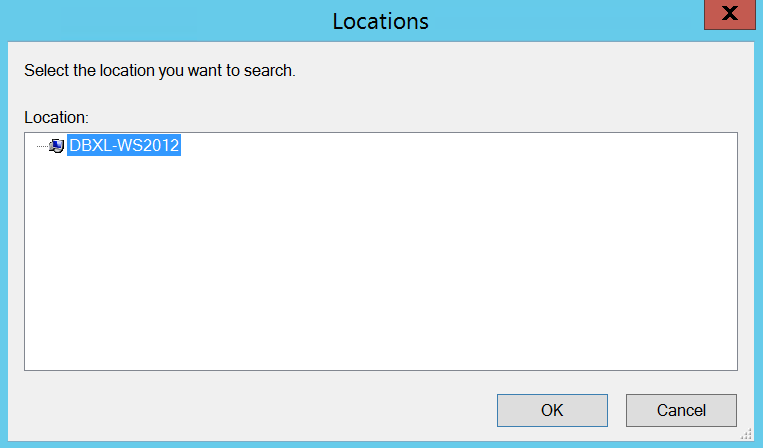
- Click Locations.
- Change the location to your local machine. Click OK twice.
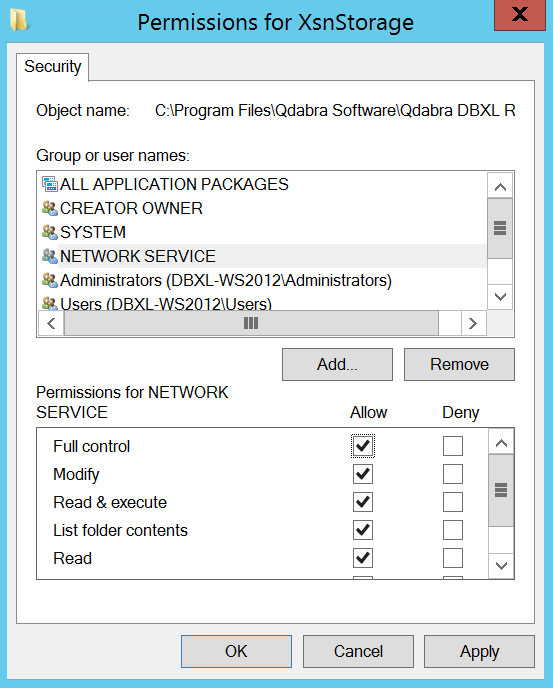
- Select NETWORK SERVICE and check the Full control box. Click Apply. Click OK twice.
- Click OK to close all the windows.
6.8 Send mail exception
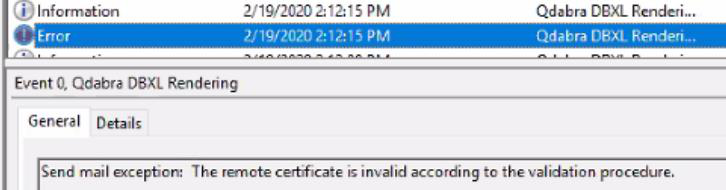
If the email mapping has been set up correctly but users are not getting the emails, you might see this error in the Qdabra event log:
Send email exception error: Failure sending email
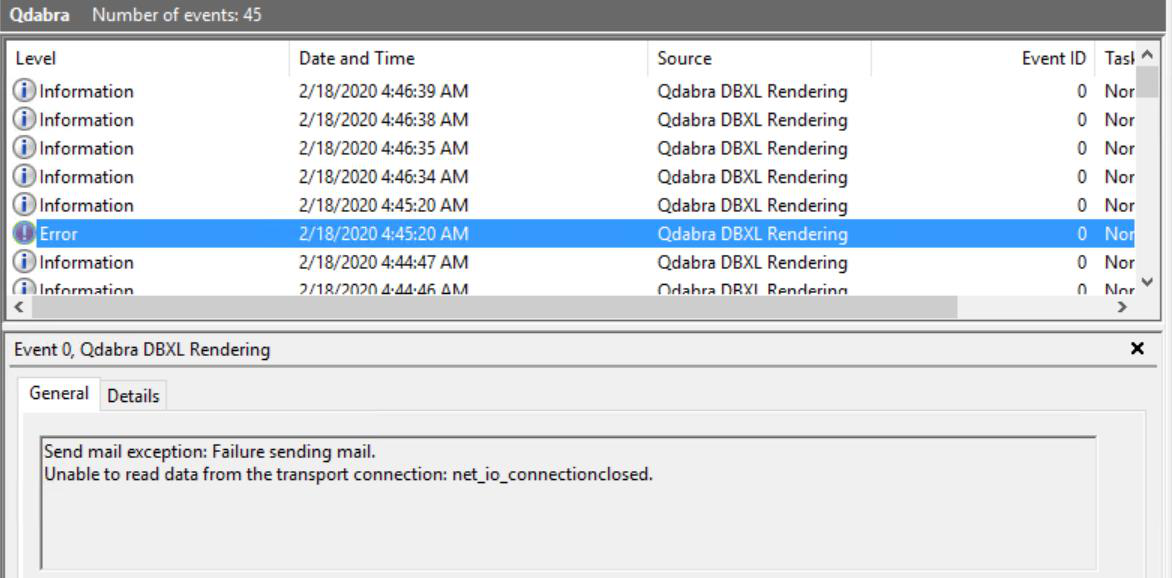
Or, if DBXL is running on HTTPS, you might get this error if SSL is not set to true:
Send email exception error: The remote certificate is invalid according to the validation procedure.
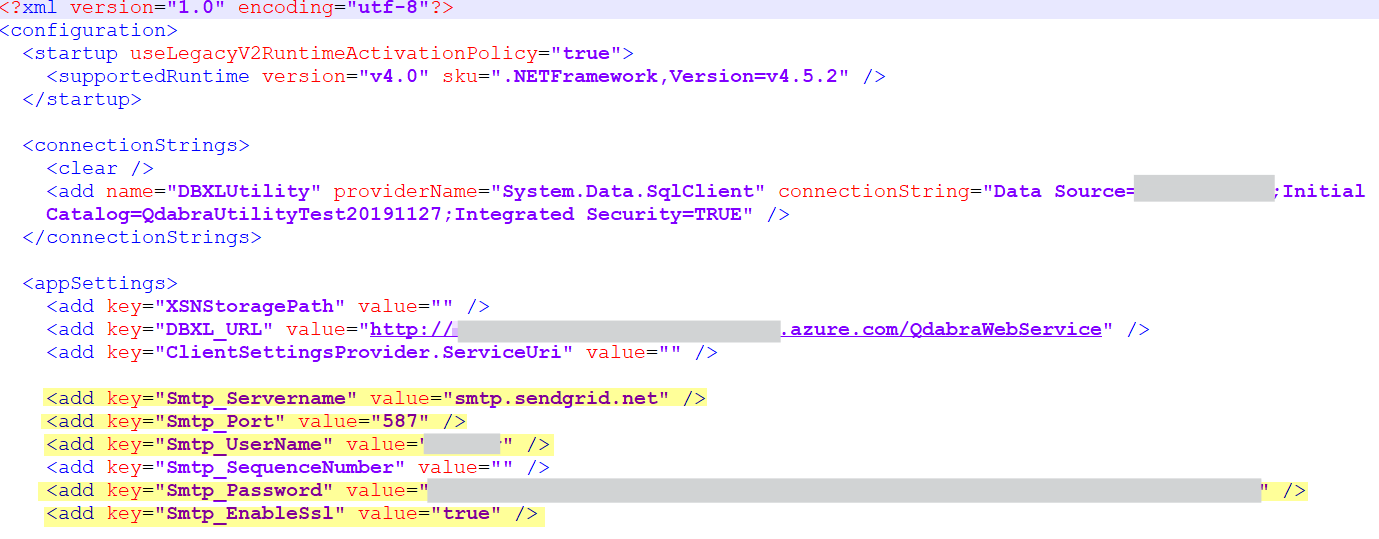
To fix this, verify that the SMTP username/password, server and port number in Qdabra.Dbxl.Rendering.exe.config (C:\Program Files\Qdabra Software\Qdabra DBXL Rendering Service\Qdabra.Dbxl.Rendering.exe.config) are correct. If not, replace them with the correct values.
When DBXL runs on HTTPS, make sure Enable SSL is set to true.
6.9 404 error when rendering
This could be the result of incorrect settings in the DBXL web.config. Several settings contain URLs to various locations within DBXL. If your DBXL URL has been changed recently, make sure that the URLs in web.config point to the correct links.
6.10 Error during user profile queries
Microsoft documentation indicates that this error can occur after logging in to a server for an interactive session using a service account. You can remedy the error by stopping the rendering service and restarting the DBXL app pool. After that, follow Method 2 in the Microsoft documentation to disable the setting that deletes user registry entries on logout. This is a temporary measure; a better long-term solution is to use a separate service account for the rendering service.
For help, active customers can use the Customer Support Portal. For anything else, use Contact Us or e-mail [email protected].
6.11 Summary
- Check the Qdabra event log (Event Viewer > Applications and Services Logs) first for Rendering Service errors.
- The Rendering Service needs a DBXL Enterprise license and does not start automatically right after installation.
- SQL errors usually mean a wrong Data Source or Initial Catalog in
Qdabra.Dbxl.Rendering.exe.config, or a service account that is not in DbxlAdmins. Error 1001during install is fixed by deleting the leftover service withsc delete "QdabraDBXLRendering";Error Processing PDF for DocIdby giving NETWORK SERVICE Full control on theXsnStoragefolder.- Mail errors are fixed through the SMTP settings in
Qdabra.Dbxl.Rendering.exe.config; 404 errors through the URLs in the DBXLweb.config.
Next: Chapter 7 - Release Notes.