Chapter 4 - E-mail notifications
When a workflow button assigns a form to someone, Central Flows can e-mail that person, with their proxies on CC. The e-mail is sent by your DBXL server, through an e-mail mapping on the CentralFlowsTasks document type; the form only decides whether a notification is wanted. This chapter sets up that mapping and explains how to choose when e-mails are sent. It assumes a DBXL server that you run yourself.
4.1 How a notification is sent
When a user clicks a workflow button, the Central Flows XTP writes a task document for the new assignee (Chapter 1, section 1.5) and saves it in DBXL. DBXL's e-mail mapping on CentralFlowsTasks (section 4.3) then sends the standard e-mail to the assignee, with the assignee's proxies on CC.
The task document carries two flags, and the standard e-mail is sent only when both are true; if either is false, nothing is sent:
| Flag | Set by | Default |
|---|---|---|
Tasks_SendDefaultEmail |
The workflow button's rule *** Send Default Task Email | true |
Tasks_SendEmail |
The rules on v2_XtpLogic_CentralFlows > XtpLogic > Actions > DetermineSendingEmail, on every workflow action | true |
Section 4.4 shows which one to change for what you want.
4.2 Before you start
- Access to the DBXL Administration Tool (DAT).
- The DBXL Rendering Service installed and configured with valid SMTP settings, because DBXL sends its e-mail through it. See the DBXL Administration Guide, Chapter 5.
- Central Flows XTP 1.0.0.1465 or later (November 2025) in your form templates. The
Tasks_SendDefaultEmailfield that the mapping checks was introduced in that version; with an older XTP the mapping's condition is never met and no e-mail is sent.
4.3 Create the e-mail mapping
In the DBXL Administration Tool, open the catalog, select the CentralFlowsTasks document type, and go to the Email tab. Under Create New Mapping, click New, then fill in the mapping as follows.
Mapping Basic Info
| Setting | Value |
|---|---|
| Mapping Name | Default Notification |
| View | no PDF (no PDF is rendered or attached; the notification is a regular e-mail) |

Rendering Process
| Setting | Value |
|---|---|
| Rendering is initiated when | Check both When a new document is submitted and When an existing document is modified |
| Action to take on the rendered PDF | Check Send Email with Attachment; leave Save as QdFile and send Email with link unchecked |
| PDF Naming (XPath) | Leave blank |
| Additional Condition (XPath) | /my:CentralFlowsTasks/my:Tasks_SendEmail = "true" and /my:CentralFlowsTasks/my:Tasks_SendDefaultEmail = "true" |
| Archival location | Leave blank |
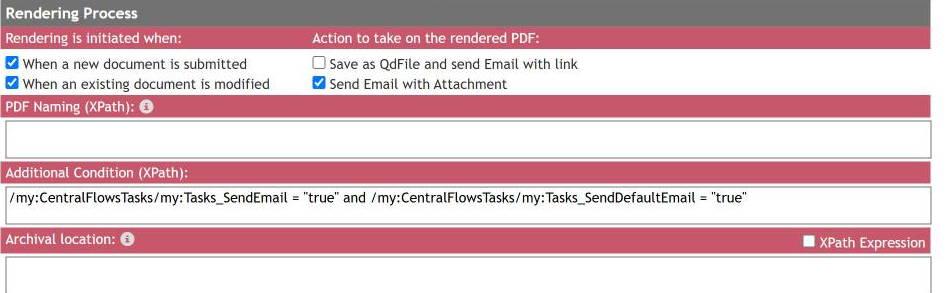
- Send Email with Attachment must stay checked even though nothing is attached: this checkbox is what makes DBXL send an e-mail at all. Because the View is
no PDF, only the e-mail body is sent. - The additional condition is what limits e-mails to the transitions the workflow flags, instead of every save of a task document.
- The condition names the root element (
/my:CentralFlowsTasks/...), while the subject and the addresses below use/*/my:.... Both forms are equivalent; the values are shown exactly as configured in a working mapping.
Rendering Contents
| Setting | Value |
|---|---|
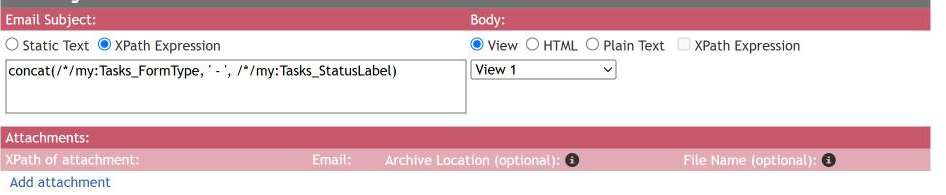
| Email Subject | XPath Expression: concat(/*/my:Tasks_FormType, ' - ', /*/my:Tasks_StatusLabel), which gives subjects such as "Expense Report - Pending Approval" |
| Body | View: View 1 (the task's view becomes the e-mail body) |
| Attachments | Leave empty |
Email Address
| Setting | Value |
|---|---|
| From Address | Static: your notification sender, for example [email protected]. Optionally a display name such as "Central Flows Notification". |
| To Address | Dynamic (XPath): /*/my:Tasks_AssignedTo |
| CC Address | Dynamic (XPath): /*/my:Tasks_Proxies |
| BCC Address | Optional Static address that silently receives a copy, for example for monitoring |
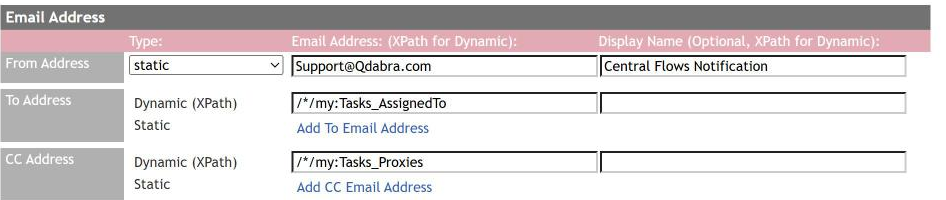
DBXL reads the assignee's and the proxies' addresses from each task document, so every notification goes to the right people without further setup.
Click Save at the top of the mapping. It now appears under Modify Existing Mapping on the Email tab.
To check it, move a form through a workflow step that assigns it to someone. That person receives an e-mail with the form type and status in the subject and the task view as the body.
4.4 Choosing when e-mails are sent
| You want | Do this |
|---|---|
| The standard e-mail on every workflow action | Nothing; this is the default. |
| No e-mail for some actions, for example a plain Save | In *** Send Default Task Email, set Tasks_SendDefaultEmail to false for those actions (4.4.1). |
| No e-mail while the form is in some state, for example Draft | Enable the sample rule Do not Send (for example, Draft) on DetermineSendingEmail, or a copy of it with your own condition (4.4.2). |
| No Central Flows e-mail at all, because you send your own (your own DBXL e-mail mapping, or the qRules SendEmail command) | Disable the rule *** Send Default Task Email (4.4.3). |
These settings are part of each template, so they affect only the template you change.
4.4.1 No e-mail for some actions
- On the canvas, select the workflow button in the task pane and click Rules.
- Open *** Send Default Task Email. It sets
Tasks_SendDefaultEmailtotrue. - Change it so that, for the actions that need no e-mail, the value is
false.
4.4.2 No e-mail in some states
- Select v2_XtpLogic_CentralFlows > XtpLogic > Actions > DetermineSendingEmail and click Rules.
- Enable the sample rule Do not Send (for example, Draft). Its condition is
../../Values/Status = "Draft"(the workflow status of the form) and it sets@sendEmailtofalse, which becomesTasks_SendEmail. - For another state, copy the sample rule, paste it, change its condition, and enable the copy. Keep the action that sets
@sendEmailtofalse.
4.4.3 No Central Flows e-mail at all
- On the canvas, select the workflow button in the task pane and click Rules.
- Disable *** Send Default Task Email.
Adding a rule on DetermineSendingEmail that always sets @sendEmail to false has the same result; disabling the rule is simpler.
Then send your own notifications, for example with a DBXL e-mail mapping on your form's own document type (if the form is submitted to DBXL), or with the qRules SendEmail command in a rule on XtpLogic > Actions > Submit, which can put the current view in the body or attach a PDF of any view (qRules Command Guide, 11.1).
4.5 Troubleshooting
| Symptom | Check |
|---|---|
| No e-mail at all | The Rendering Service is running and its SMTP settings work; the mapping exists on CentralFlowsTasks and is saved; both "Rendering is initiated when" options are checked. |
| No e-mail for one template or action | The rule *** Send Default Task Email is enabled and sets Tasks_SendDefaultEmail to true for that action; no rule on DetermineSendingEmail sets @sendEmail to false for the form's status. |
| E-mail goes to the wrong person | The step's Assignee in the Config form (Chapter 3, section 3.3); for an XPath assignee, the field must contain the person's e-mail address or account. |
| Proxies not copied | The proxy list in the Config form (Chapter 6, section 6.4) and the CC Address /*/my:Tasks_Proxies. |
For help, active customers can use the Customer Support Portal. For anything else, use Contact Us or e-mail [email protected].